
Configure Your Client CRM View
Customize which columns appear in your Clients dashboard to track the metrics that matter most to your coaching practice. Configure default columns, add custom fields like contracts or secondary coach assignments, and sync your client table data to Google Sheets or Excel for external reporting.
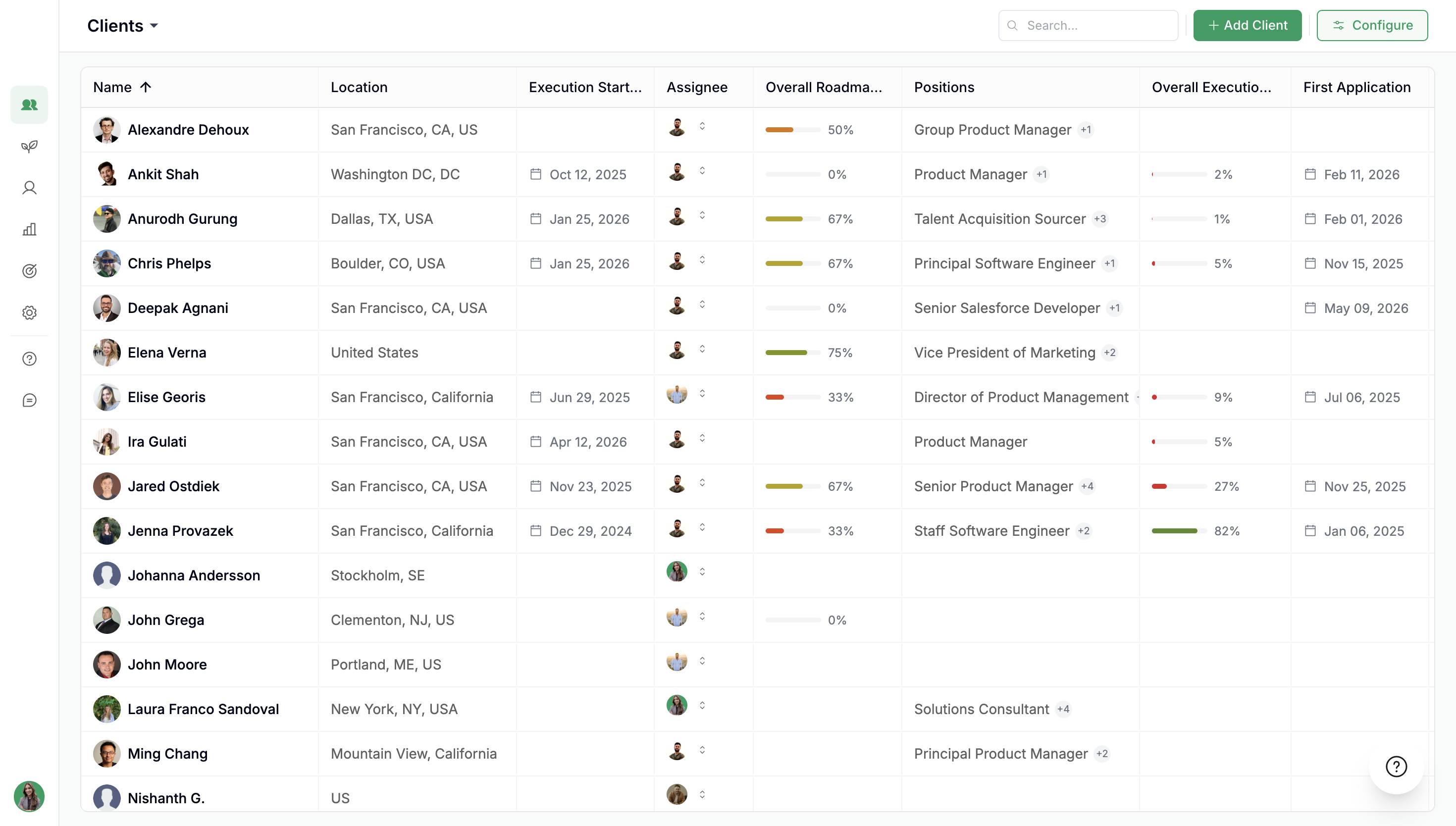
Organization admins can configure columns for the entire team. These settings apply to your Clients table view.
Open Column Configuration
Navigate to the Clients dashboard from the left navigation.
Click the Configure button in the top-right corner of the client table.
The configuration sidebar opens with three sections: Default Columns, Custom Columns, and Sync Data.
Configure Default Columns
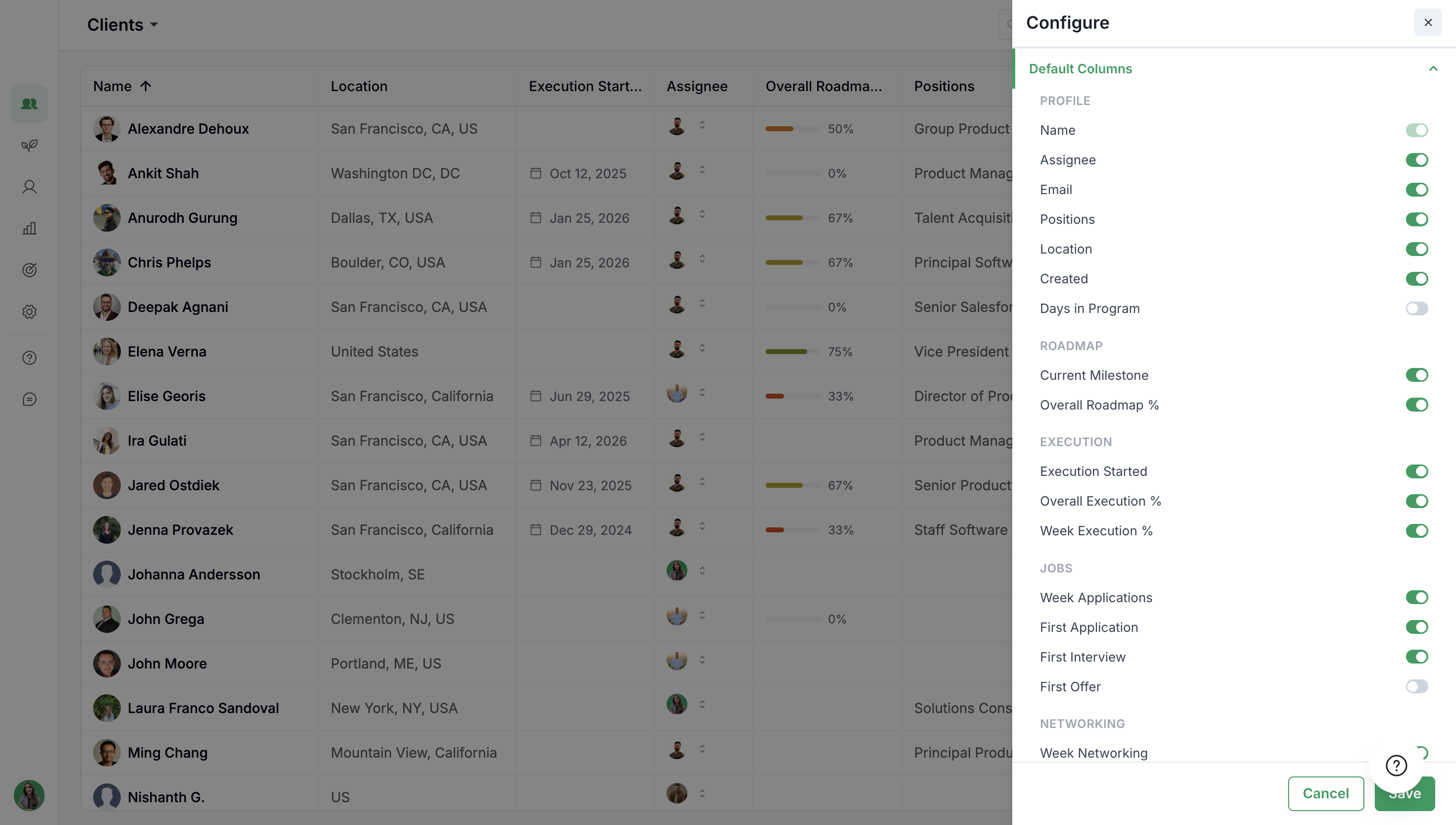
The Clients table includes built-in columns organized into categories. Toggle columns on or off based on what you want to track.
Profile Columns
Default profile columns include Name, Assignee, Email, Positions, and Location. These display core client information.
Roadmap Columns
Track client progress with columns like Execution Start, Overall Roadmap progress, and Current Milestone.
Execution Columns
Monitor weekly activity with columns such as Week Execution %, Week Application, and Week Networking.
Jobs Columns
Job-related metrics show First Interview and First Contact dates.
Networking Columns
Networking columns track referral activity and connection building.
Turn off columns you do not regularly use. A focused table is easier to scan and manage.
Add Custom Columns
Create custom fields to track data unique to your coaching practice, such as client contracts, preferred companies, or weekly time commitments.
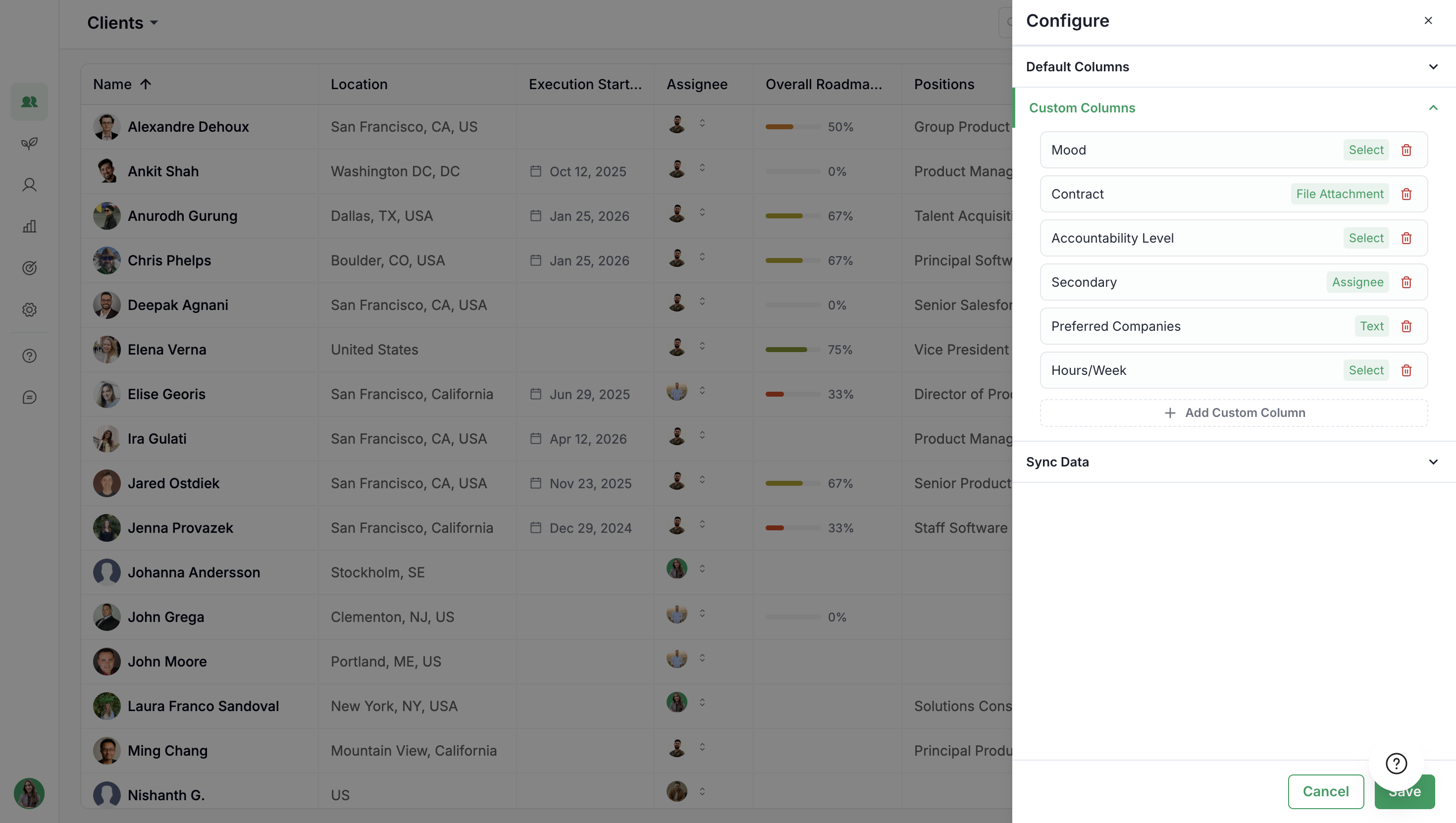
In the configuration sidebar, scroll to the Custom Columns section.
Click Add Custom Column.
Enter a label for your column (for example, "Contract" or "Preferred Companies").
Choose a column type:
Text - Free-form text entries
Number - Numeric values like hours per week
Date - Calendar dates for deadlines or milestones
Checkbox - Yes/no toggles for binary tracking
Select - Dropdown options with predefined choices
Assignee - Team member assignments, such as a secondary coach
File Attachment - Upload files like contracts or agreements
Click Save to add the column to your table.
Example uses: a Contract column as a file attachment for signed agreements, an Assignee column for secondary coach assignments, or a Number column for weekly time commitments.
Sync Data to Google Sheets or Excel
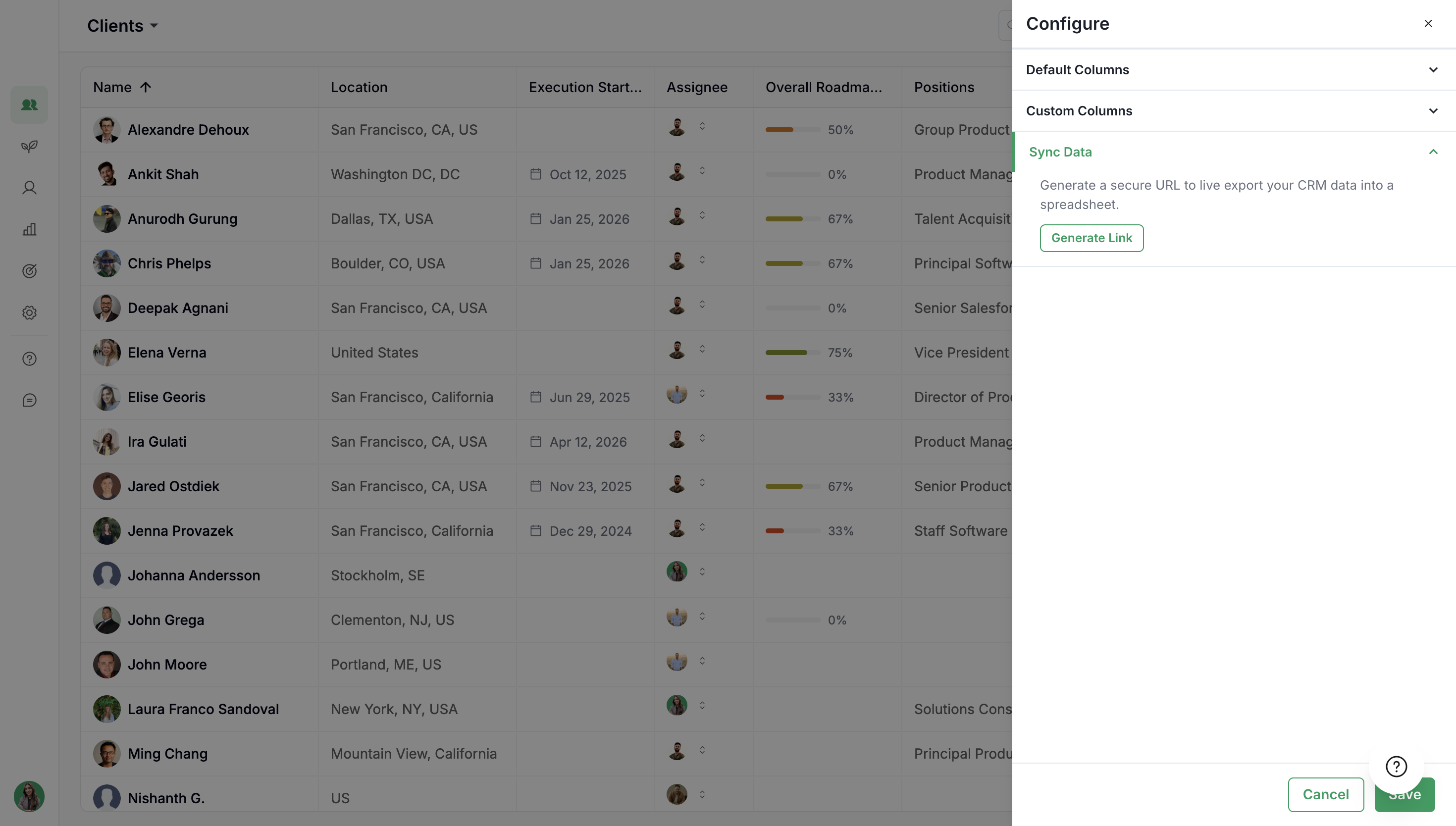
Export your client table data to a spreadsheet for external reporting, backups, or custom analysis. Use the generated secure URL to pull live data into Google Sheets or Excel.
Generate the Sync URL
In the configuration sidebar, scroll to the Sync Data section.
Click Generate Link.
Copy the generated secure URL.
Import into Google Sheets
Open a new or existing Google Sheet.
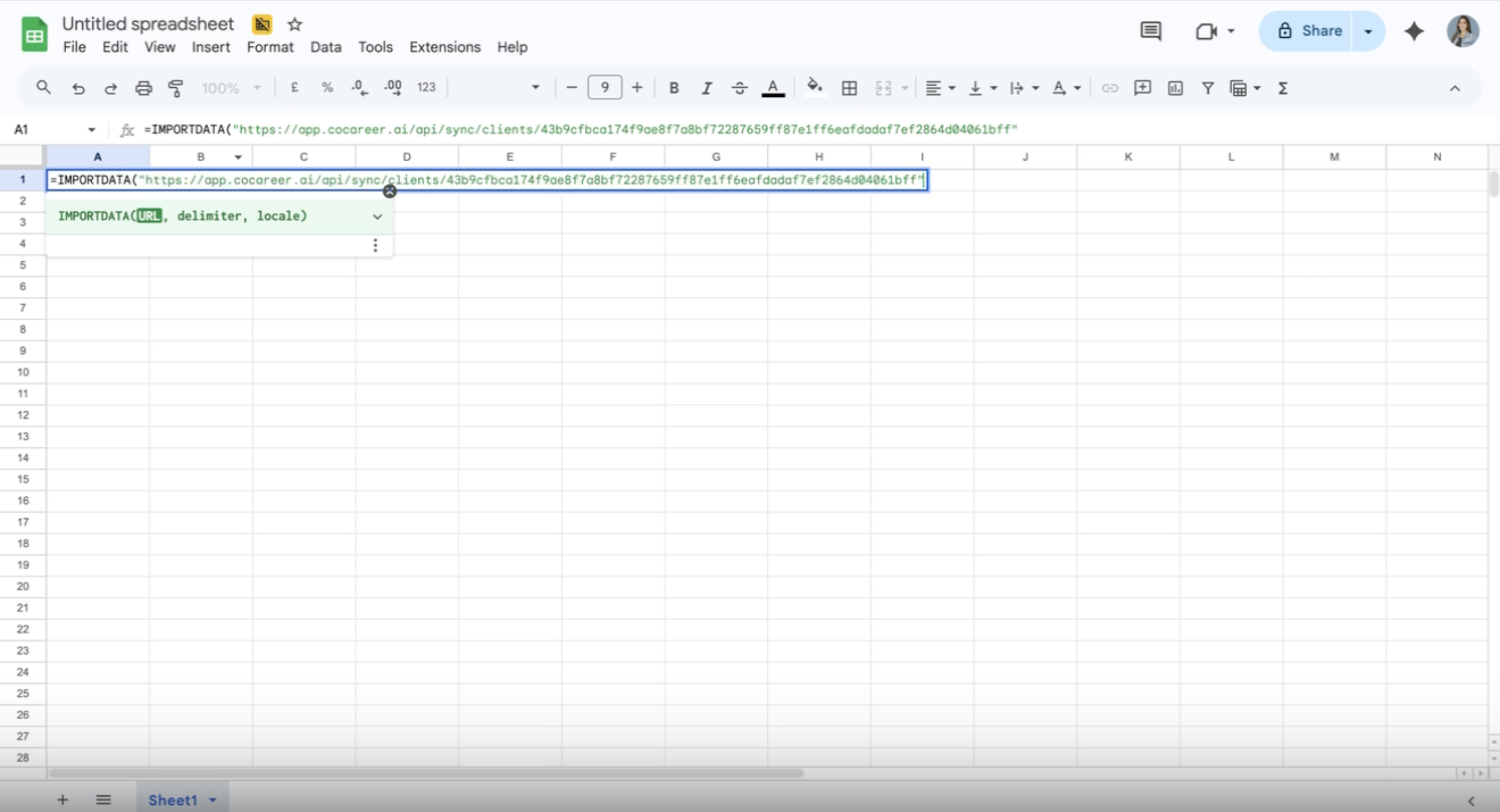
In a cell, enter:
=IMPORTDATA("paste-your-url-here")Google Sheets prompts you to allow access to external data. Click Allow.
The data imports into your sheet as a live feed.
Import into Excel
Open Excel and go to the Data tab.
Click Get Data then select From Web.
Paste your sync URL and follow the prompts to connect.
Excel imports the data as a refreshable connection.
The sync URL provides a one-way data export. Changes made in Google Sheets or Excel do not sync back to the tool.
Related Articles
Show or Hide Components - Control which modules appear for clients in their portal view
Sharing Client View Access - Give clients secure access to their own dashboards
Video Walkthrough
Watch the full walkthrough of client table configuration below.