
Add a New Client
Adding a new client to the tool takes about 3-5 minutes and sets up their entire job search journey. You'll import their LinkedIn profile, upload their resume, and configure their job search preferences to start tracking their progress immediately.
We recommend having the coach onboard the client (rather than sending a self-onboarding link) to ensure all information is accurately captured for the AI analysis.
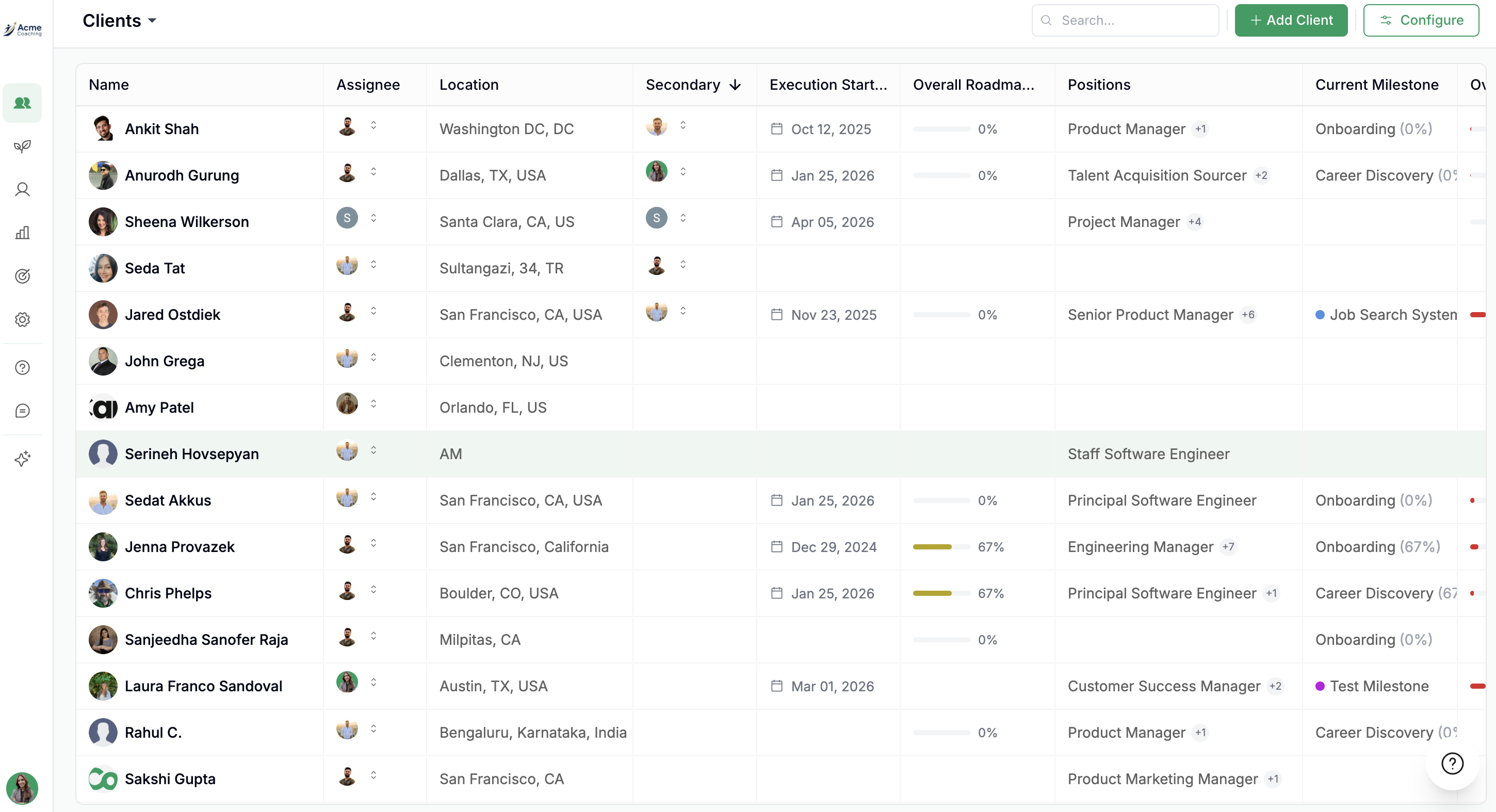
Step 1: Navigate to the Add Client Screen
From your Clients dashboard, click the Add Client button in the top-right corner.
Step 2: Choose Your Onboarding Method
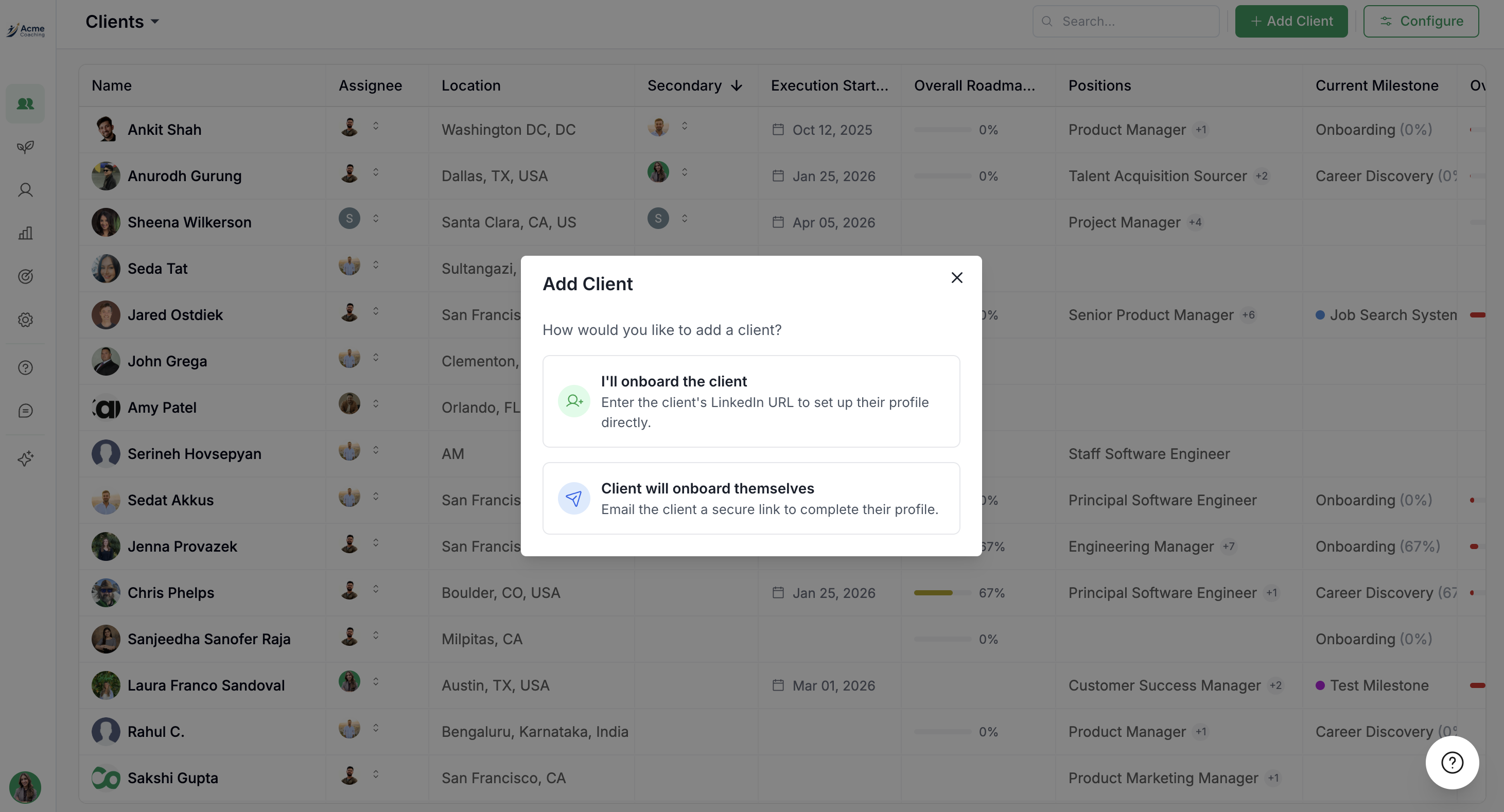
A modal will appear with two options:
I'll onboard the client — You enter their information directly (recommended for accuracy)
Client will onboard themselves — Send them a secure link to complete their own profile
Select I'll onboard the client to proceed with coach-led onboarding.
Step 3: Enter the Client's LinkedIn URL
Paste the client's full LinkedIn profile URL into the input field and click Get Started.
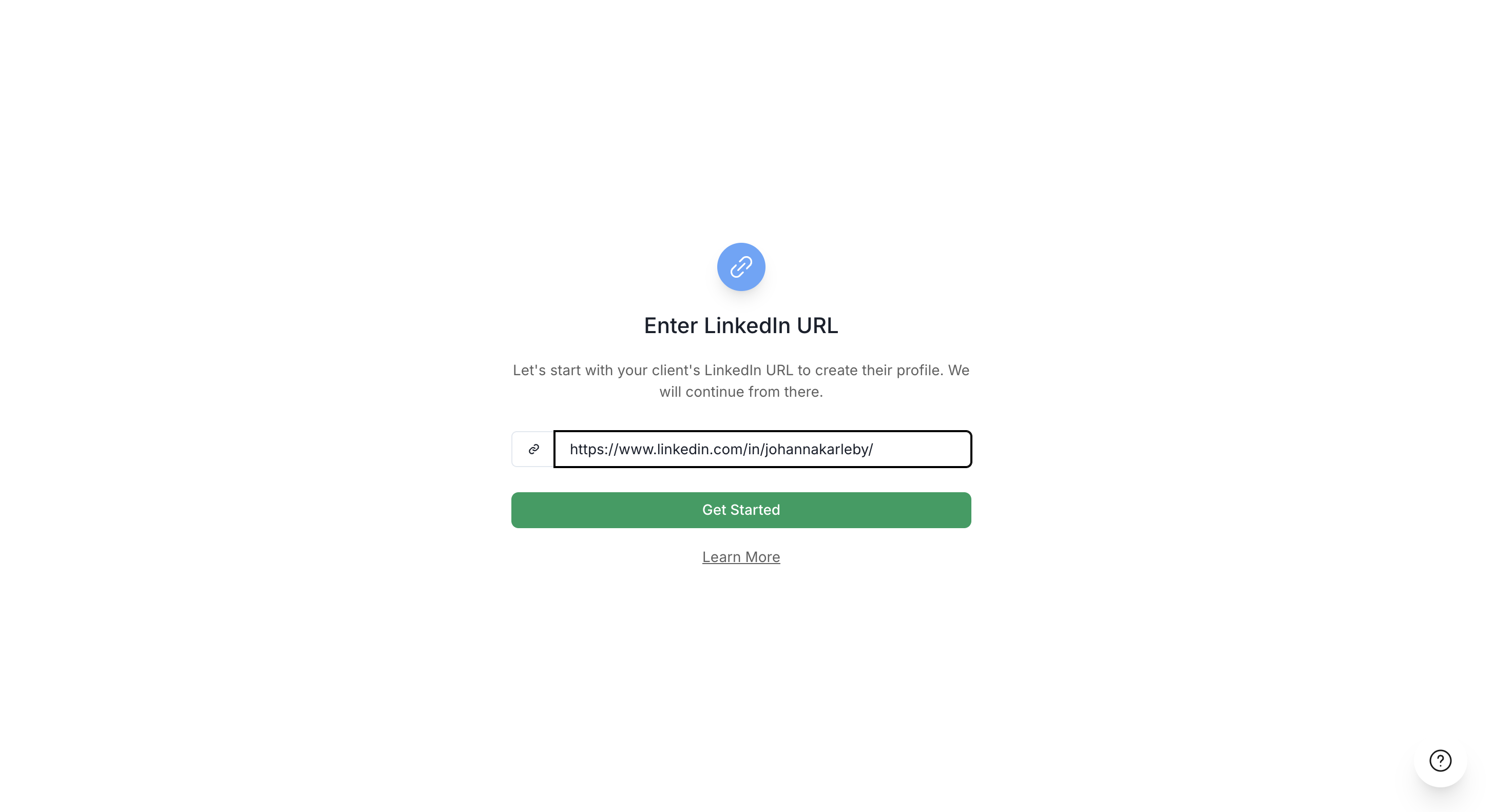
The LinkedIn URL helps the tool's AI understand the client's work history and professional background for better job matching.
Step 4: Upload the Client's Resume
You'll be prompted to upload their resume. Click the upload area to select a file or drag and drop their resume directly.
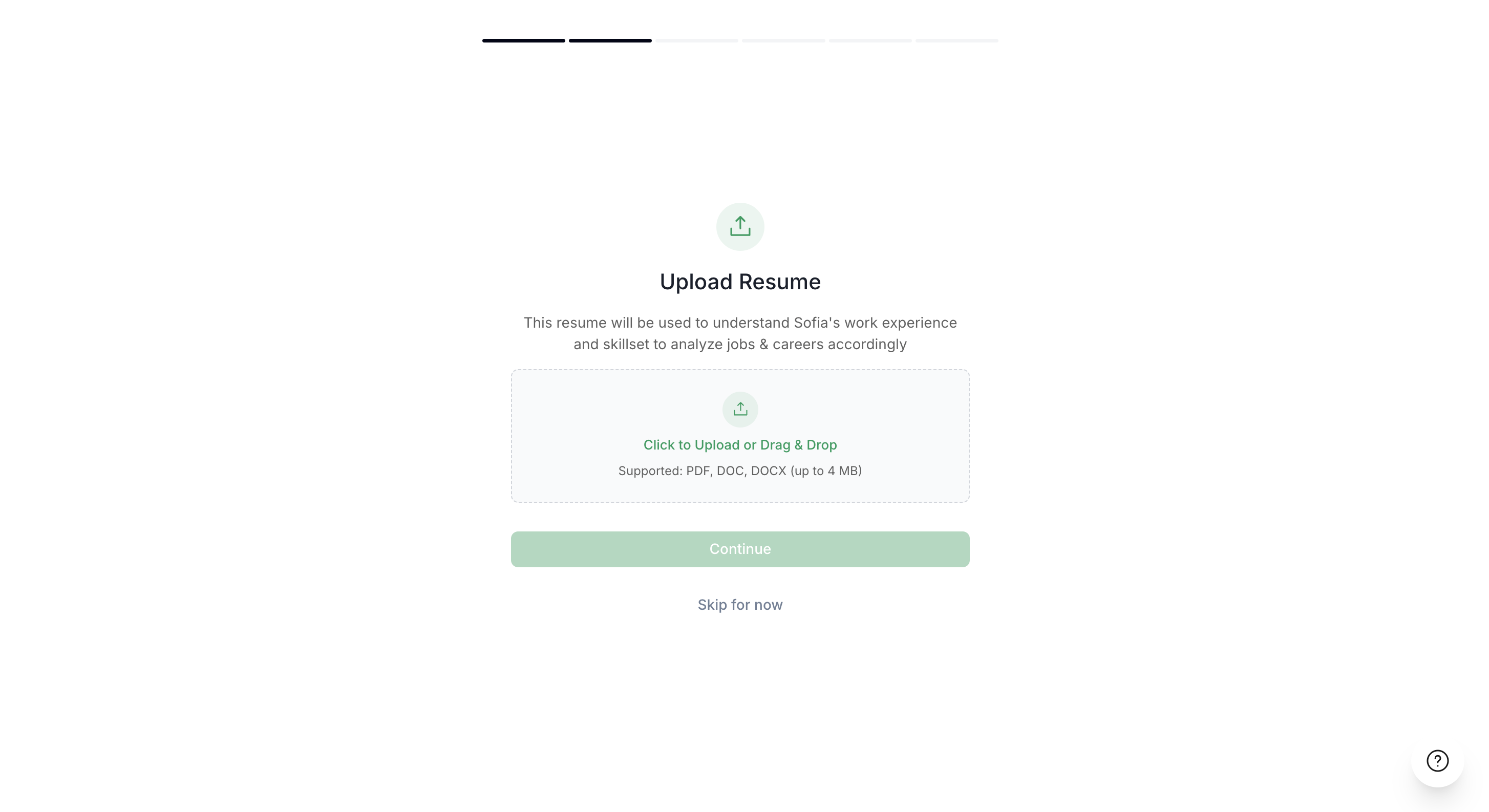
Supported file types: PDF, DOC, DOCX (max 5MB)
Once uploaded, you'll see the file name and size confirmed. Click Continue to proceed, the resume processes in just a few seconds.
Make sure the resume is current and complete since it's used by the tool's AI to match clients with relevant jobs and career paths.
Step 5: Set Location and Job Preferences
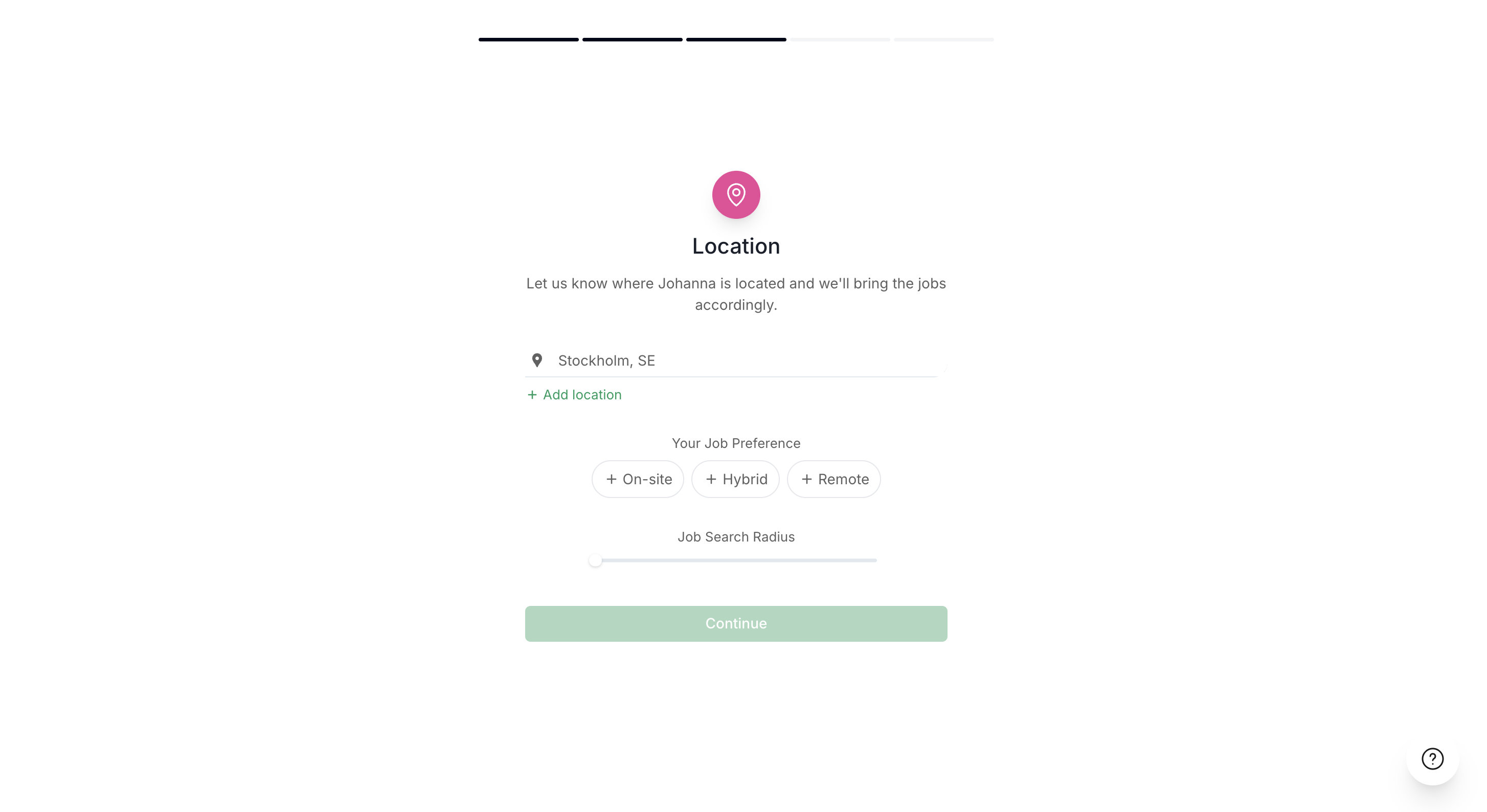
Configure where the client wants to work and what type of positions they're interested in:
Location: Start typing the city or region (e.g., "Boulder, CO, USA"). The system will auto-suggest locations.
Job Type Preferences: Select one or more options: On-site, Hybrid, or Remote.
Click Continue when finished.
Step 6: Enter Salary Expectations
Set the client's minimum expected salary using the slider or by typing directly into the input field. Select the frequency (Annual, Monthly, etc.) from the dropdown.
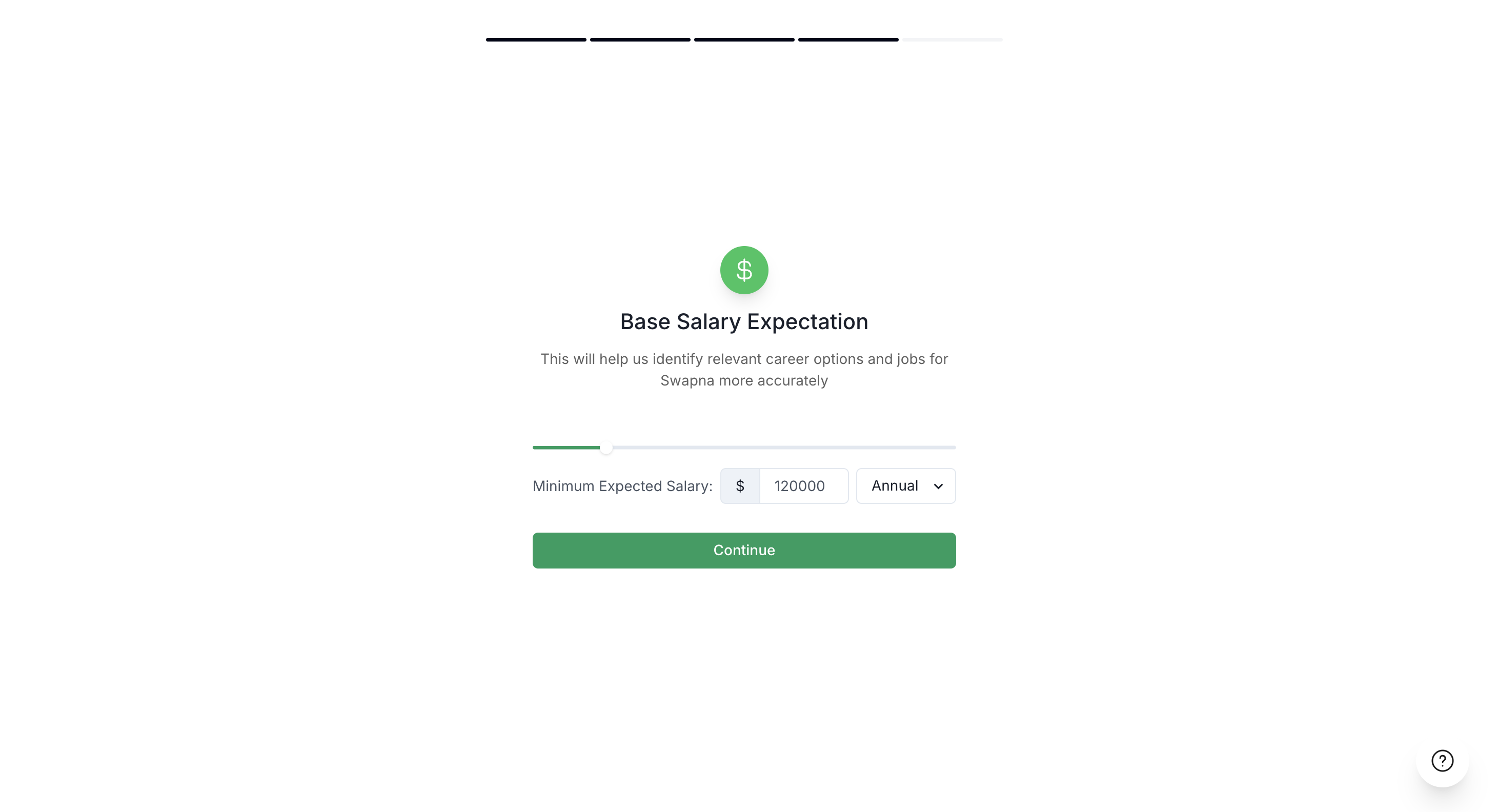
This helps the tool filter job matches to ensure they align with the client's financial goals. Click Continue.
Step 7: Define the Client's Goal and Target Date
In the final step, you'll set the client's career goal and timeline:
Goal Description: Describe what the client wants to achieve (e.g., "Chris wants to crack into higher paying, senior engineering roles at Big Tech").
Goal Achieve By: Select a target date using the date picker.
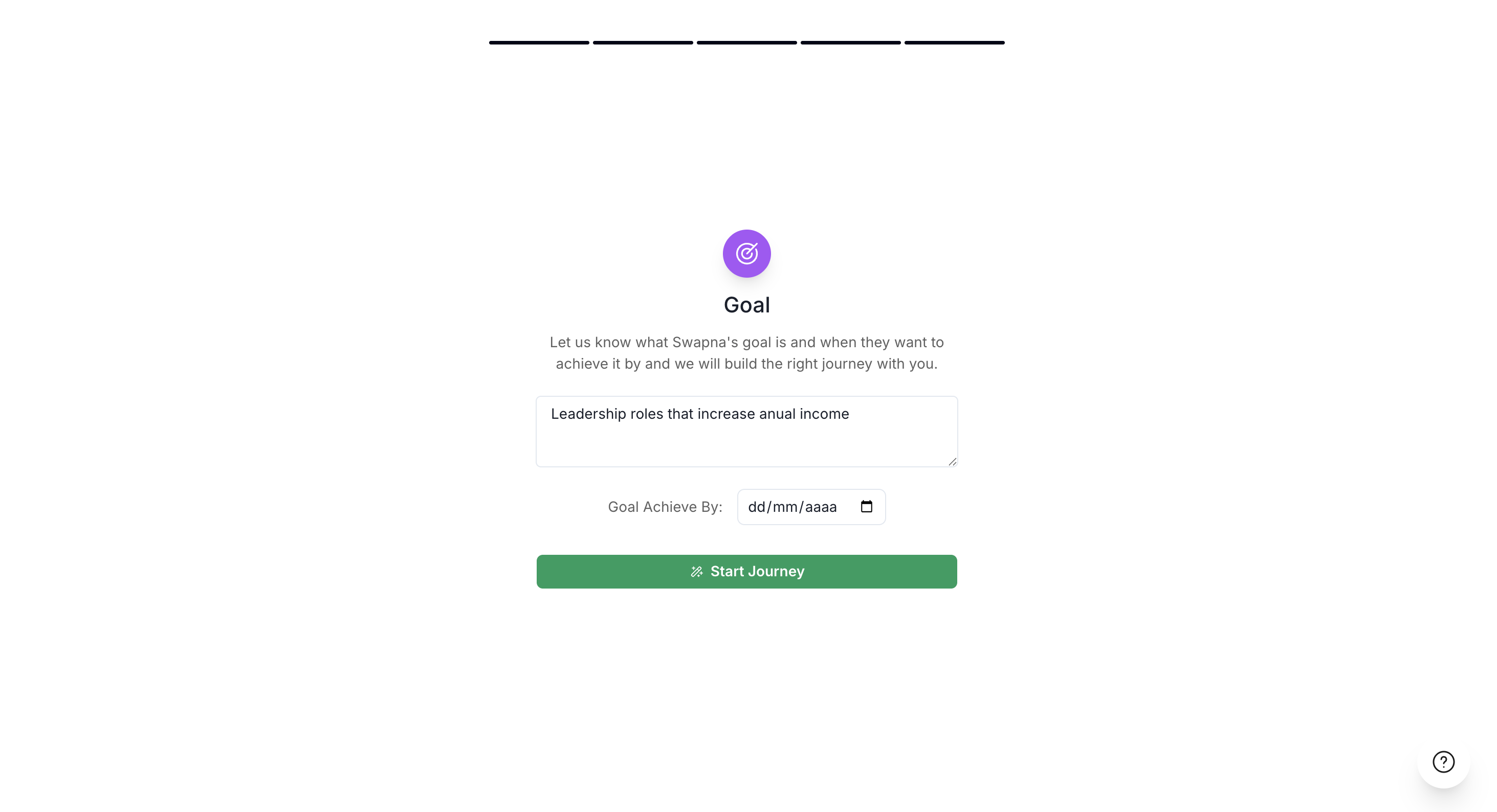
Click Start Journey to complete the onboarding process.
The goal or goal date are just for your own small memo. It is not considered for any of the components or AI analysis.
Step 8: Client Dashboard is Ready
Once you've started the journey, the client's personalized dashboard will load. You'll see sections for:
Goal — Summary of their objective, salary target, and preferences
Careers — Career path recommendations
Roadmap — Milestones and tasks to reach their goal
Jobs — Matched job opportunities
Networking — Networking contacts and opportunities
Execution — Tasks, targets, and accountability tracking
Notes — Session notes and observations
Documents — Uploaded files and documents
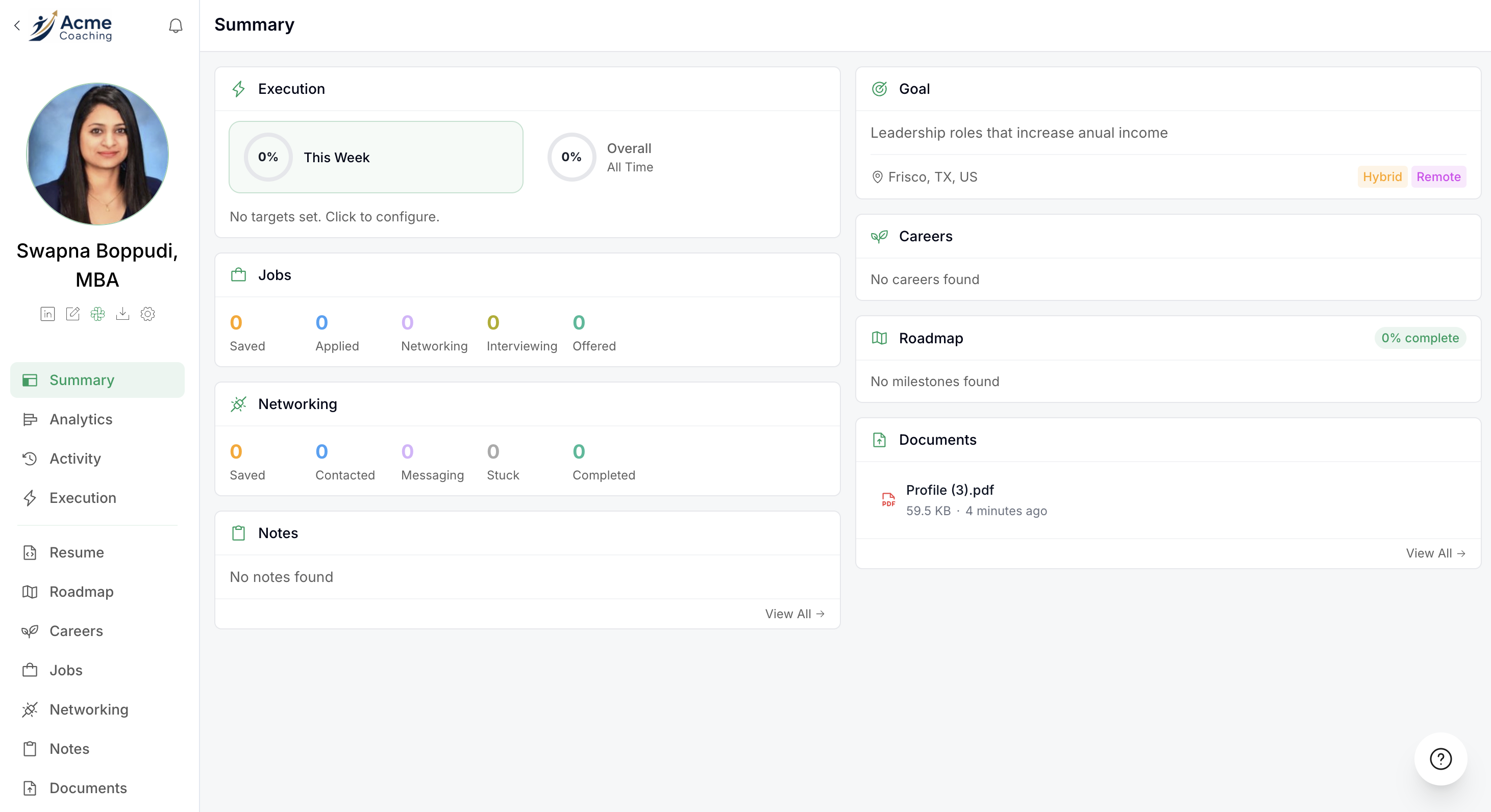
As you and your client make progress (adding tasks, applying to jobs, scheduling networking calls), this dashboard will populate with real-time data and insights.
Your client is now onboarded! The Tool will begin analyzing jobs from its 5M+ job database and generating personalized recommendations based on the profile you just created.
Video Walkthrough
For a complete visual walkthrough of this process, watch the full onboarding video below: