
Connect CoCareer to AI tools with MCP
MCP (Model Context Protocol) connects CoCareer to the AI tools you already use, like Claude, ChatGPT, and developer tools. Once connected, you can ask your AI tool questions about your clients, automate daily check-ins, and generate reports directly from your CoCareer data. This guide covers finding the MCP settings, connecting Claude, asking client questions, and automating tasks and reports.
Find the MCP settings
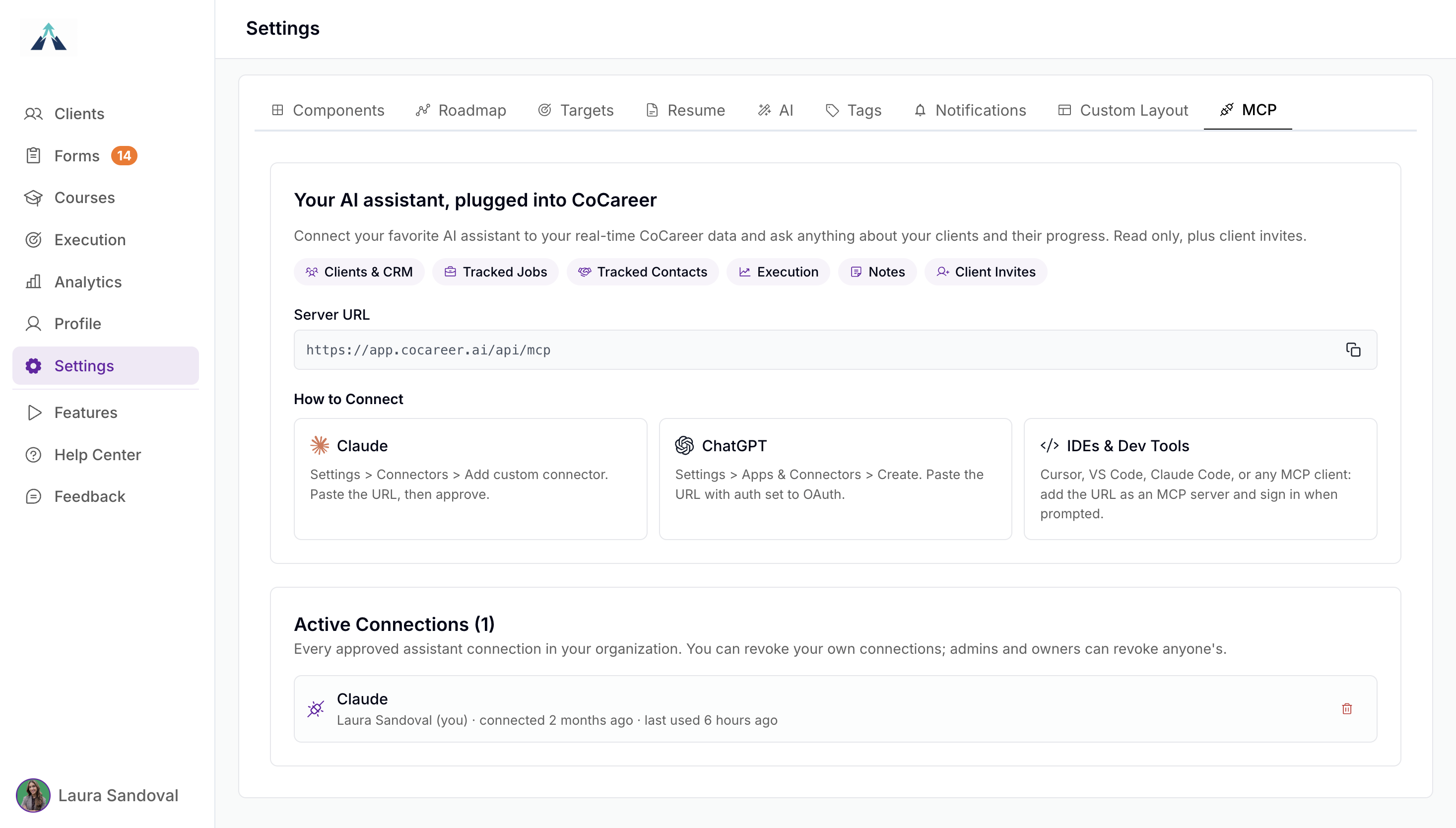
Open Settings and select the MCP tab, which is the last tab in Settings. Here you will find the server URL and the instructions for connecting Claude, ChatGPT, and IDEs and developer tools. You will copy this server URL when you set up your AI tool.
Connect Claude to CoCareer
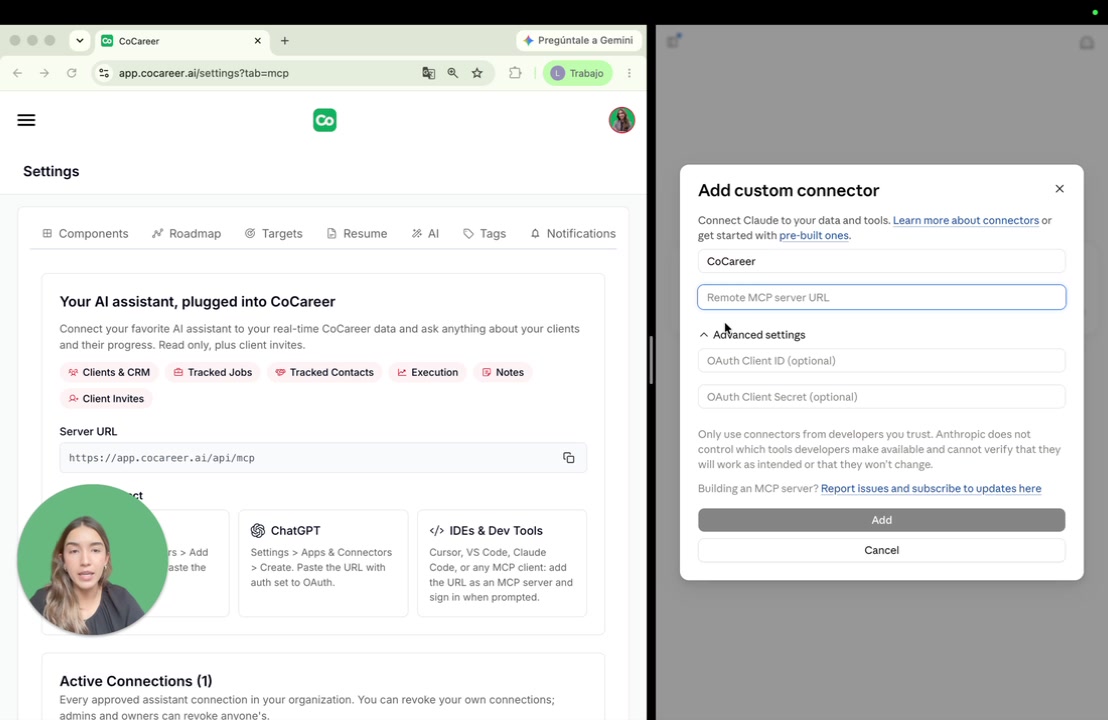
You connect an AI tool by adding a custom connector and pasting in the CoCareer server URL. You do not need to add anything else.
In Claude, click the + icon.
Choose Connectors.
Click Add connector, then Add custom connector.
Name the connector whatever you want.
Paste the server URL from your CoCareer MCP settings:
https://app.cocareer.ai/api/mcp.Add the connector.
Ask questions about your clients
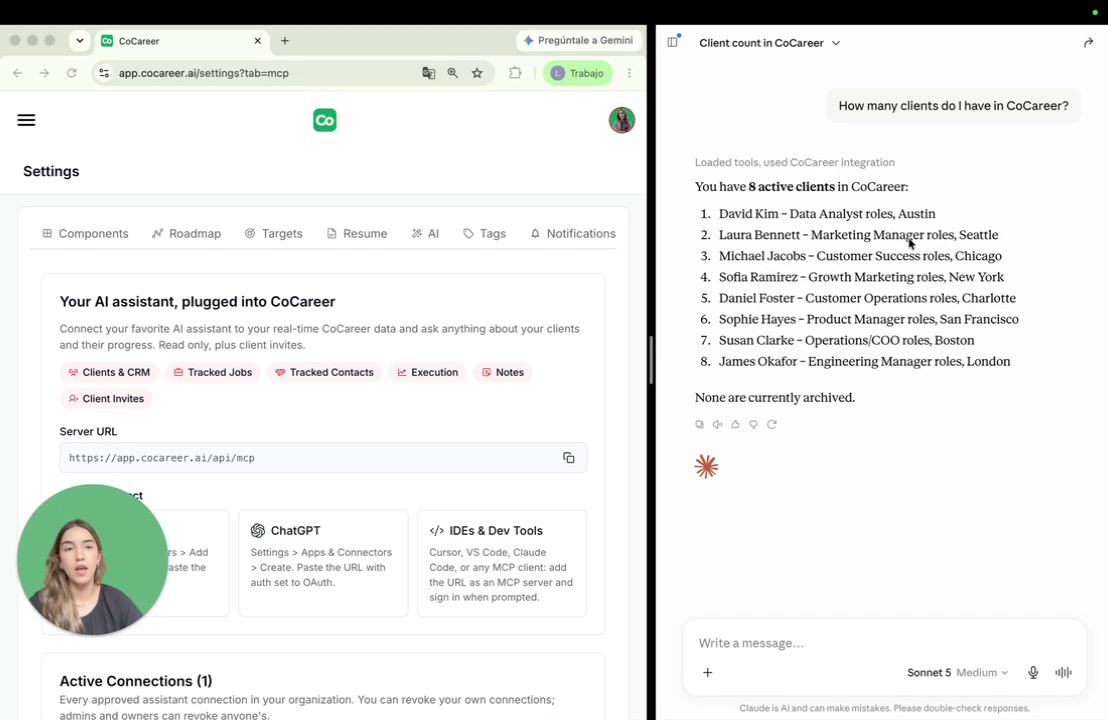
With the CoCareer connector turned on, ask your AI tool questions about your clients and it pulls live answers from CoCareer instead of you analyzing the data yourself.
"How many clients do I have in CoCareer?" returns your active client count and their names.
"Which are the three clients with lowest execution?" returns the clients with the lowest execution percentages.
Sample Use Case: Automate a daily client check-in with Claude Pro
If you pay for Claude Pro, you can create scheduled tasks that review your CoCareer data on a set schedule. For example, a daily low-execution client check-in runs every day at 9:30 AM: Claude reviews your clients' execution in CoCareer, and if a client's execution dropped 25% or more from last week, Claude messages them through Slack in their own channel.
Video walkthrough
Watch the full walkthrough of connecting CoCareer to AI tools with MCP: