
Confirm the CoCareer bot is a member of that channel (/invite @CoCareer), the correct default or client channel is selected, and the notification type is turned on in Settings > Notifications or in that client’s Notifications overrides.
Integrating Slack for Notifications
Connect your Slack workspace in Settings > Notifications so coach and client alerts go to the channels you choose. You can set a default coach channel, assign a channel per client, brand the CoCareer bot, and override notification preferences for individual clients.
You need access to Settings in the tool and permission to add apps in the Slack workspace you connect.
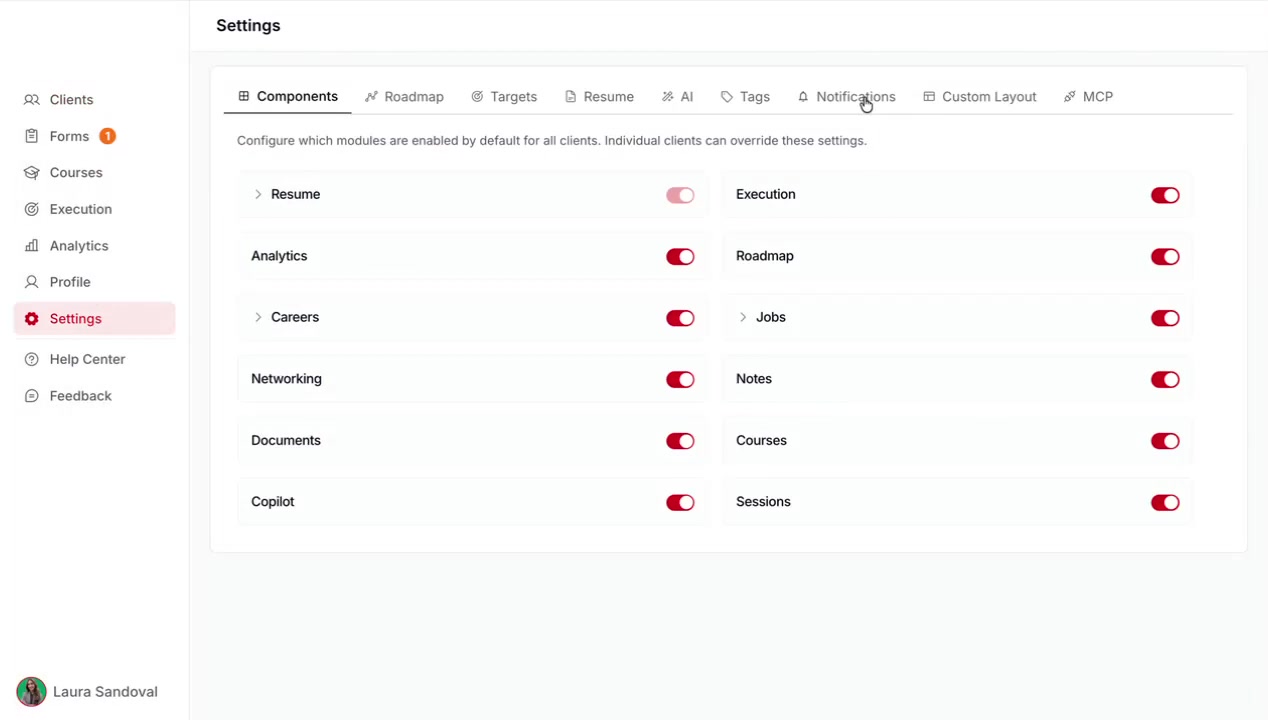
Step 1: Open notification settings
Go to Settings in the left sidebar, then open the Notifications tab. You will see Email Notifications and Slack Notifications.
Step 2: Connect your Slack workspace
In Slack Notifications, connect the workspace where you want coach and client alerts to land.
Click Connect next to Slack Notifications.
In the Slack Configuration modal, click Connect Workspace.
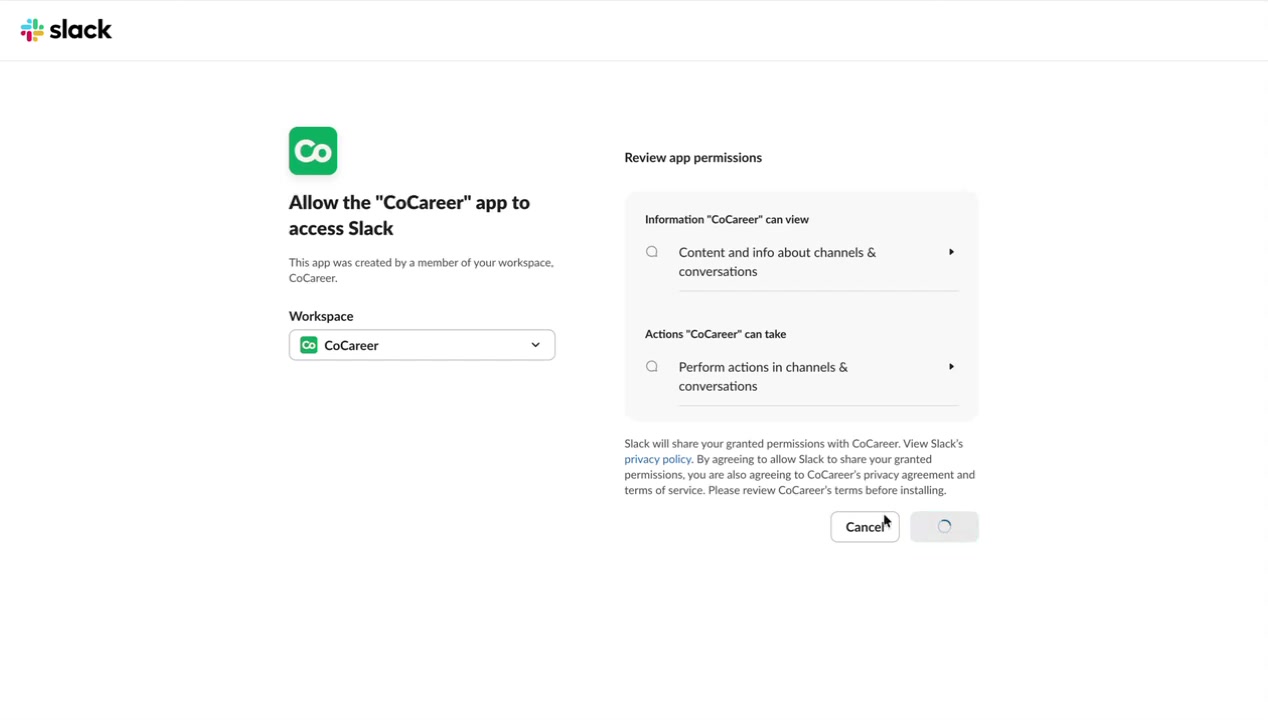
On Slack’s authorization page, choose the workspace, review the CoCareer app permissions (including sending messages), and click Allow.
After you allow access, Slack Notifications shows that you are connected and that the default channel is not configured yet.
Step 3: Set the default coach channel
The default channel is where coach notifications about your clients are delivered.
Click Configure next to Slack Notifications.
In Slack Configuration, click Select next to Default Channel.
Choose the channel for coach notifications, then click Select Channel.
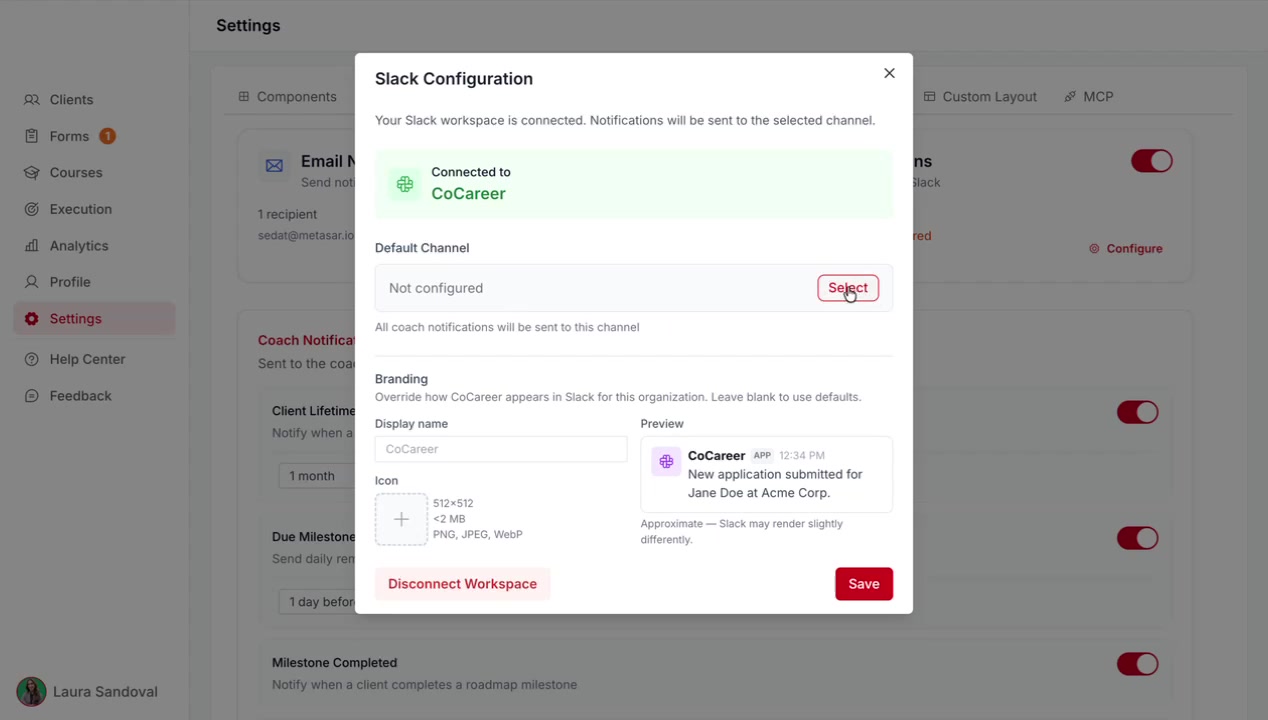
The default channel updates in Slack Configuration after you select it.
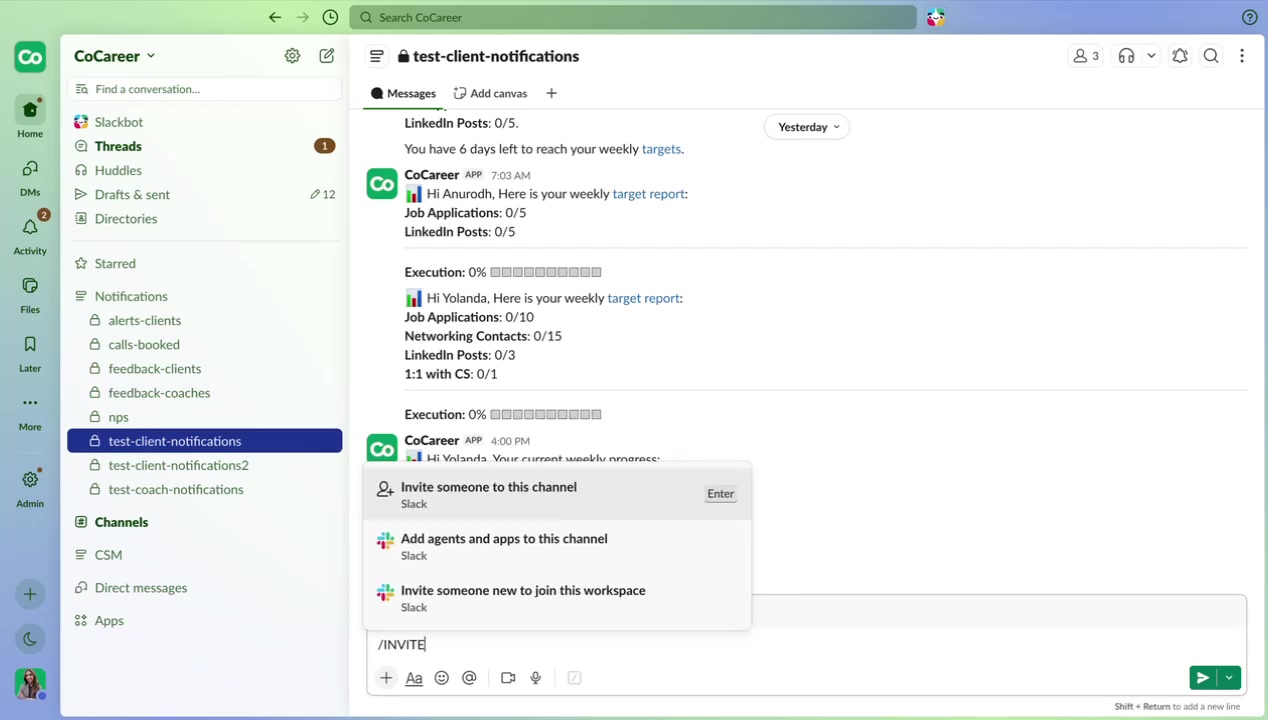
Invite the CoCareer bot to every channel you use. In the Slack channel, type /invite @CoCareer and add the app. Notifications do not work in a channel until the bot is a member.
Step 4: Brand the Slack bot
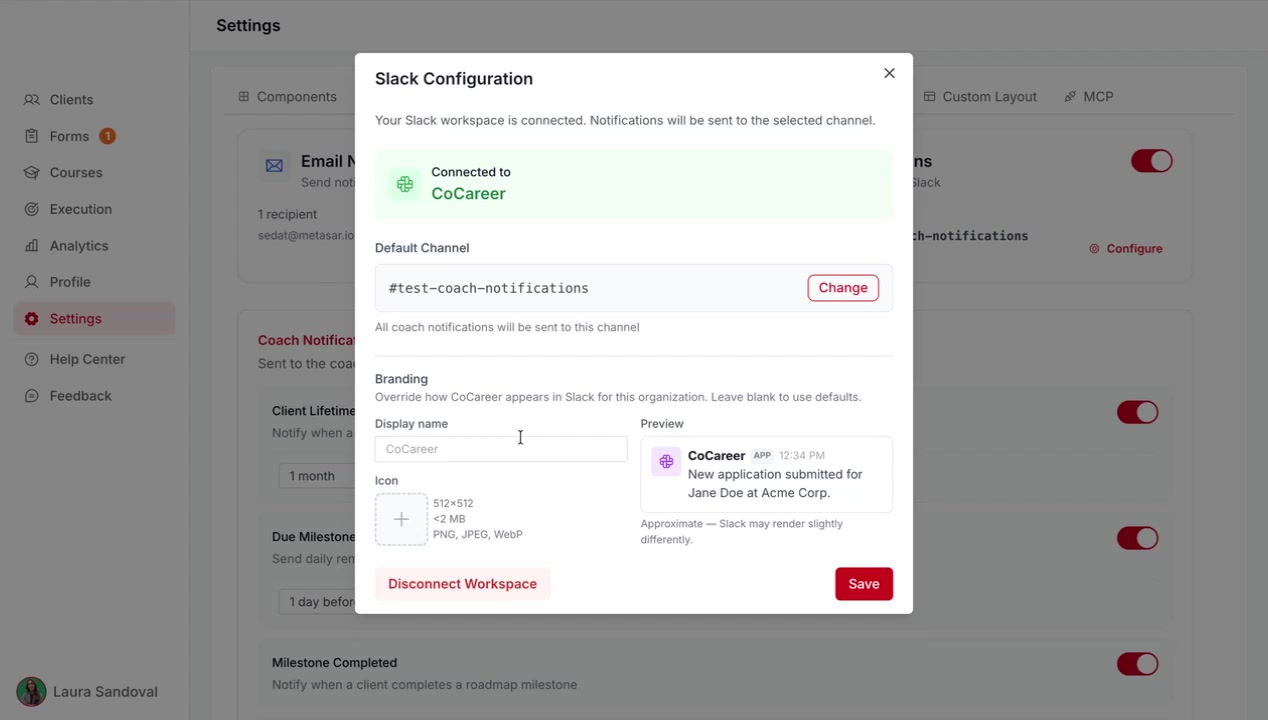
In the same Slack Configuration modal, use Branding so messages appear under your coaching brand instead of the default CoCareer name.
Set Display name to the name clients and coaches should see on Slack messages (for example, your coaching practice name).
Upload an icon so notifications use your logo.
Click Save. A confirmation appears when branding is saved.
Step 5: Choose which notifications to send
On Settings > Notifications, turn coach and client notification types on or off and set timing options where available.
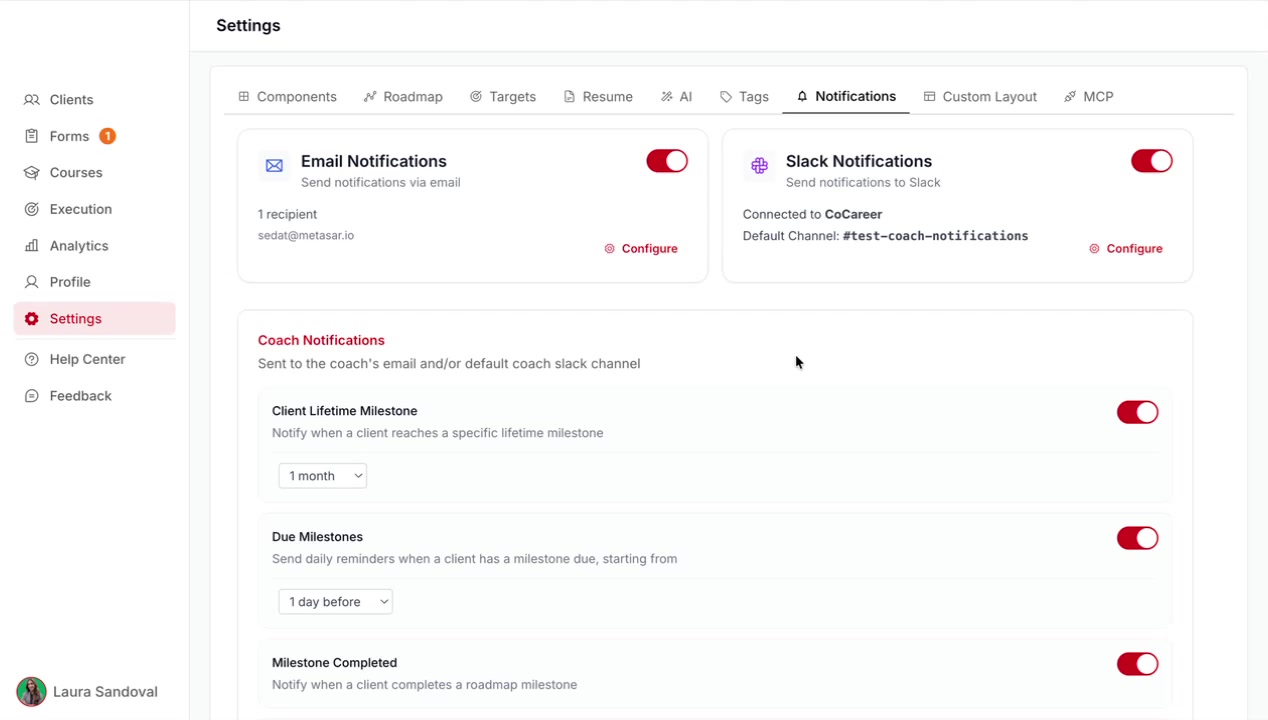
Coach notifications
These go to your default coach Slack channel. Some are:
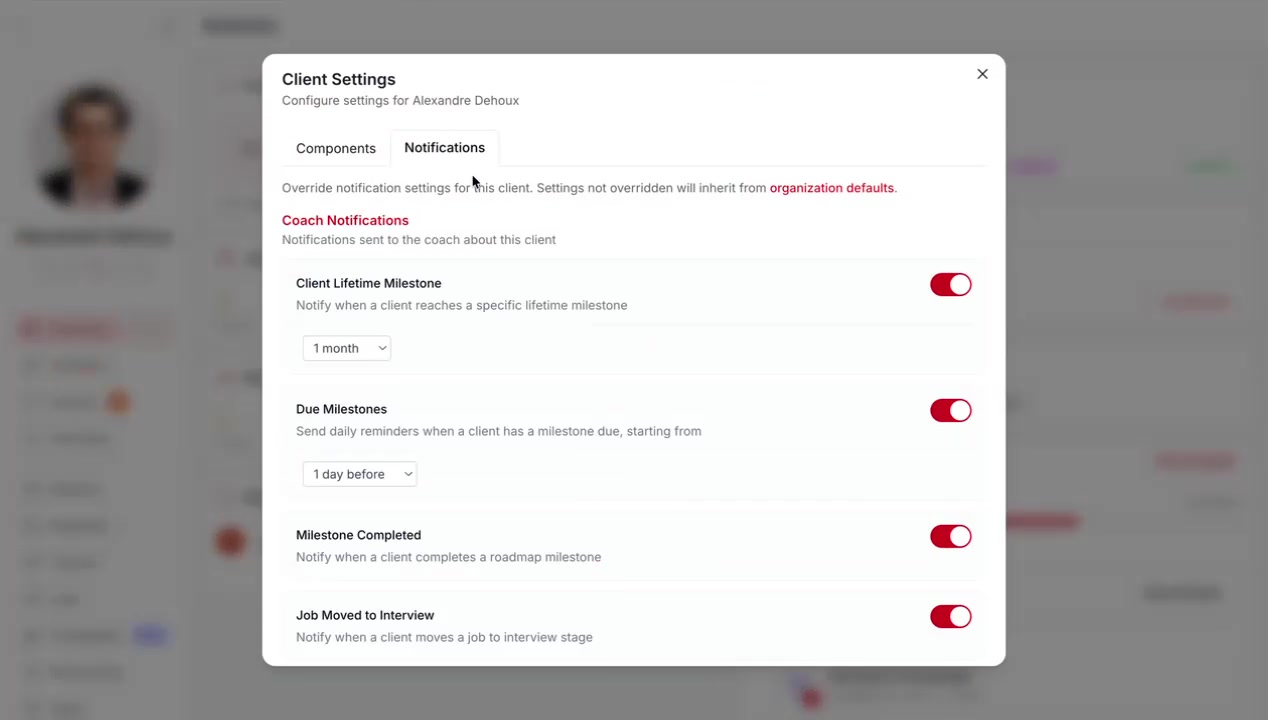
Client Lifetime Milestone
Due Milestones
Milestone Completed
Job Moved to Interview
Execution Reminder (choose days of the week)
Execution Report
Client notifications
These go to each client’s assigned Slack channel. Some are:
Job Digest (frequency and minimum score)
Execution Reminder (choose days of the week)
Execution Achieved
Execution Report
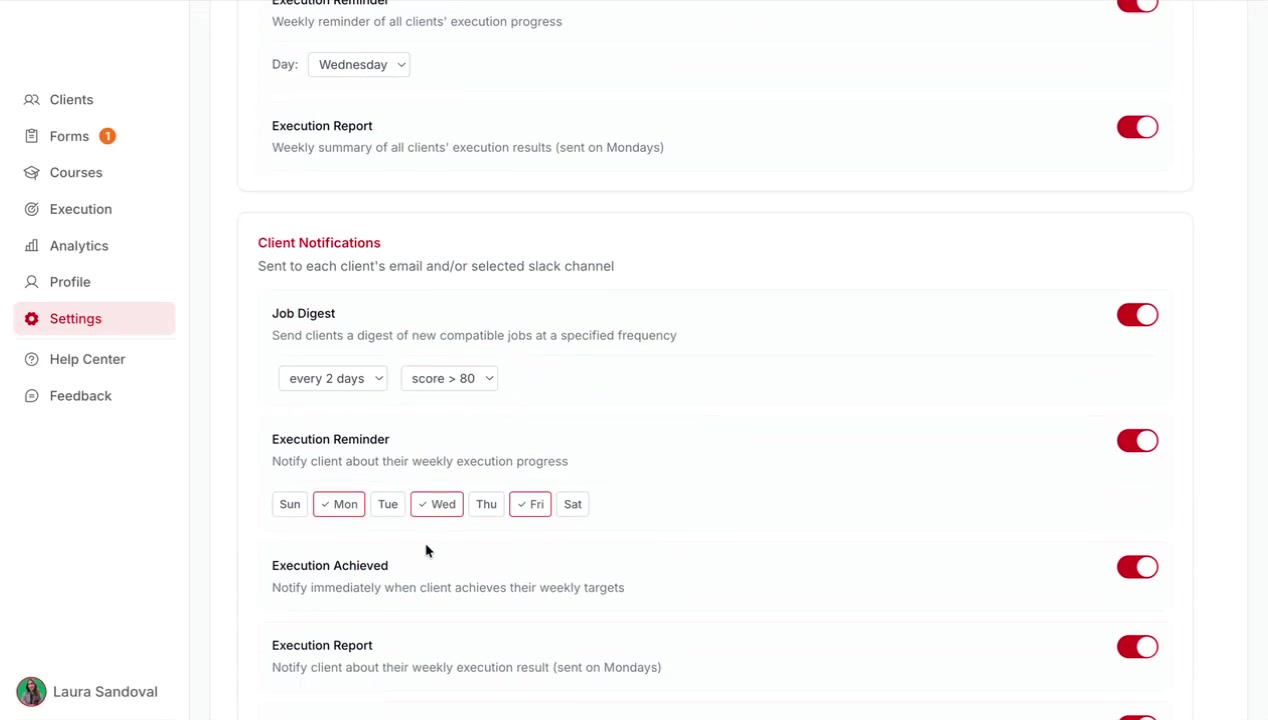
These controls are the organization defaults. You can override them for a single client after you assign that client a Slack channel.
Step 6: Assign a Slack channel to a client
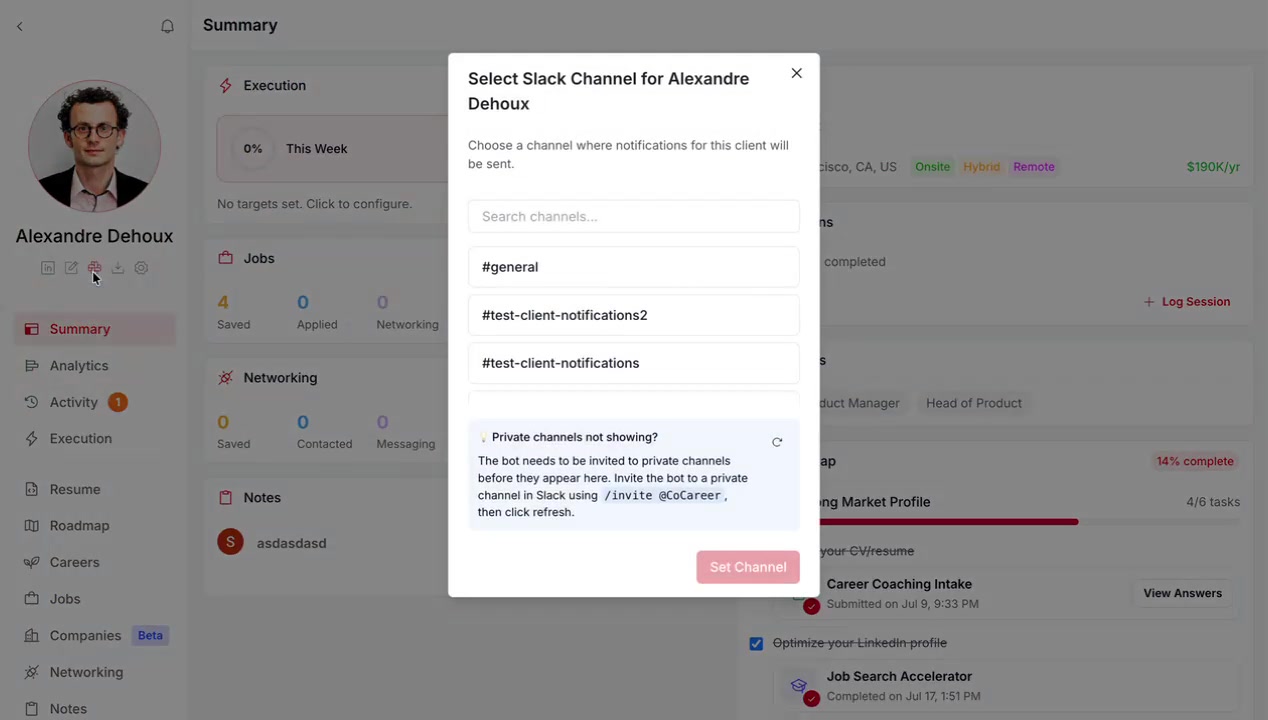
Each client can have their own channel for client-facing notifications.
Open the Clients list and click the client.
On the client summary, click Set Slack Channel.
Select the channel for that client, then click Set Channel.
In Slack, invite the CoCareer bot to that channel with
/invite @CoCareerif it is not already a member.
Override notifications for one client
Use client settings when one client should receive different notification timing or toggles than your organization defaults.
On the client summary, open Client Settings.
Select the Notifications tab.
Adjust coach or client notification toggles and schedules for that client only (for example, change Execution Reminder days).
Troubleshooting
No messages arrive in a channel
Video walkthrough
Watch the full Slack notifications setup:
Was this helpful?
Was this helpful?