
Creating and Managing Courses
Courses let you build your coaching program once and deliver it to clients, with modules, lessons, attached forms, and optional roadmap placement. You create a course, add modules and lessons, attach content and forms, publish it, and then share it with clients directly or through their roadmap.
Create a Course
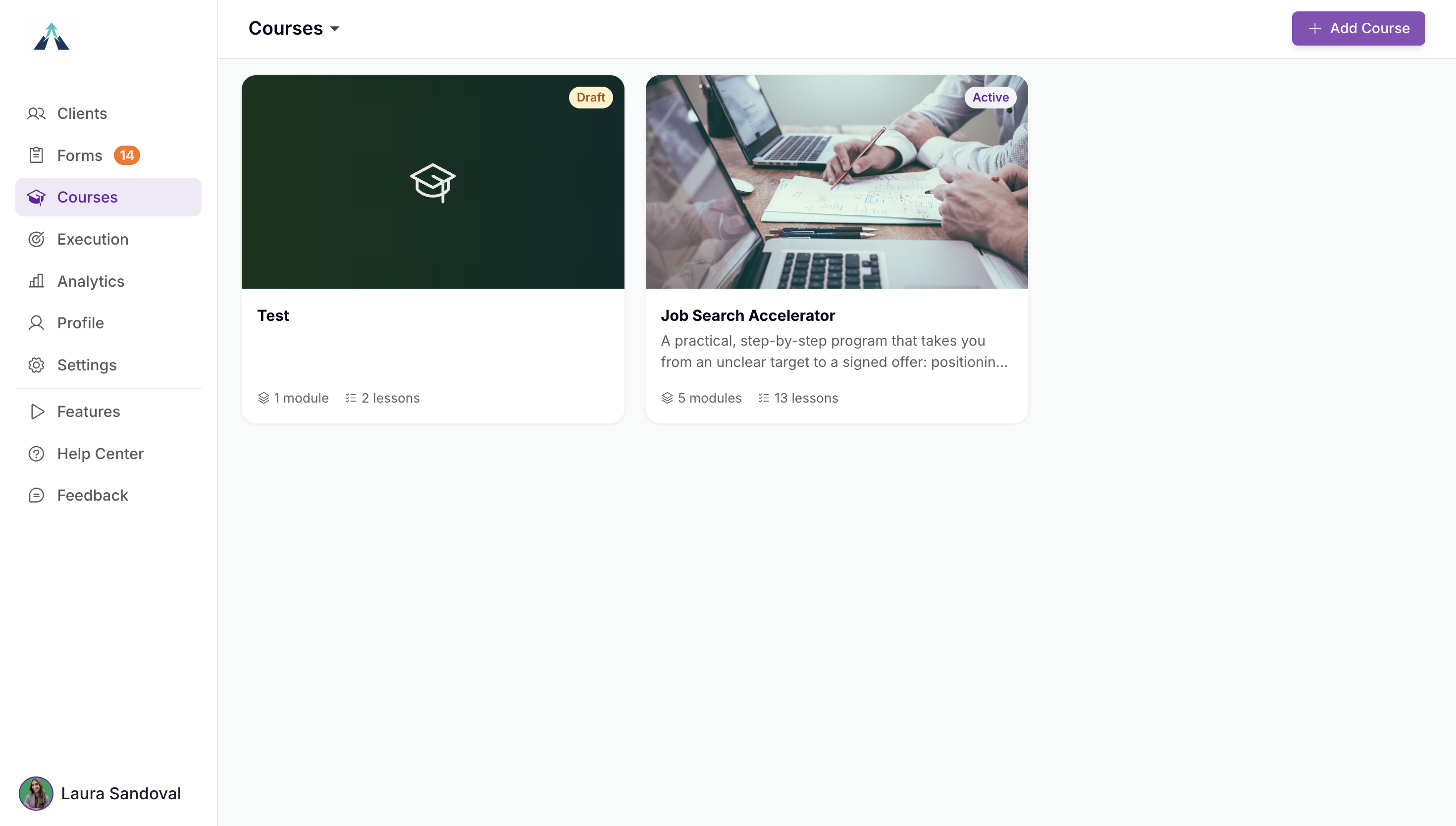
Courses live under the Courses tab in the left sidebar. Open it and click Add Course.
Click Add Course.
Enter a Title and Description.
Choose whether the course is Available to all clients. Leave this unchecked to keep the course hidden until you show it to specific clients from their Courses tab.
Choose wether the course should "Lock future lessons" if you want clients to complete it in order. Upcoming lessons stay locked until the previous ones are finished.
Click Create & Build.
Add Modules and Lessons
Within a course you organize content into modules, and each module holds lessons. On the course details screen, click Add module, then Add lesson inside that module.
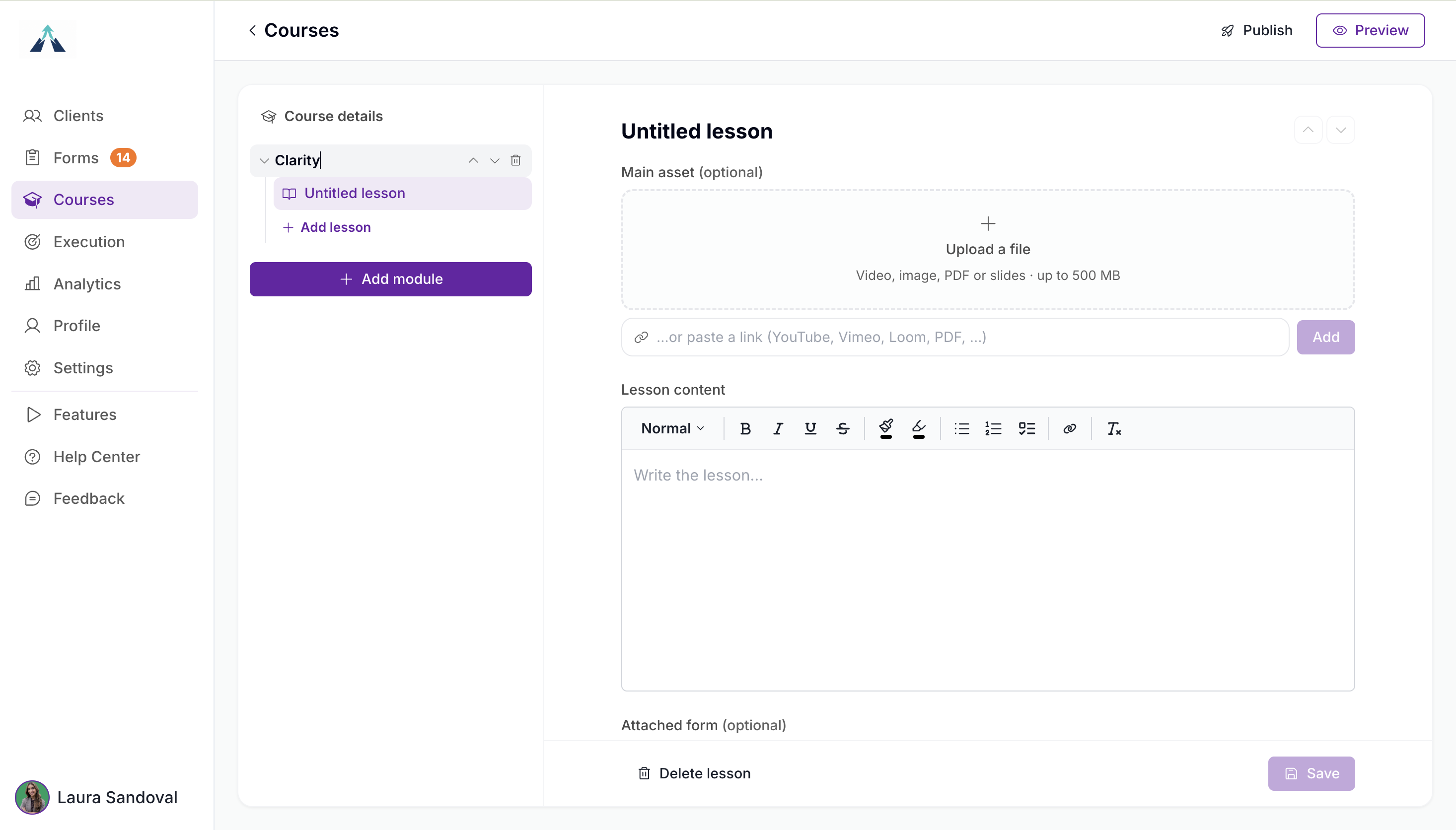
Add Lesson Content
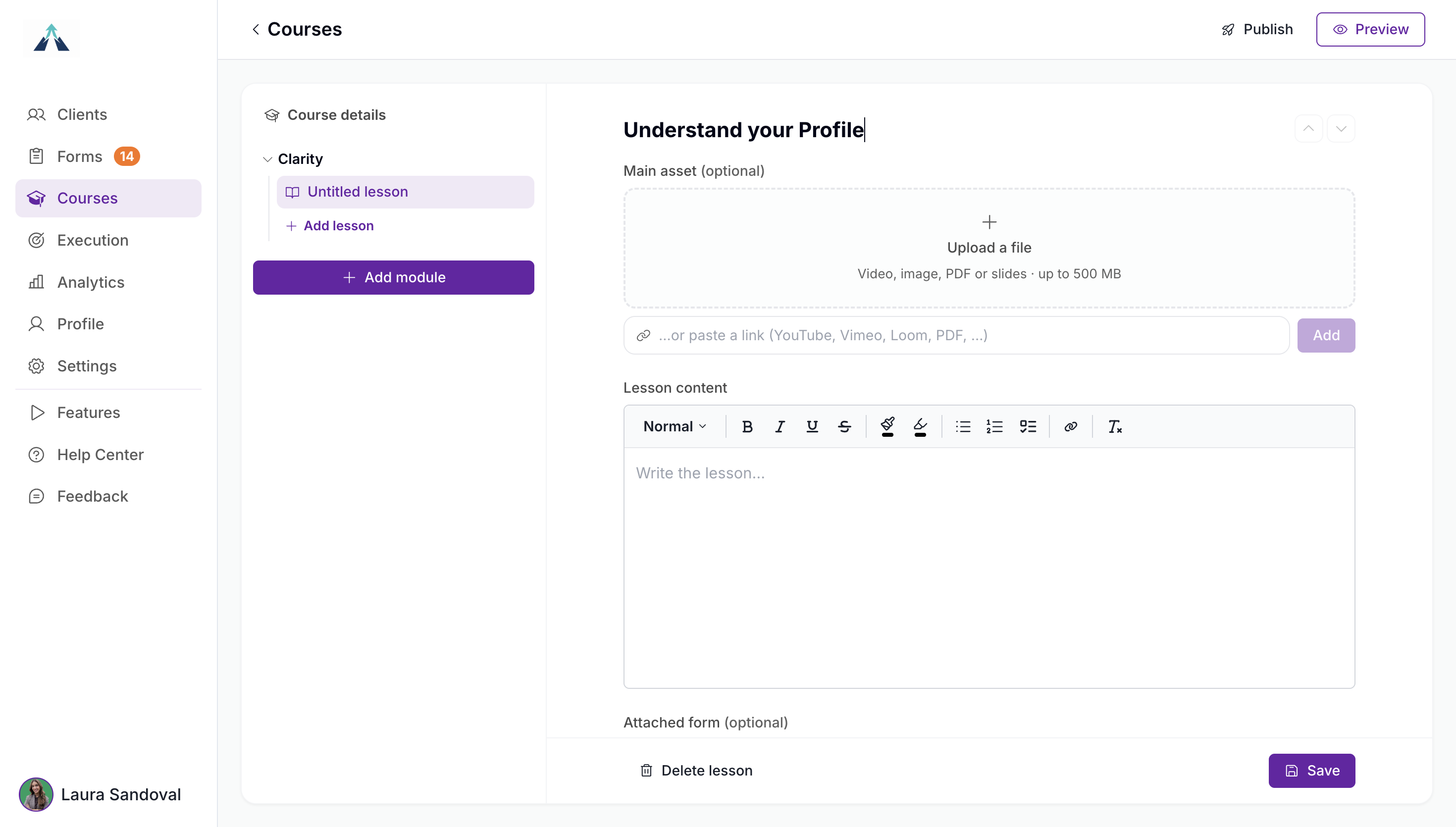
Each lesson accepts several content types: an uploaded file, a pasted link, or a written lesson body. You can also attach a form and set an estimated time.
Enter the lesson Title.
Upload a file, video, image, PDF, or slides in the Upload a file area, or paste a link into the lesson content.
Write any text content in the lesson editor.
Click Attach form to attach one of the forms you have already created. Forms are optional.
Set an Estimated time if you want to show how long the lesson takes. This is optional.
Save it!
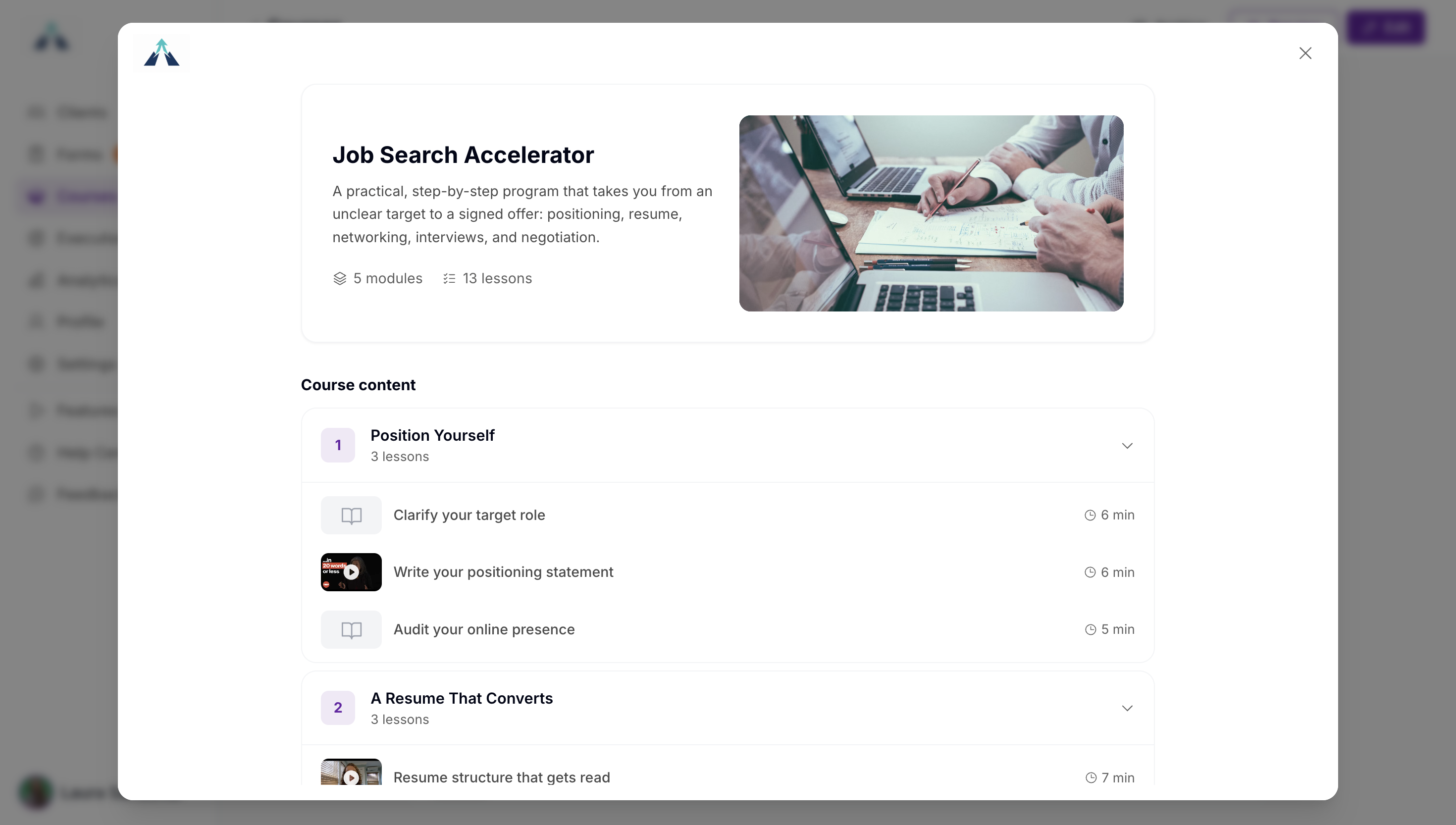
Lessons can hold different kinds of content side by side in one course. A course can include a text lesson, an embedded video, an image, and a PDF that clients can open full screen.
Publish a Course
Publishing makes the course available to clients. From the course details screen, click Publish in the top-right corner.
You can Preview it to get a sense on how clients will experience the course from their view.
Back on the Courses overview, each course shows its status. A published course appears as Active; an unpublished one shows as Draft. You can edit or archive any course from this screen.
Add a Course to a Roadmap
You can attach a course to a task in your organization roadmap so clients complete it as part of their journey. Go to Settings, open the Roadmap tab, and add a task with a course attachment.
In Settings, open the Roadmap tab.
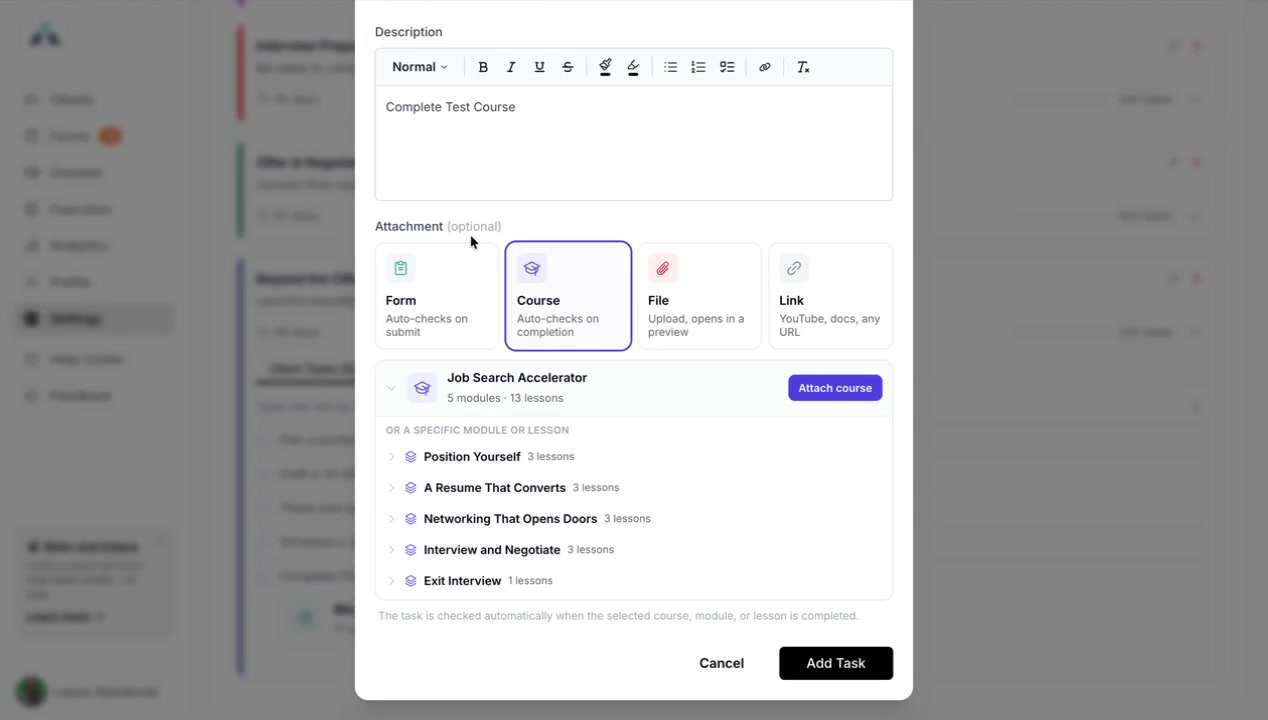
Click to add a task and enter its Description.
Under attachments, choose Course and select the course from the list.
Add the task to the milestone.
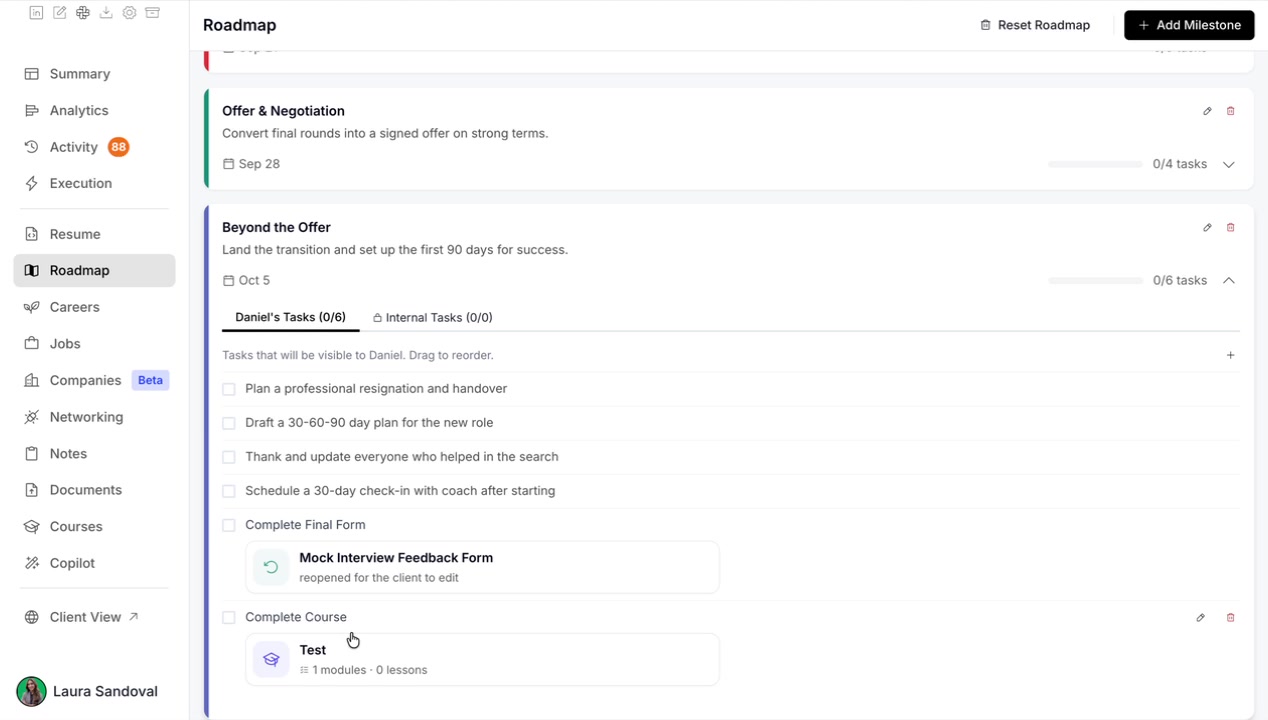
The task appears in the milestone with the course attached.
What Clients See
Clients see Courses in their own sidebar. A course is visible to a client only when you have made it available to them; a course you have not shared appears hidden in their view.
When a course is attached to a roadmap task, the client sees the task with a Start course button. They are taken to the course modules and lessons, and the task is checked as complete once they finish the course.
Video Walkthrough
Watch the full walkthrough of creating and managing courses: