
Creating and Managing Forms
Forms let you collect structured information from your clients, from intake questionnaires to mock interview feedback. You create a form once, then attach it to a client's roadmap task, share it by email, or let clients complete it from their portal.
Understanding Forms
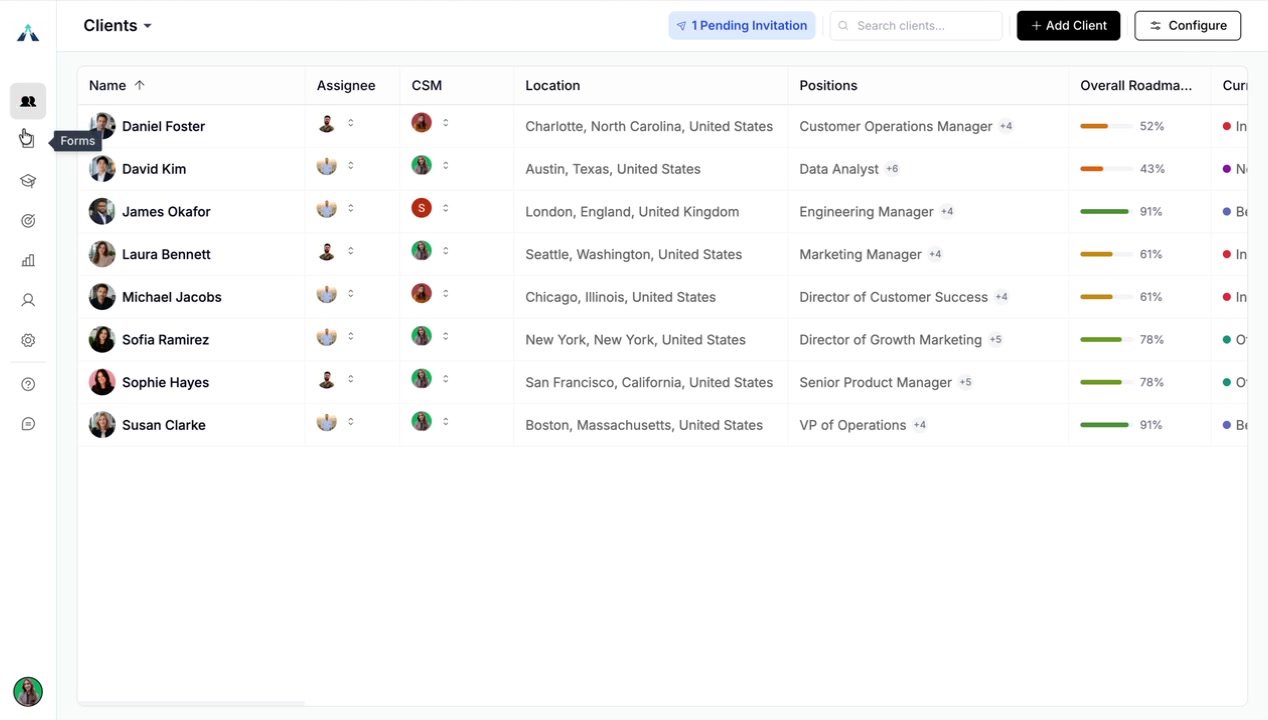
Forms live in the Forms tab on the left sidebar. You can create as many forms as you need, and each form tracks the submissions you receive from clients.
Forms are organized into Active Forms and Archived Forms, so you can switch between the forms you are using and the ones you have retired.
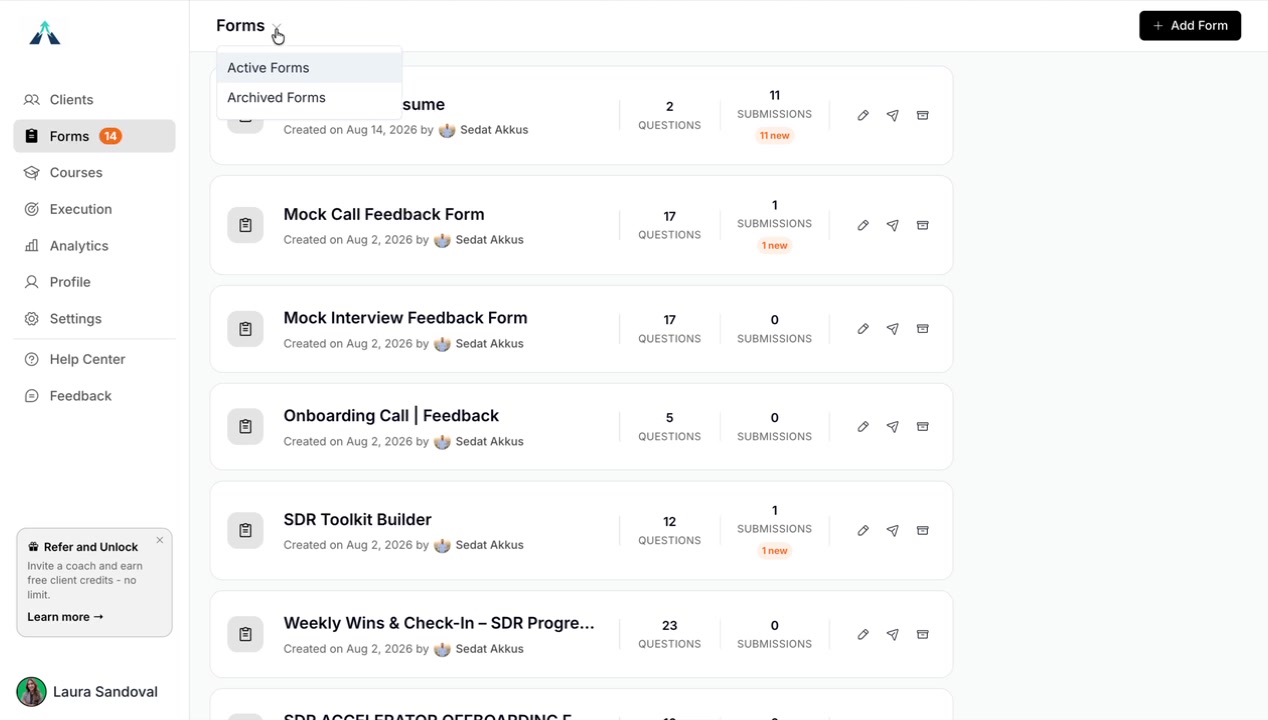
Creating and Editing a Form
From the Forms tab, create a new form and then build out its questions and settings. You can edit a form at any time to adjust its sections and questions.
Allow Multiple Submissions
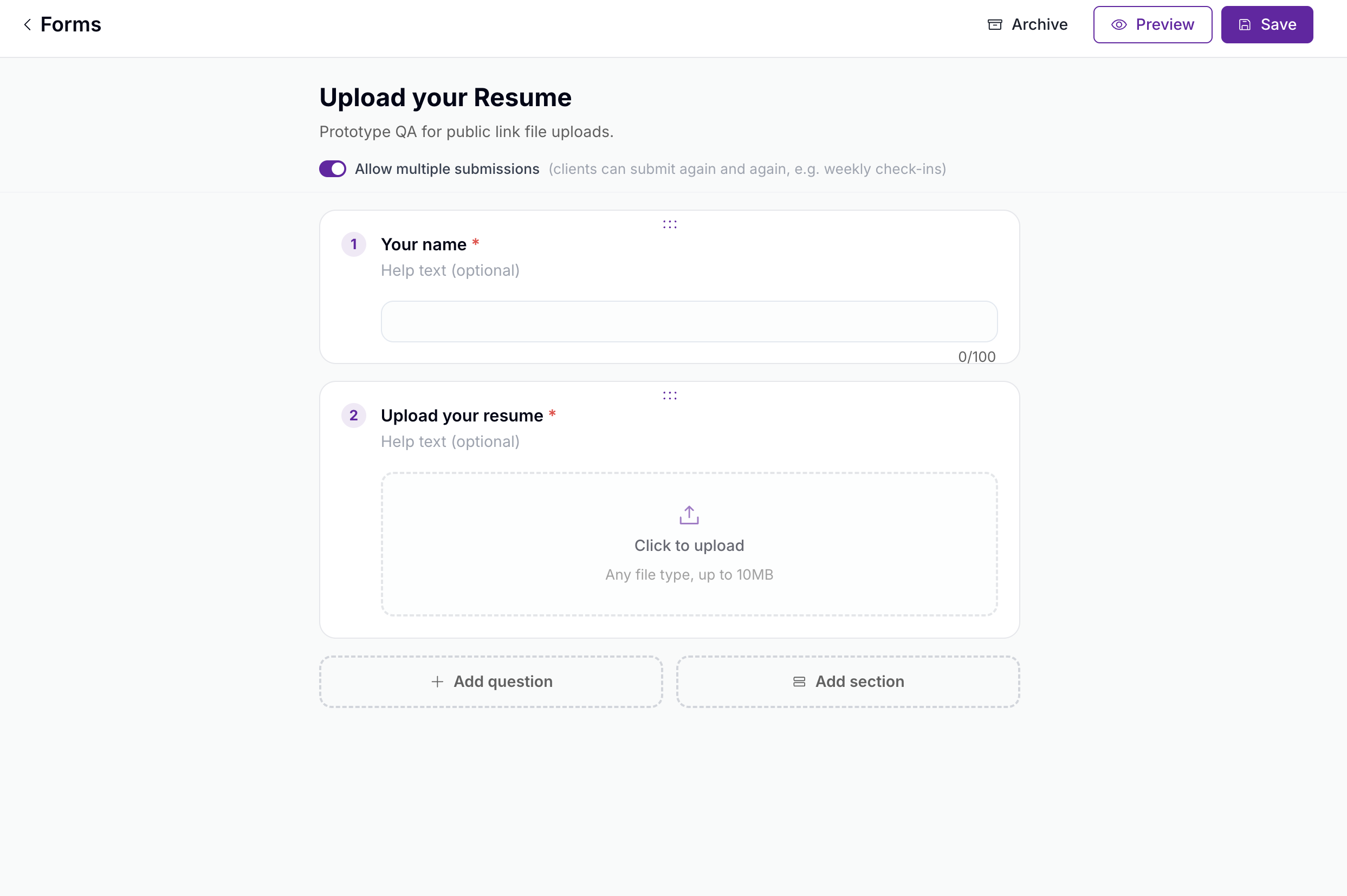
Turn on Allow multiple submissions when a client should fill the form more than once, such as a weekly or monthly check-in that keeps clients engaged. Leave it off so a client can answer a form only once.
Add Sections and Questions
Organize your form into sections and add questions within each section.
Each question can be one of several types: short text, paragraph, single choice, multiple choice, yes/no, number, date, email, table, or file upload.
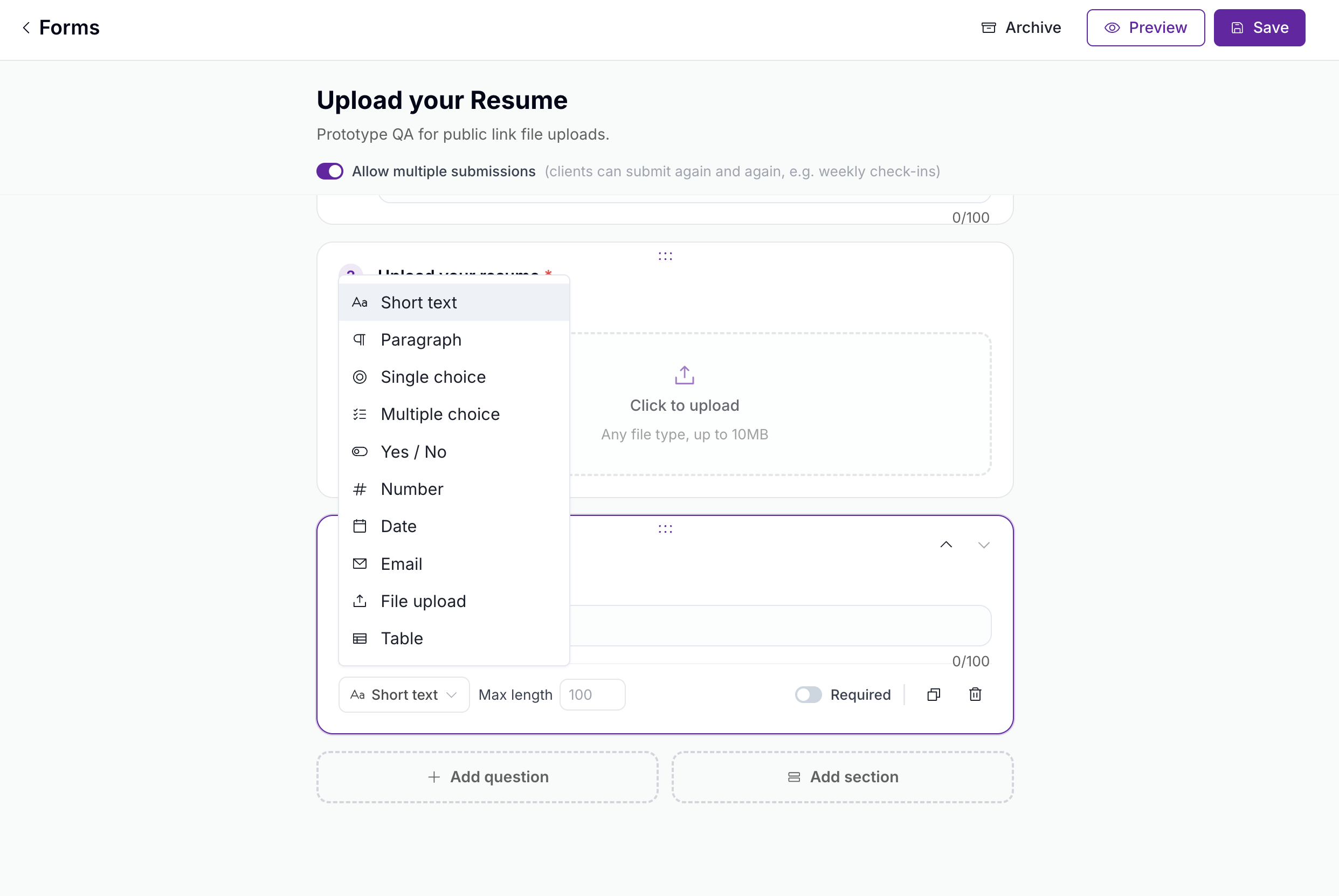
For each question you can set the maximum length of the reply, mark it as required or optional, and duplicate it when you need the same question again.
Preview and Archive a Form
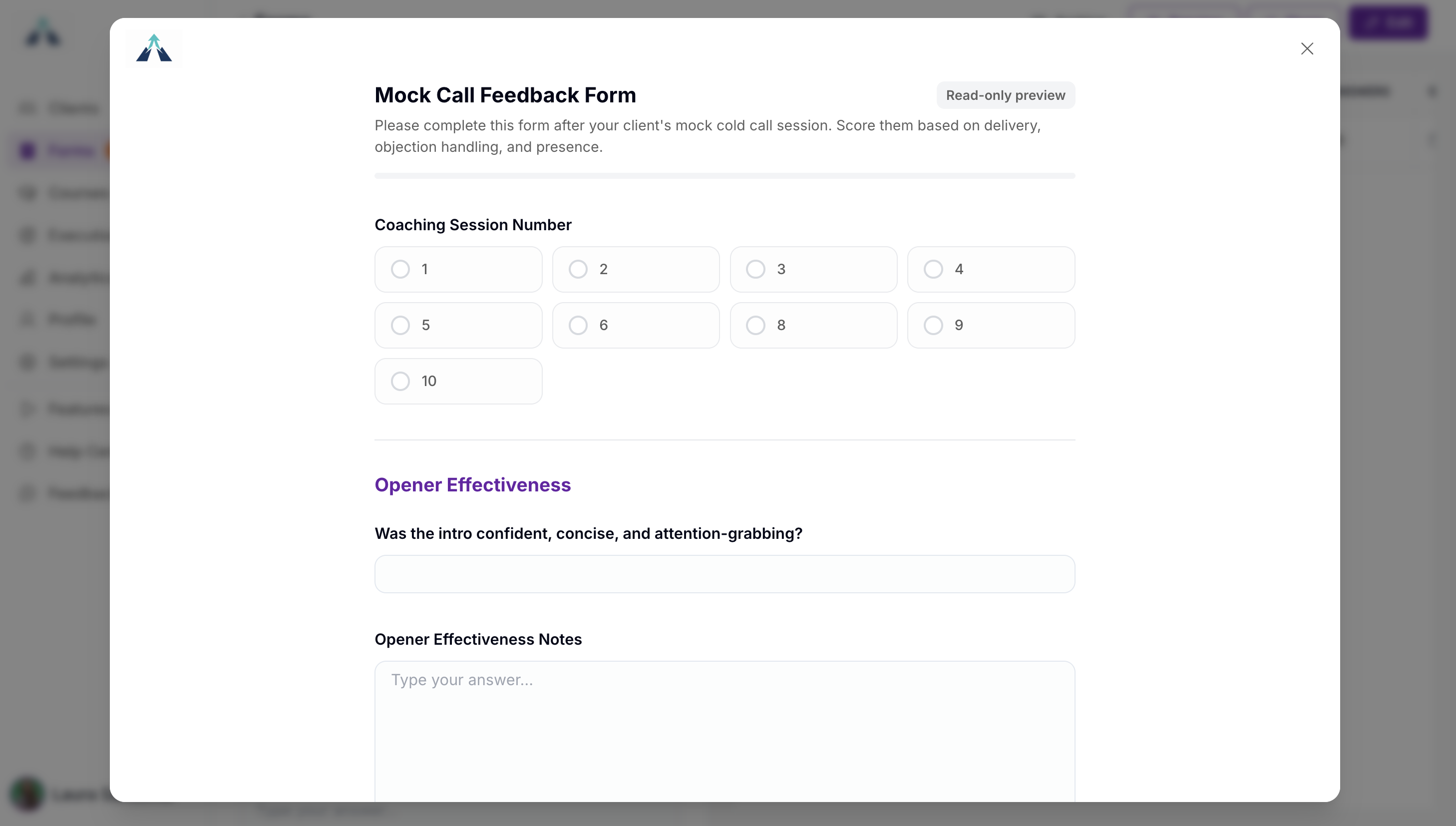
Preview a form to see it exactly as a client will see it on their platform before you share it, and archive a form when you no longer need it.
Reviewing Submissions
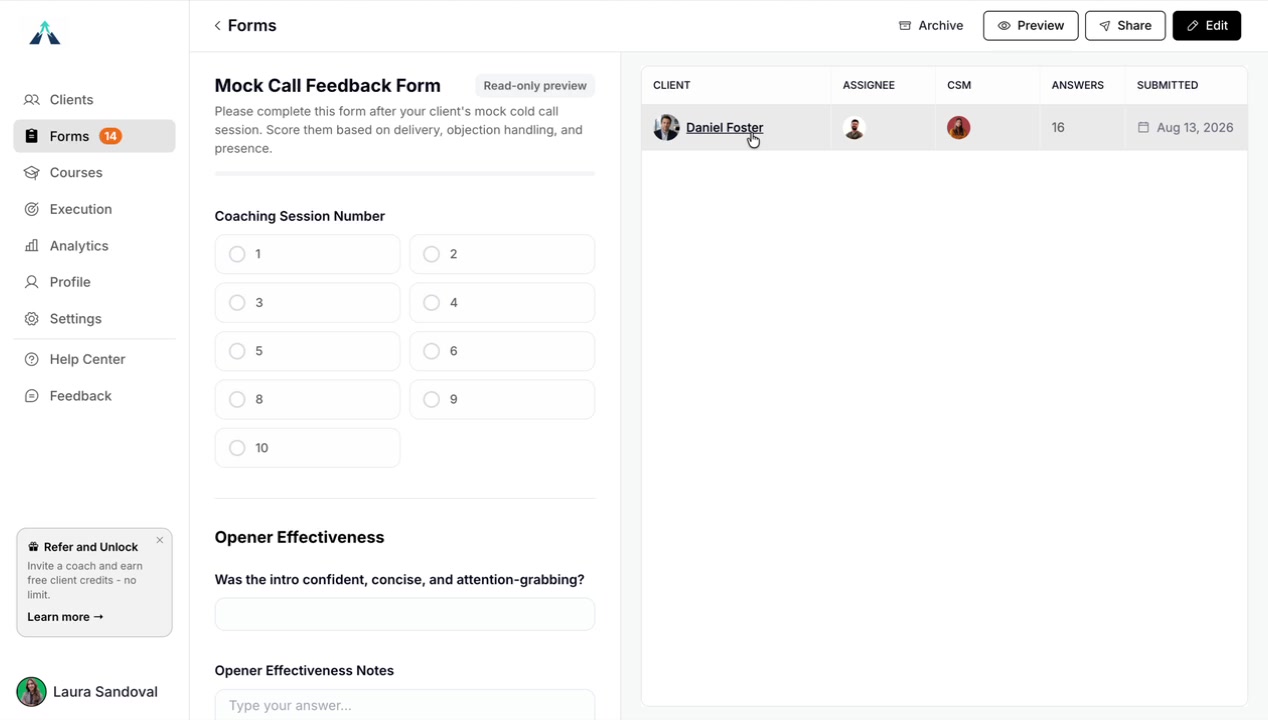
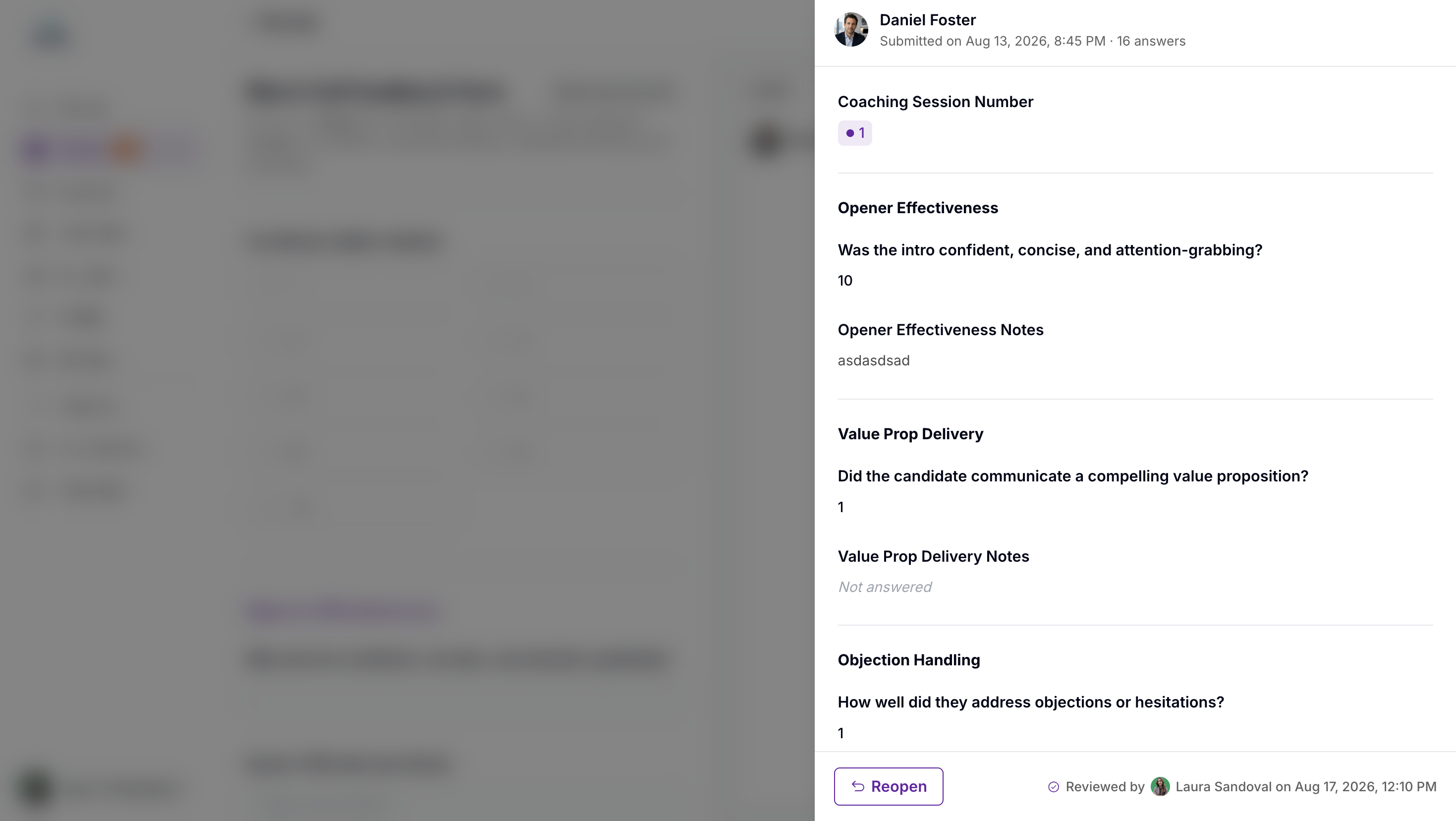
Open a form to see the submissions from each of your clients, with their answers and the date they submitted.
From a submission you can Reopen it to let the client fill it in again, or Mark reviewed when a coach on your team has finished with it.
Adding a Form to a Client's Roadmap
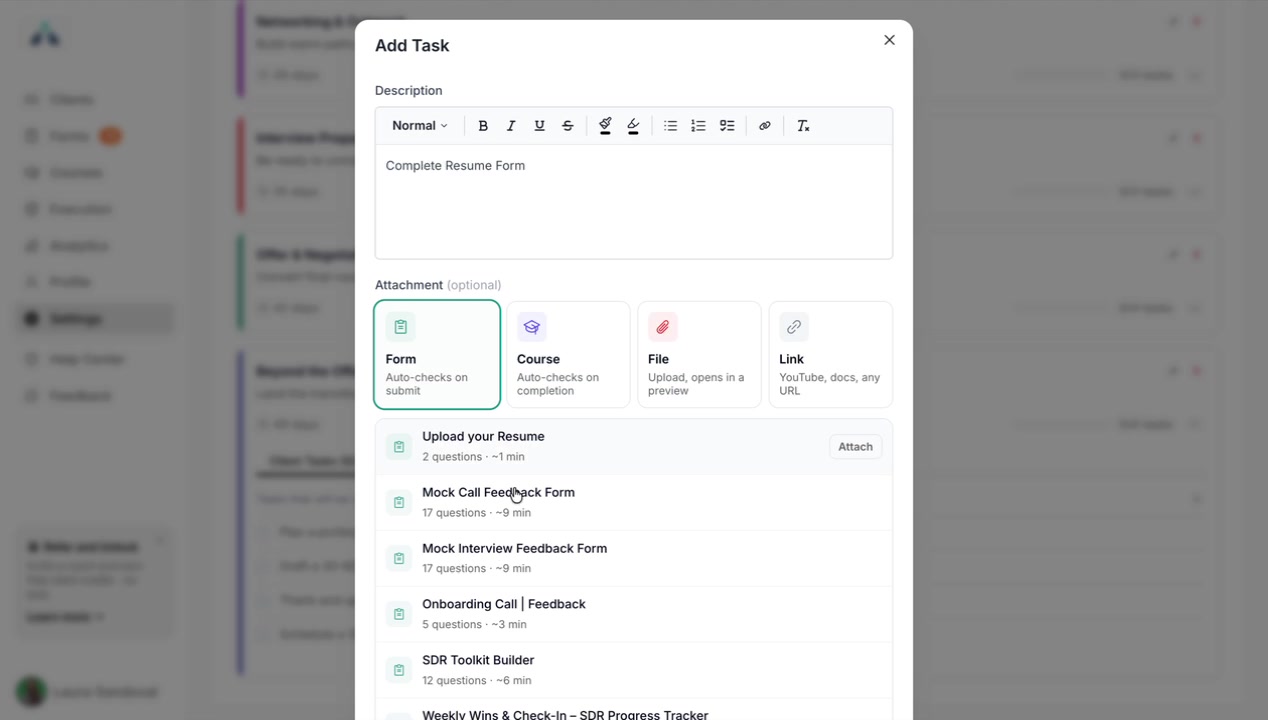
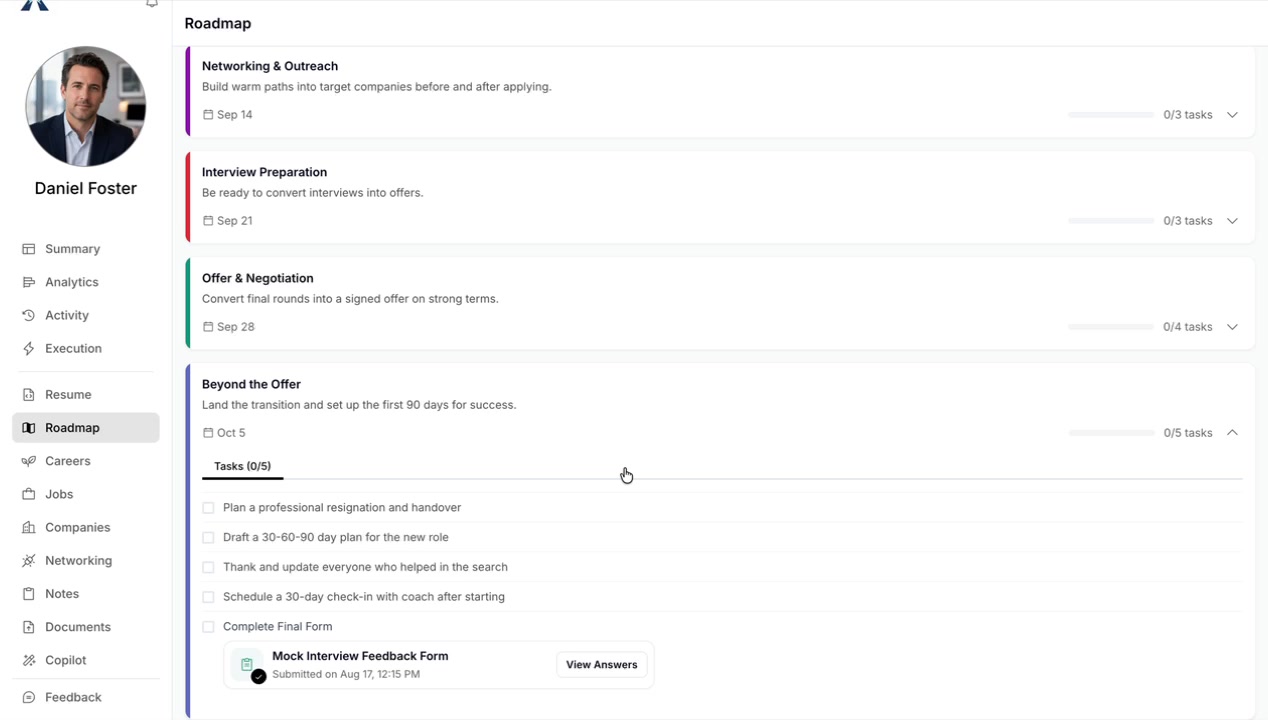
You can attach a form to a task in a client's roadmap. Add a new task and choose the form as its attachment, such as attaching an "Upload your Resume" form to a resume task.
Complete Form from Roadmap
The client opens their roadmap and sees the task with the form, including the number of questions it has and how long it will take to complete.
After the client fills out the form and submits it, they see a confirmation, and the roadmap task is marked as completed.
Sharing a Form with a Client
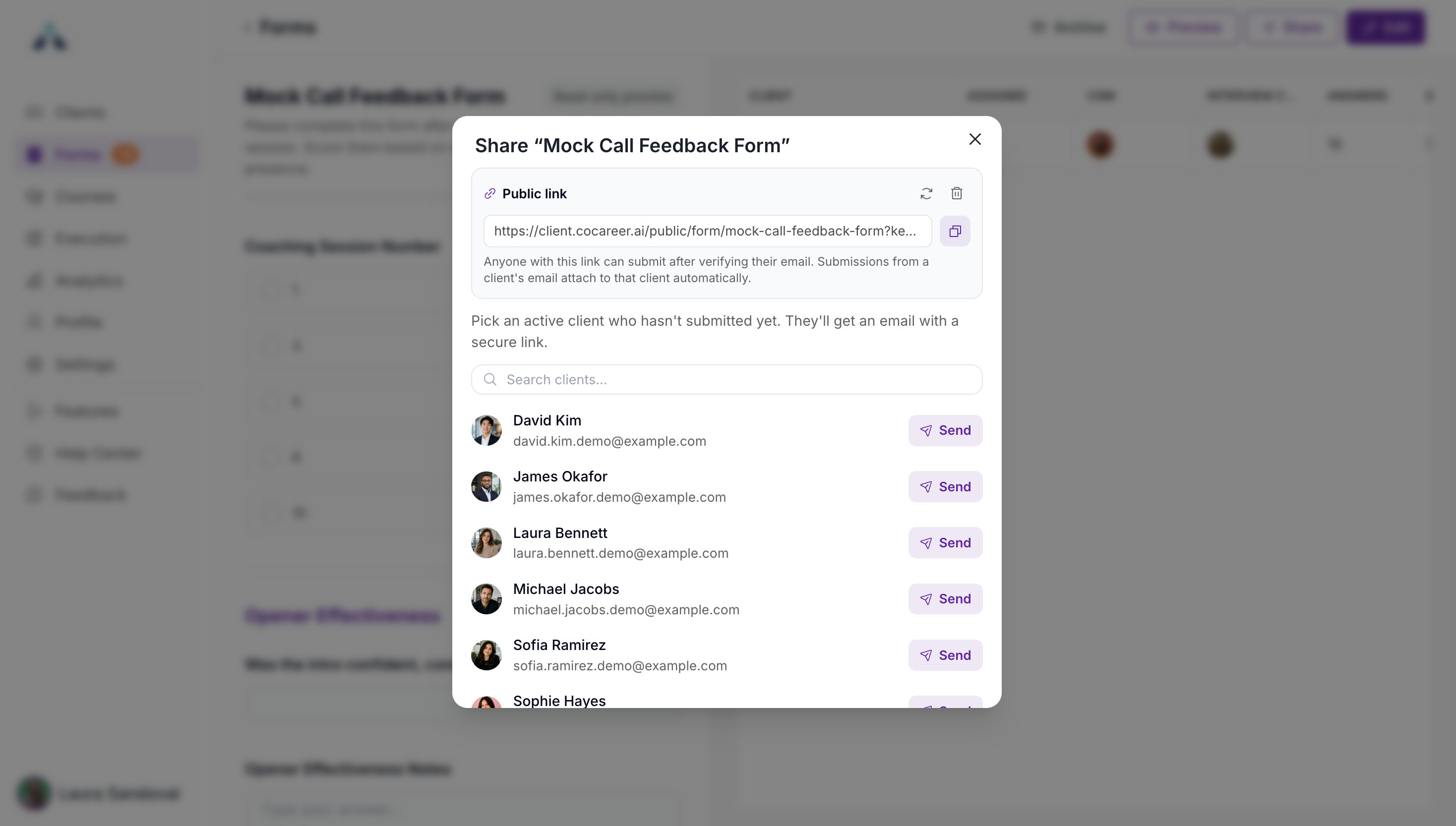
You can also share a form with a specific client by email. Select the client and send, and they receive an email with a link to submit the form.
Add the Form to a Course
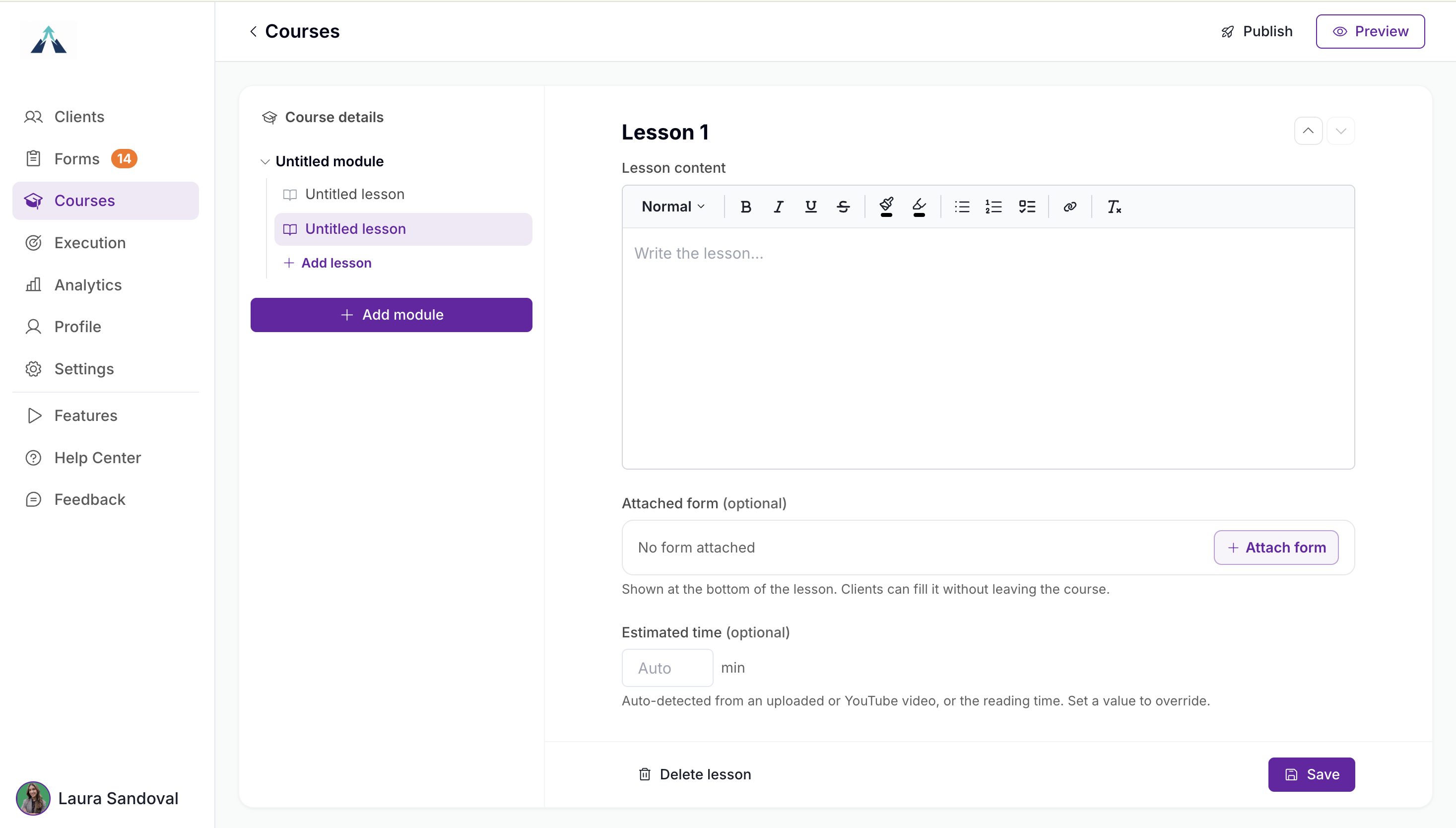
You can also add your form as part of your courses. You have to create it first and then while creating a Lesson you will have the option to Attach a form (optional).
Video Walkthrough
Watch the complete walkthrough of creating and managing client forms: