
Managing Networking Contacts
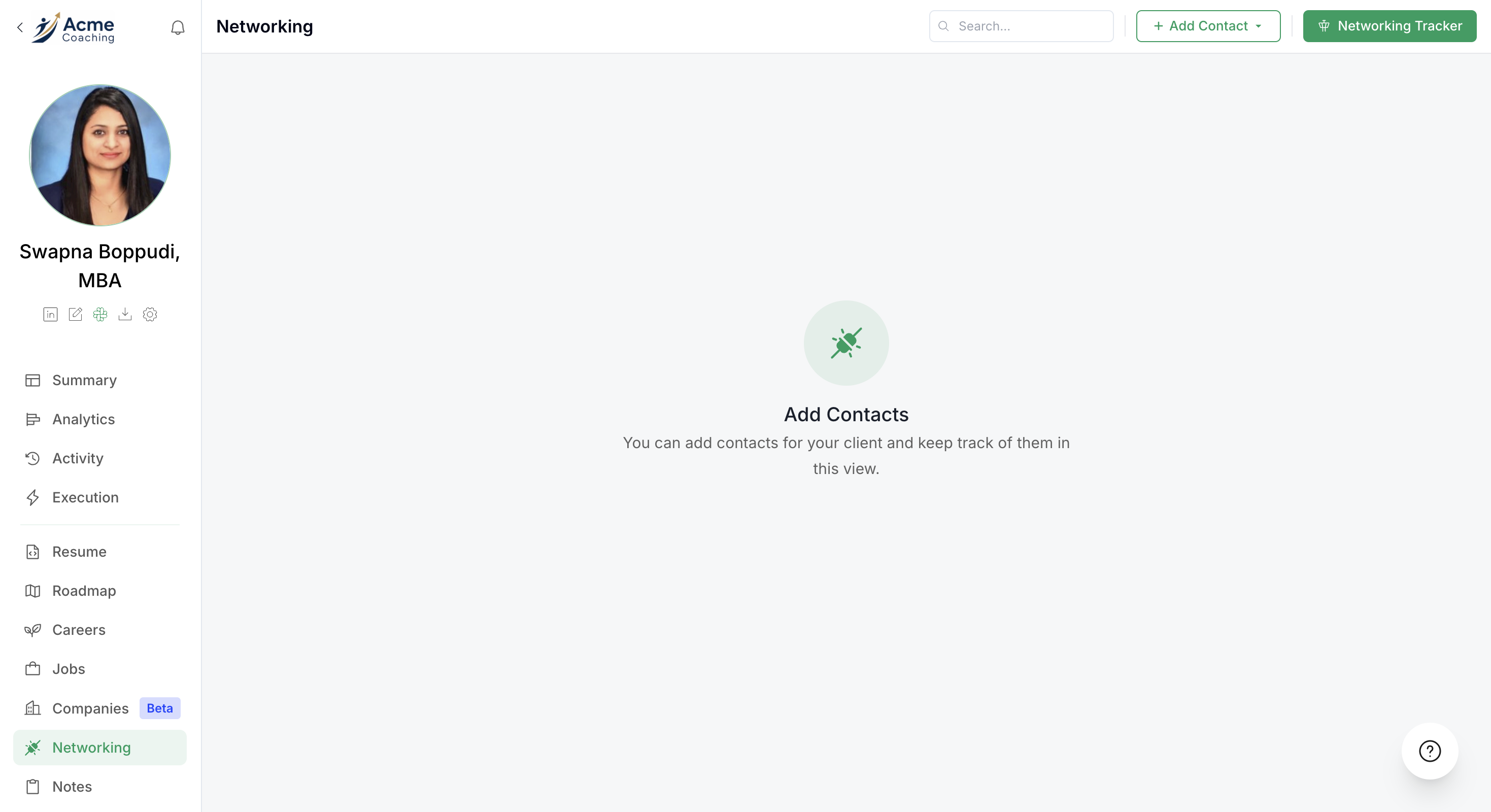
The Networking feature helps you build and track strategic connections for your job search. You can add contacts in two ways: directly from LinkedIn profiles manually or through AI-generated recommendations based on specific job postings. Each contact is automatically analyzed for connection strength, commonalities and pre-generated intro messages.
Before you begin: You'll need a LinkedIn account and the Career Clipper Chrome extension installed for the fastest workflow.
Adding Contacts from Job Postings
When viewing a specific job, the tool can intelligently recommend networking contacts from that company including team members, hiring managers, and recruiters.
View Networking Recommendations
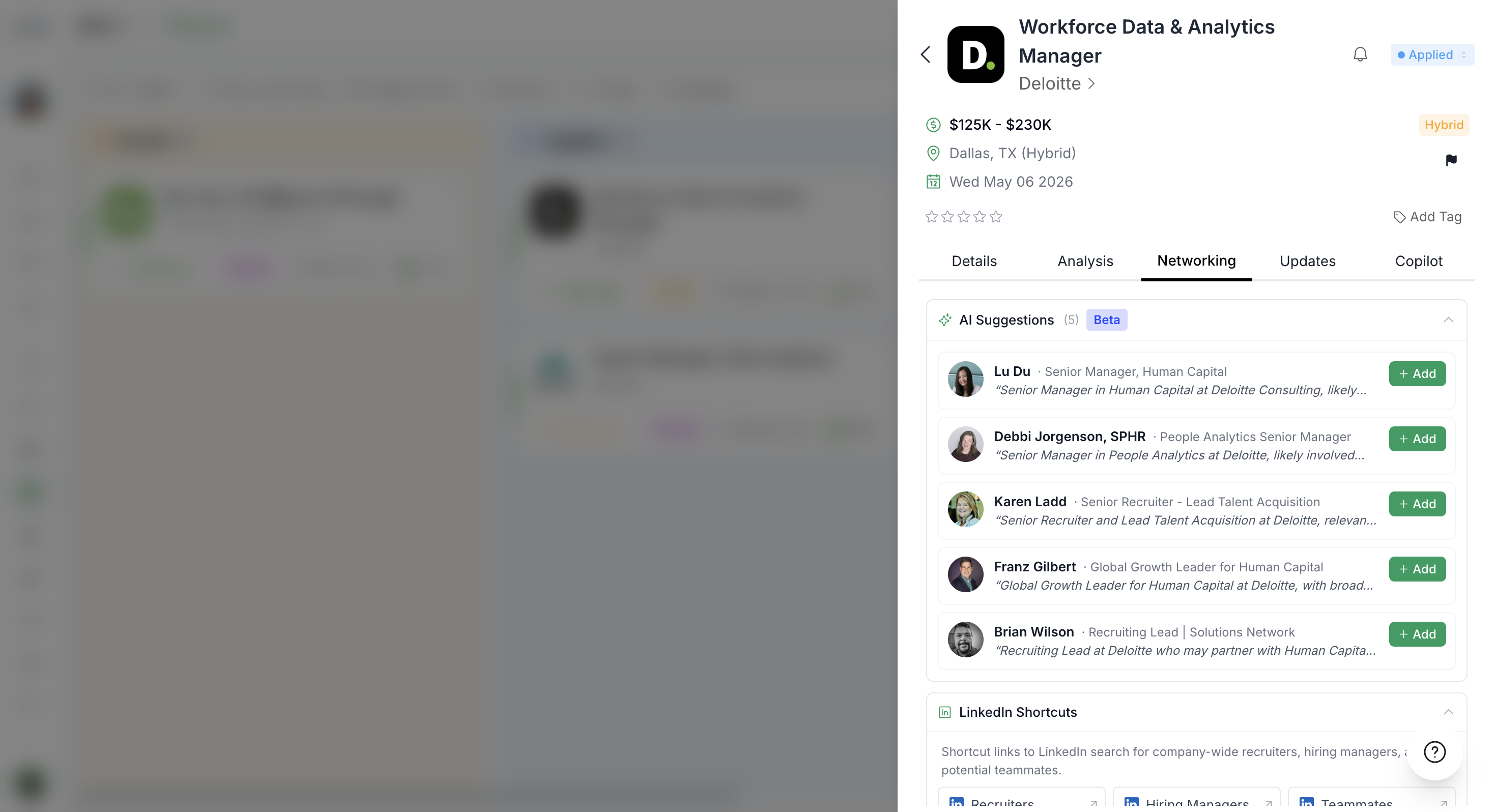
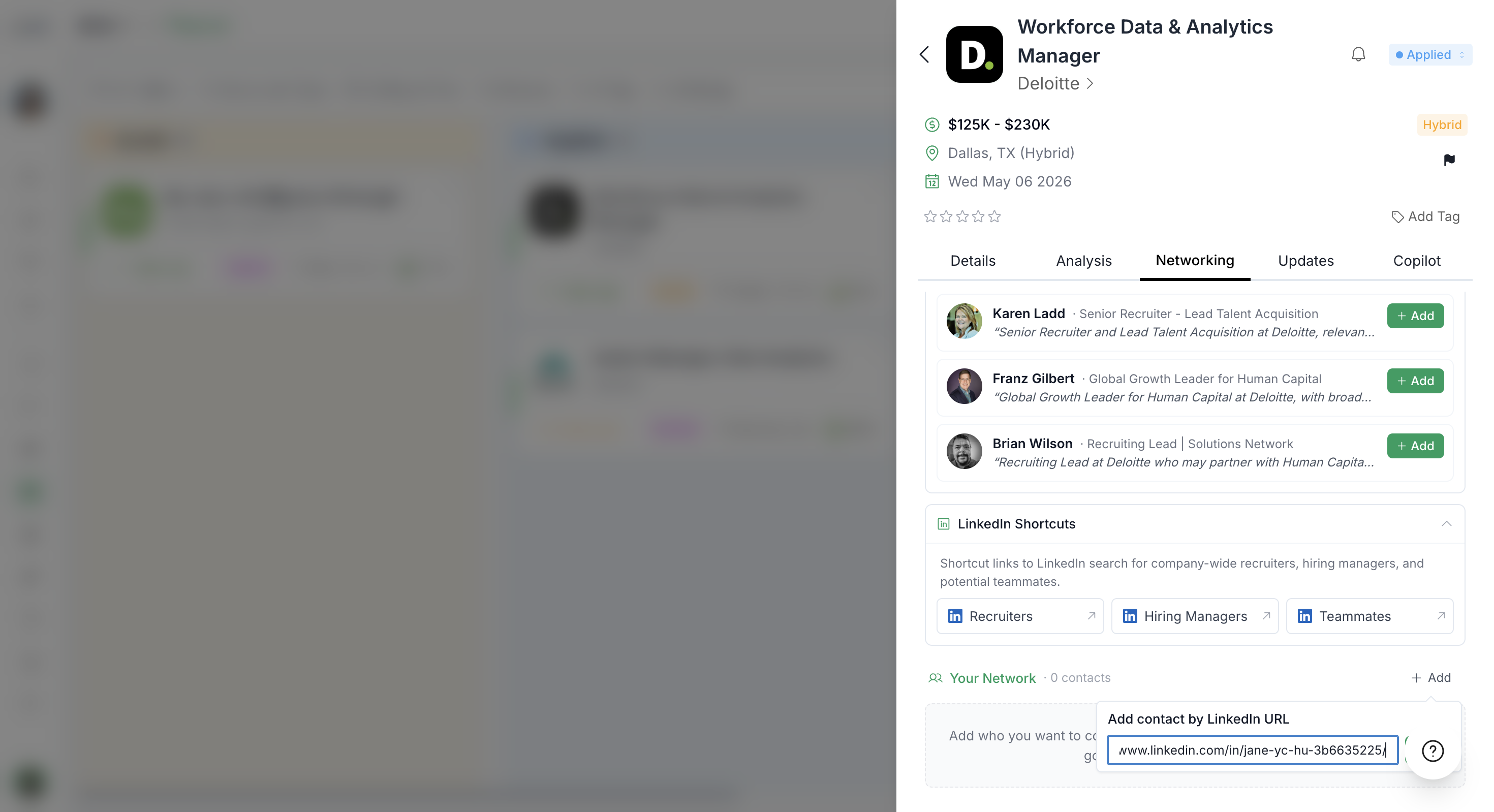
Navigate to any job in your pipeline and click the Networking tab. You'll see two options:
AI Suggestions
The AI Suggestions will directly bring the most relevant contacts from LinkedIn without the client having a connection with that person. When you click Add, the contact will be automatically saved and analyzed for you.
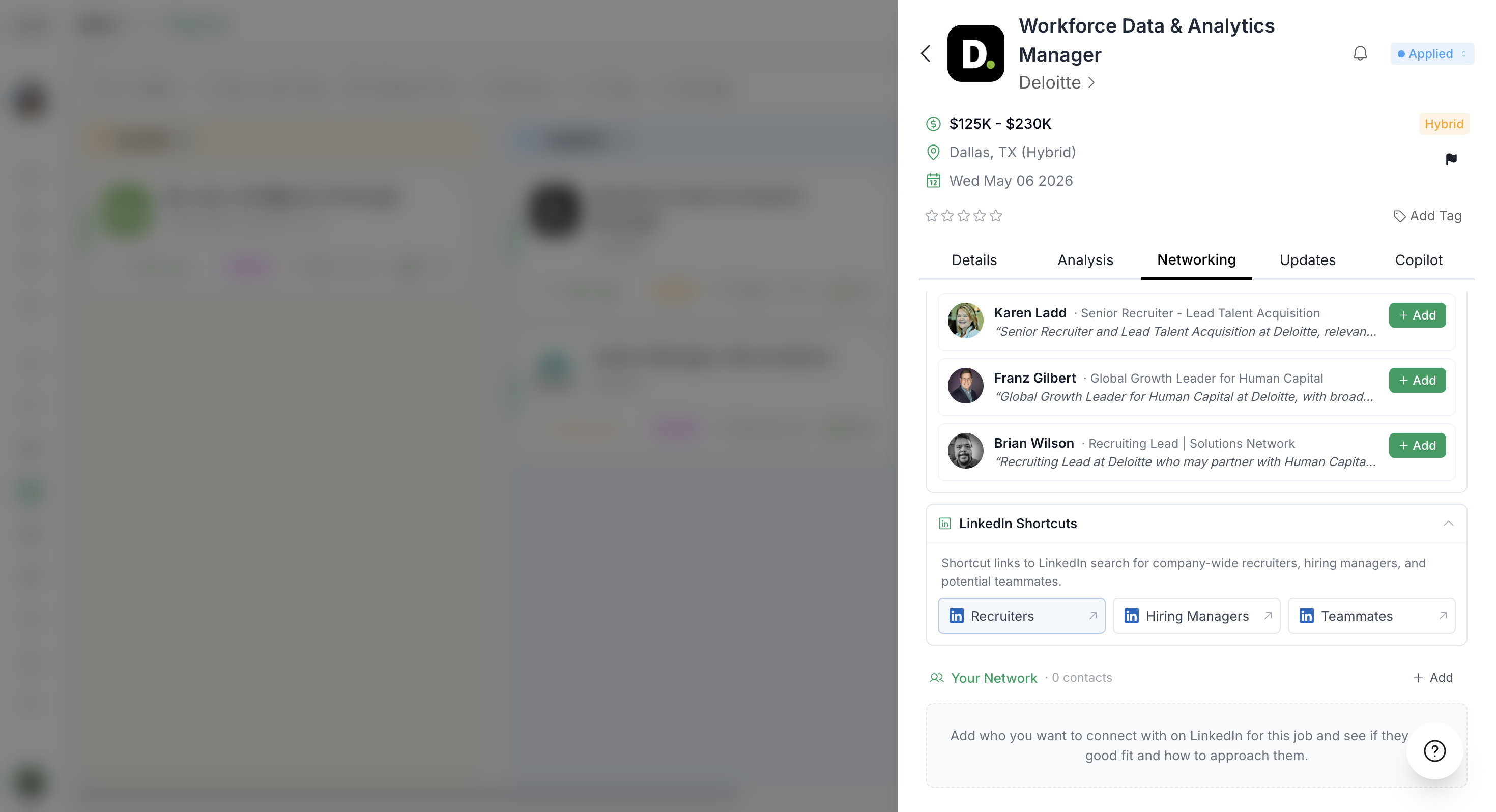
LinkedIn Shortcuts
This section allows you to choose from three recommendation categories:
Recruiters – Recruiting professionals at the company (more common at larger organizations)
Hiring Managers – Managers across the company who could be involved in hiring
Team Members – People working on the specific team mentioned in the job description
Click any recommendation button (e.g., Recruiters) to launch a LinkedIn search filtered to 1st and 2nd-degree connections at that company. This helps you identify people who can provide introductions or referrals.
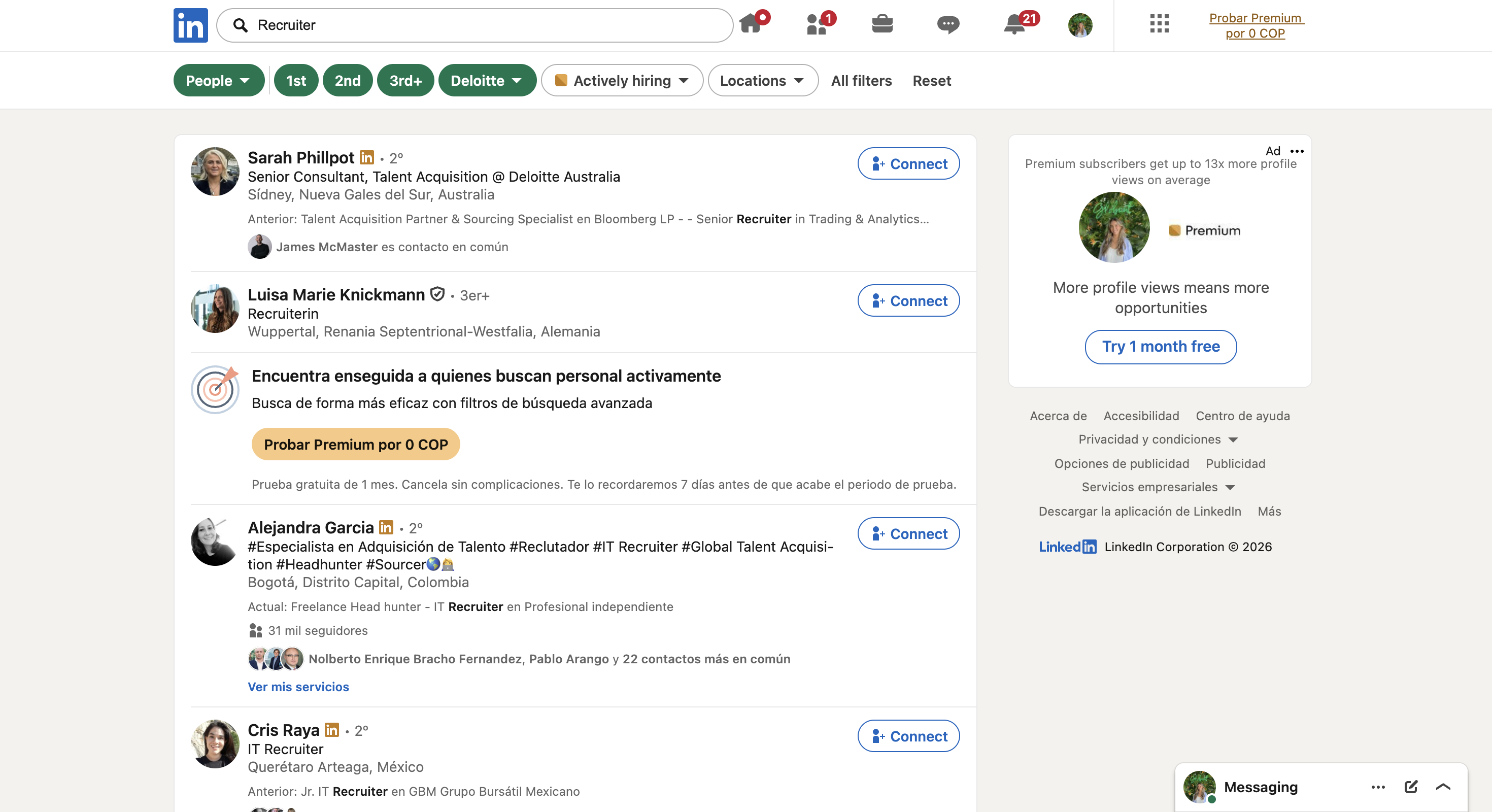
Focus on 1st and 2nd-degree connections, these are people you already know or who can be introduced through mutual connections, increasing your chances of a response.
Add a Contact from LinkedIn
Once you've found a relevant profile on LinkedIn:
Copy the LinkedIn profile URL from your browser
Return to the Networking tab in the tool
Paste the URL into the Enter LinkedIn Profile URL field
Click Add and wait 10-15 seconds for analysis
The tool will fetch the profile information and generate an analysis including positive indicators, potential challenges, commonalities you share, and a suggested intro message.
Adding Contacts Directly
You can also add networking contacts without associating them to a specific job.
Using the Add LinkedIn Profile Modal
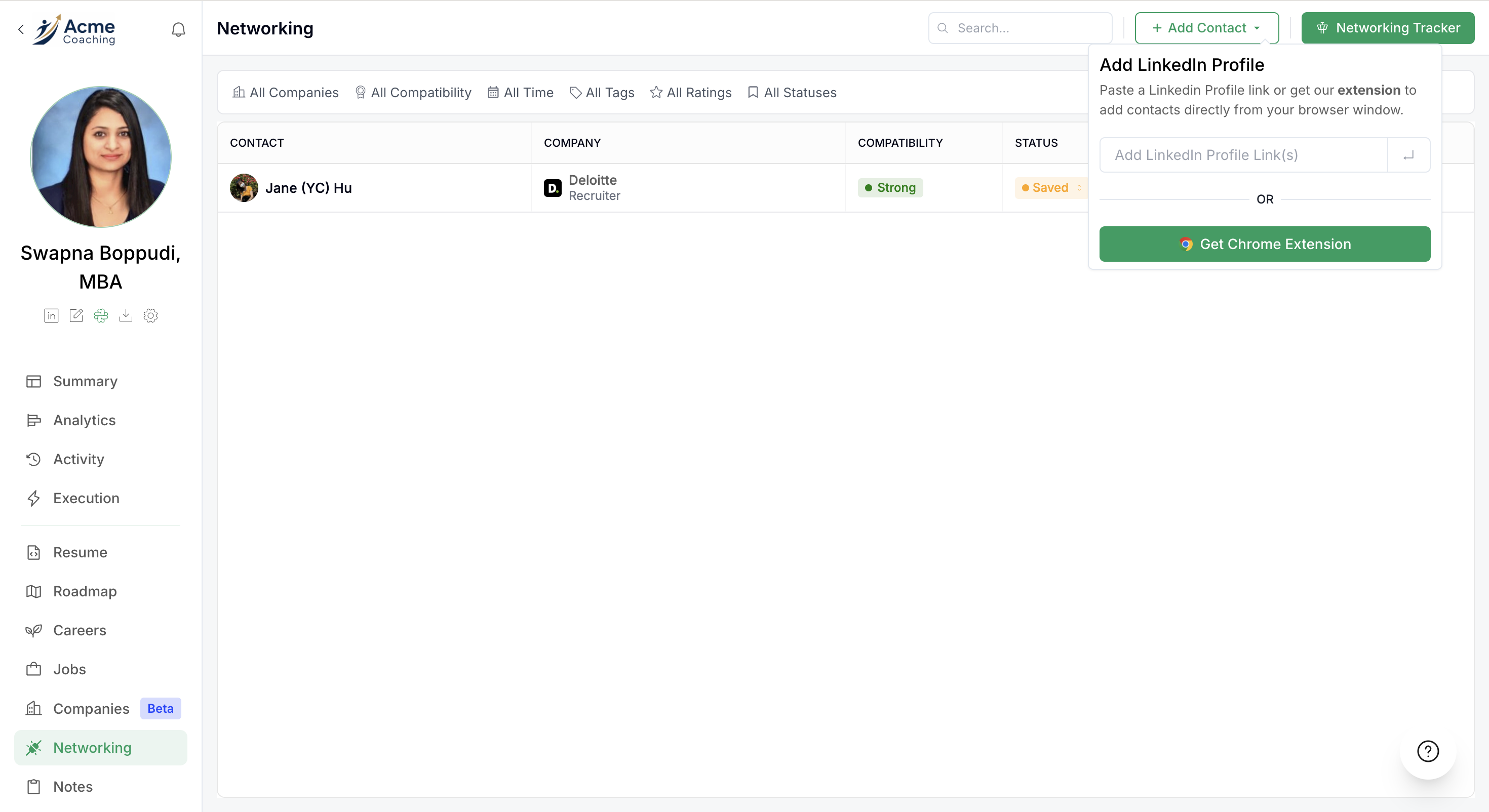
From the main Networking section, click Add Contact to open the modal. You can choose from adding a single contact or adding a Bulk Import.
Adding a Single Contact
Paste any LinkedIn profile URL and click Add Contact to analyze and save.
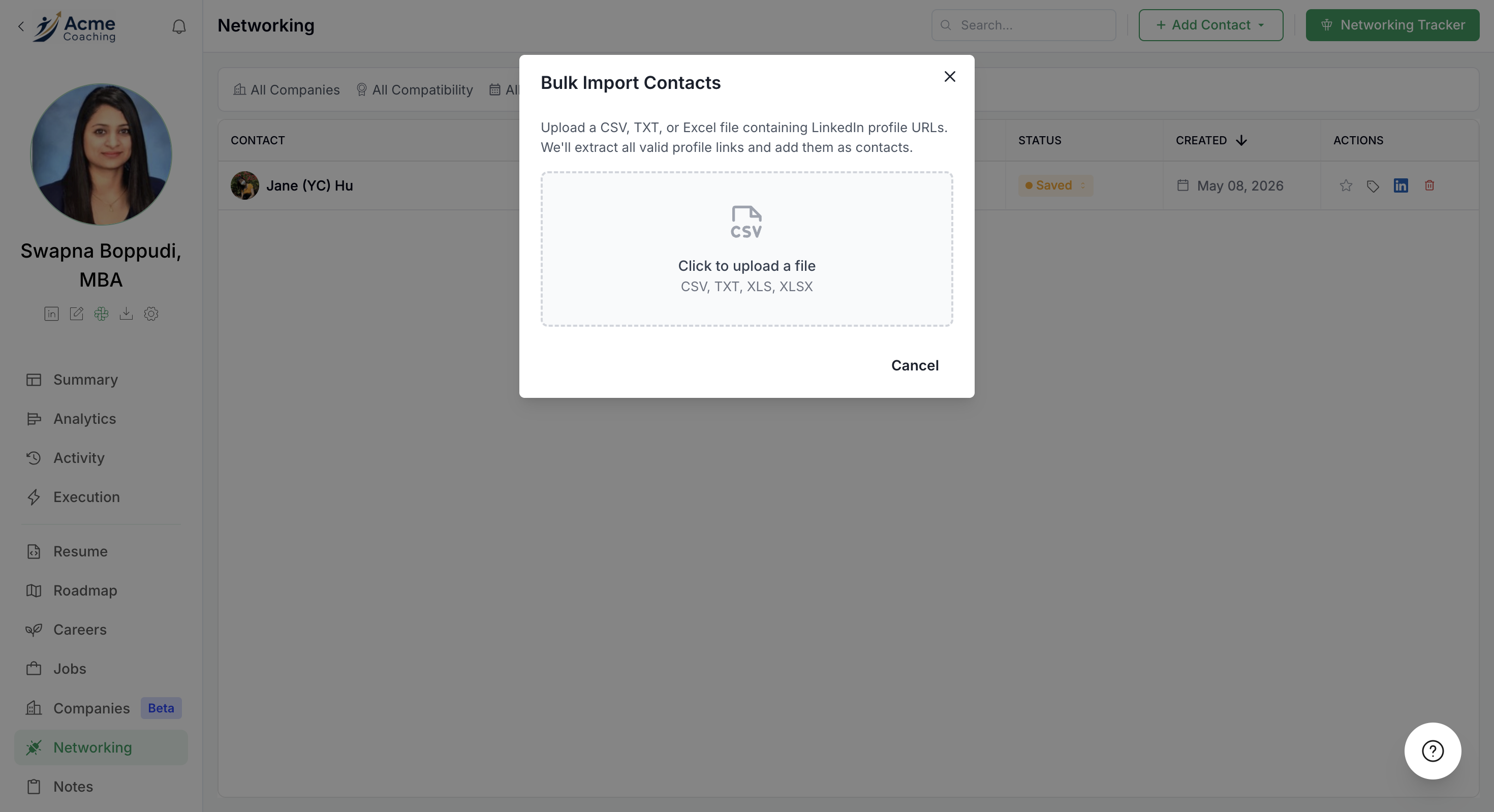
Adding a Bulk Import from a File
If you have LinkedIn contacts downloaded or had been keeping Networking Contacts information somewhere else, you can upload a CSV, TXT, or Excel file containing LinkedIn profile URLs. We'll extract all valid profile links and add them as contacts.
Using the Career Clipper Extension
For the fastest workflow, use the Career Clipper Chrome extension while browsing LinkedIn:
Navigate to any LinkedIn profile
Click the Career Clipper extension icon in your browser toolbar
Select the Networking tab in the extension panel
Click Analyze & Save Contact
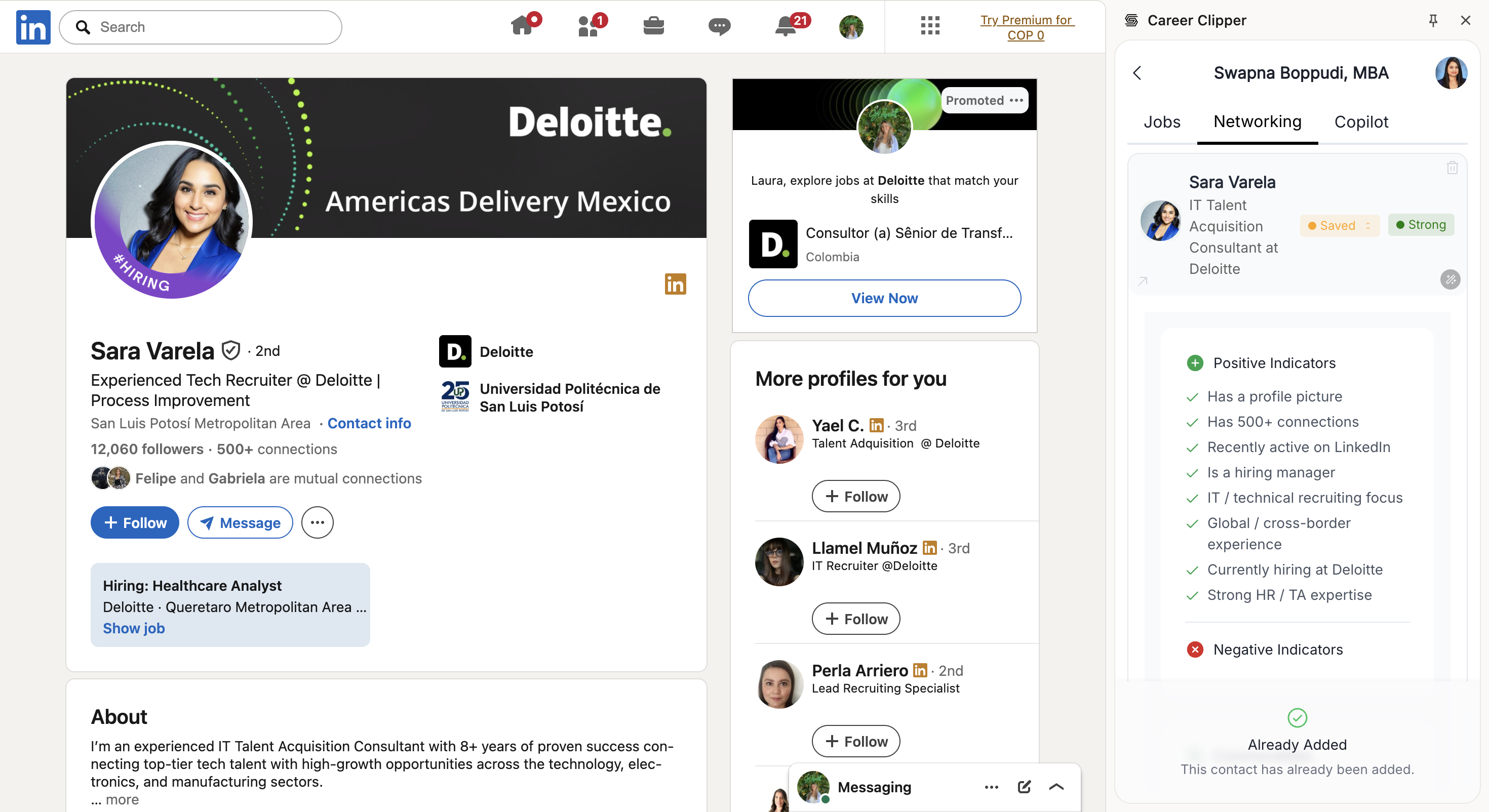
The contact will be automatically added to your networking list and analyzed in the background.
For more details on how to use the Chrome extension, refer to this guide.
Viewing Your Networking Contacts
All added contacts appear in your main Networking section as cards showing:
Contact name and profile photo
Current company
Compatibility score (e.g., Strong, Moderate)
Current status (Saved, Contacted, Messaging)
Quick action buttons
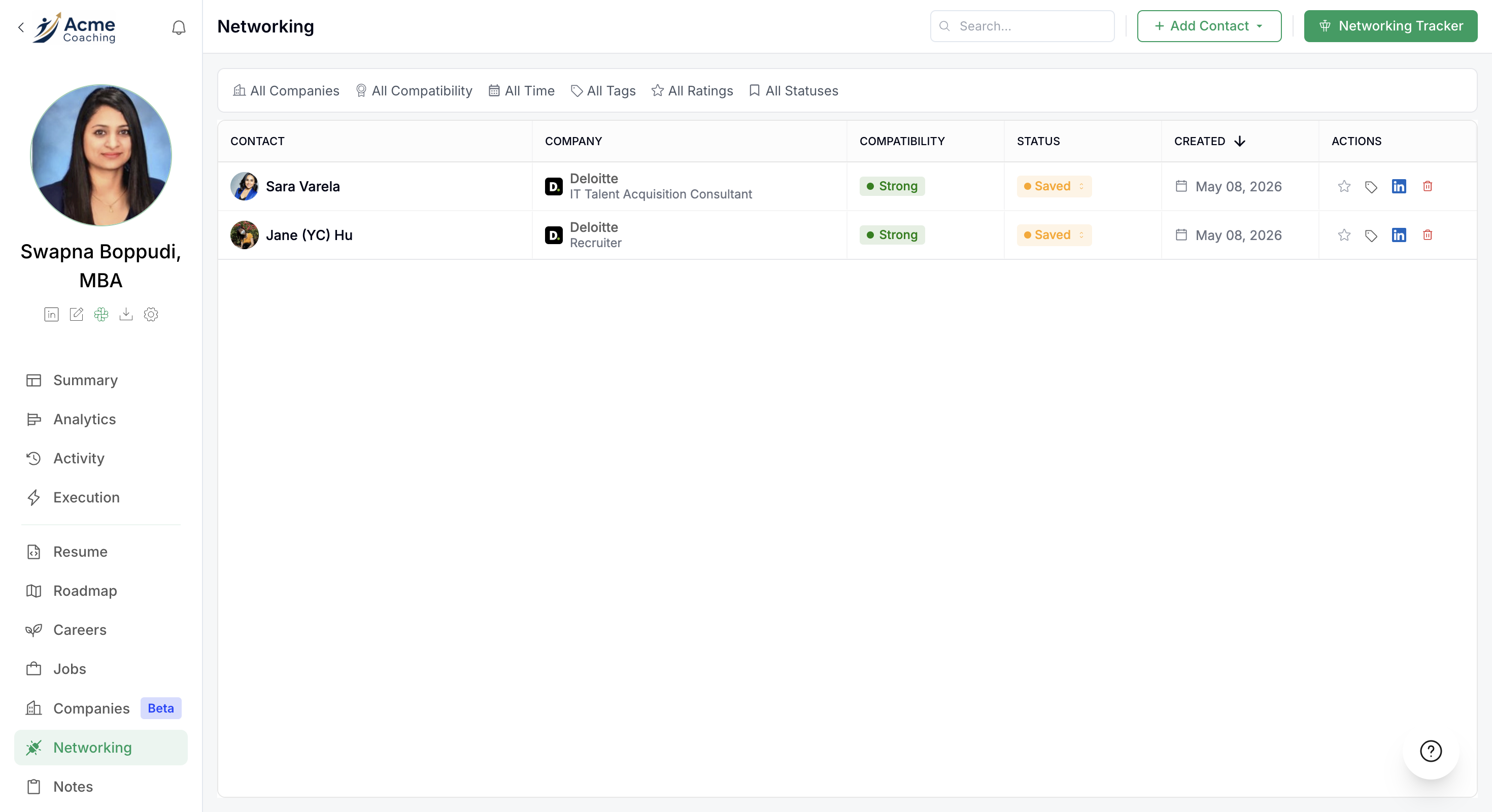
Click on any contact card to view the full analysis, including:
Positive Indicators – Reasons this person is a good connection
Negative Indicators – Potential challenges to be aware of
Commonalities – Shared background, education, interests, or connections
Intro Message – A pre-generated connection request or outreach message
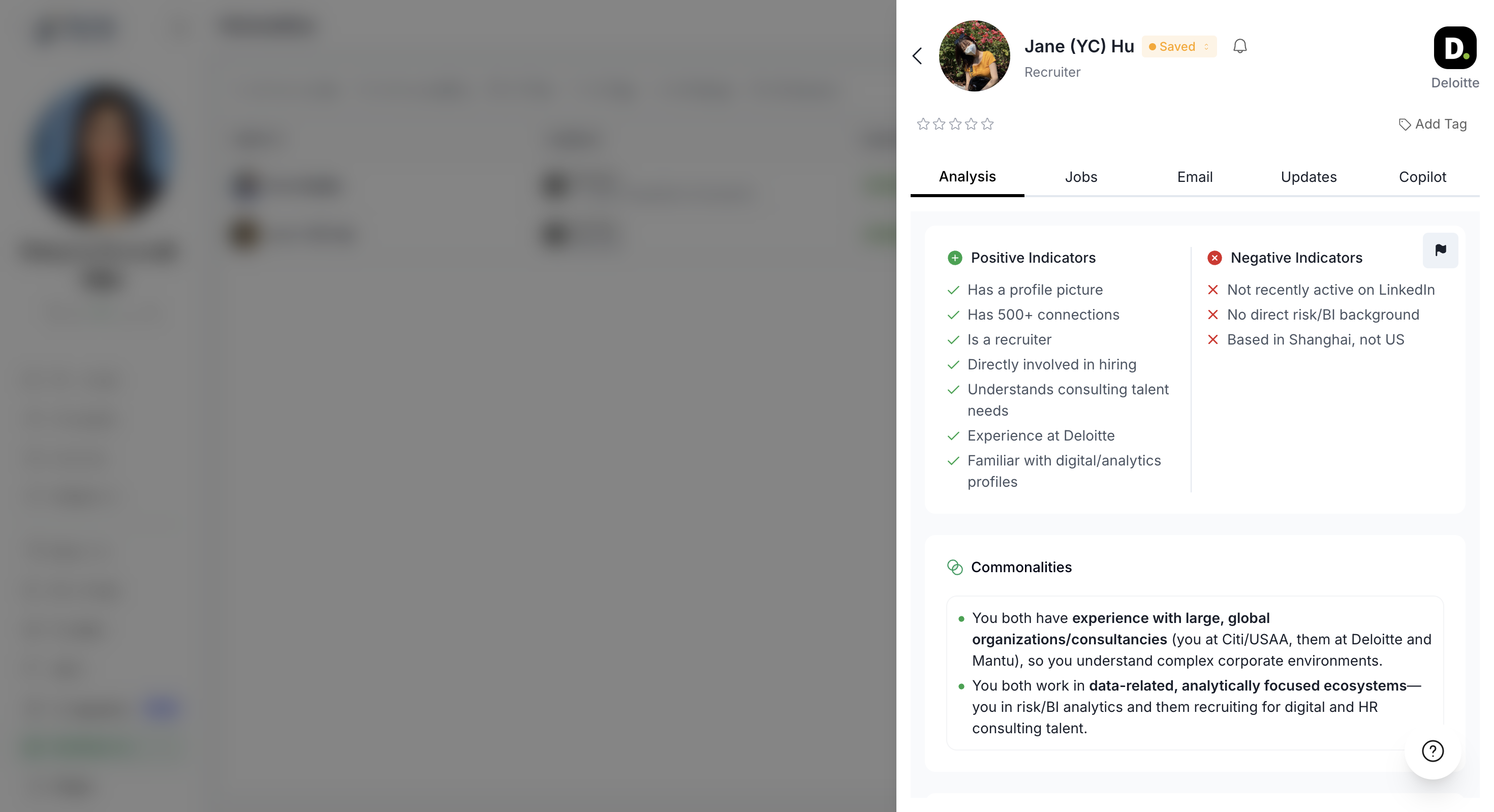
Review the commonalities and intro message suggested before reaching out to increase your response rate.
Organizing with Star Ratings
Each contact can be rated from 1 to 5 stars. Use star ratings to prioritize contacts or mark their relevance to your job search. Star ratings are for your own organization and are not used as feedback for the AI tool.
Organizing with Tags
Create custom tags to categorize and filter your contacts. When you create a new tag, you can assign it a name and a color. Tags help you track custom categories like "Time Sensitive" or "Priority" for quick filtering and sorting.
For more details on using tags across the platform, see Using Custom Tags to Organize Data.
Filtering Your Contacts
Use the filter dropdowns at the top of the contacts list to narrow your view:
Company – filter by specific companies
Compatibility – Strong, Moderate, or Weak
Time – Last 24 hours, Last 7 days, Last 30 days, or All time
Tags – filter by any tags you've created
Ratings – filter by star rating (1+, 2+, 3+, 4+, or 5 stars)
Status – Unsaved, Saved, Contacted, Messaging, Stuck, Completed, or Closed
Tracking Networking Progress
The Networking Tracker provides a Kanban-style view to manage your outreach pipeline. Contacts move through multiple stages:
Saved – Contact added but not yet contacted
Contacted – You've sent an initial message or connection request
Messaging – Active conversation or follow-up in progress
Stuck – Conversations that need help for moving forward
Completed – You've either got what you wanted or closed the conversation
Closed – The contact is no longer active
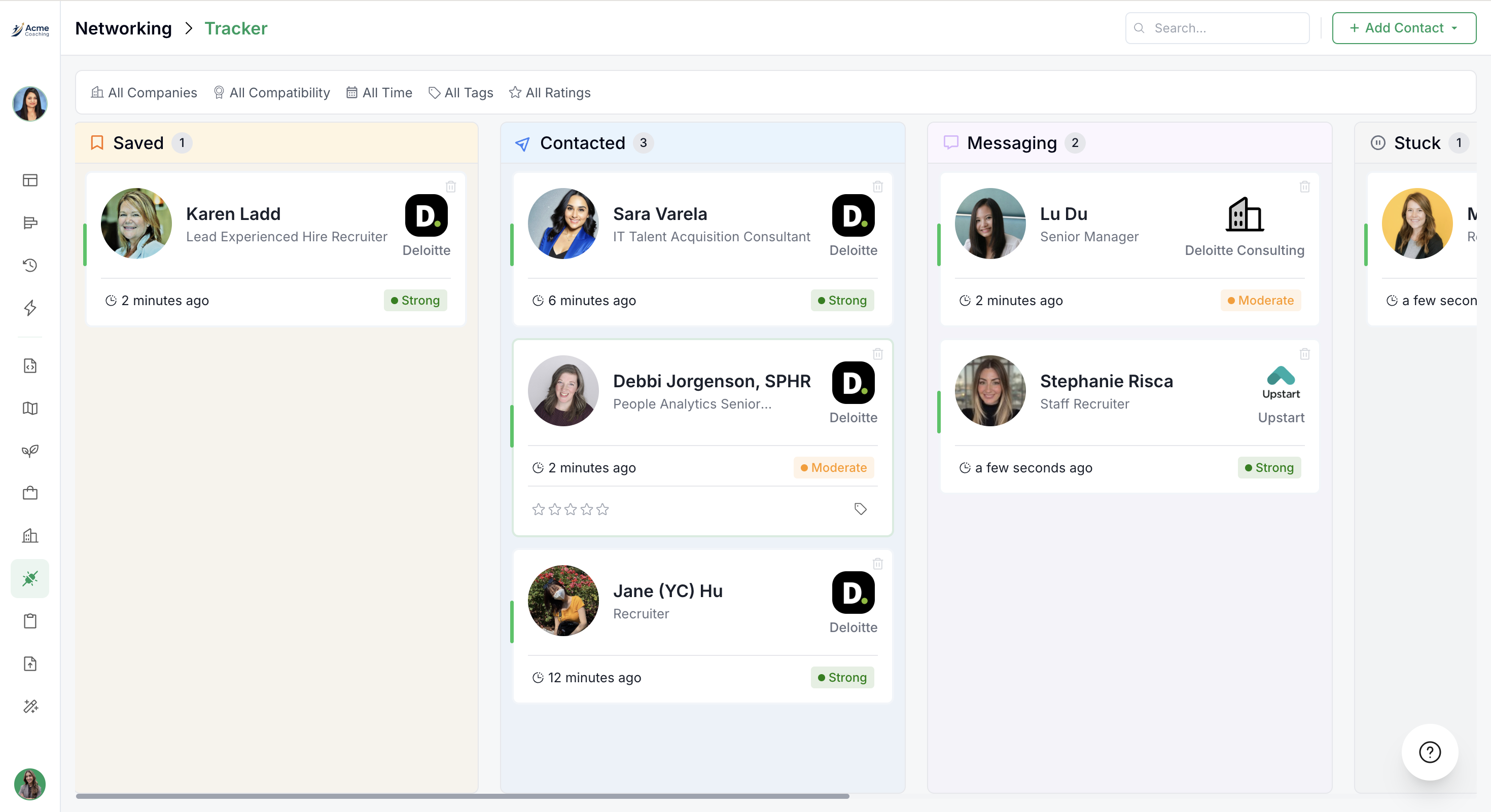
Drag and drop contact cards between columns as you progress through your outreach. This helps you maintain accountability and track how many connections you're actively nurturing.
Regularly updating your networking tracker helps you stay organized and demonstrates progress toward your 2x interviews goal.
Best Practices
Prioritize 1st and 2nd-degree connections for higher response rates
Customize the intro message based on commonalities identified in the analysis
Track your outreach in the Networking Tracker to maintain momentum
Adjust your strategy based on results—if you're not getting responses from team members, try hiring managers or recruiters
Use job-specific networking to target the most relevant contacts for each application
Video Walkthrough
Watch the complete demonstration of the Networking feature: