
Networking from Jobs and Companies
CoCareer makes it easy to discover and save networking contacts from multiple places in your workspace. You can find AI-suggested contacts directly from a job in your tracker, or from a company profile. This guide walks through both approaches and shows you how to manage your saved contacts in the Networking Tracker.
From a Job in the Job Tracker
When you have a specific job you are pursuing, CoCareer can suggest relevant networking contacts tied to that role. These suggestions come from AI analysis and include people like hiring managers, recruiters, and team members.
Step 1: Open the Job Tracker
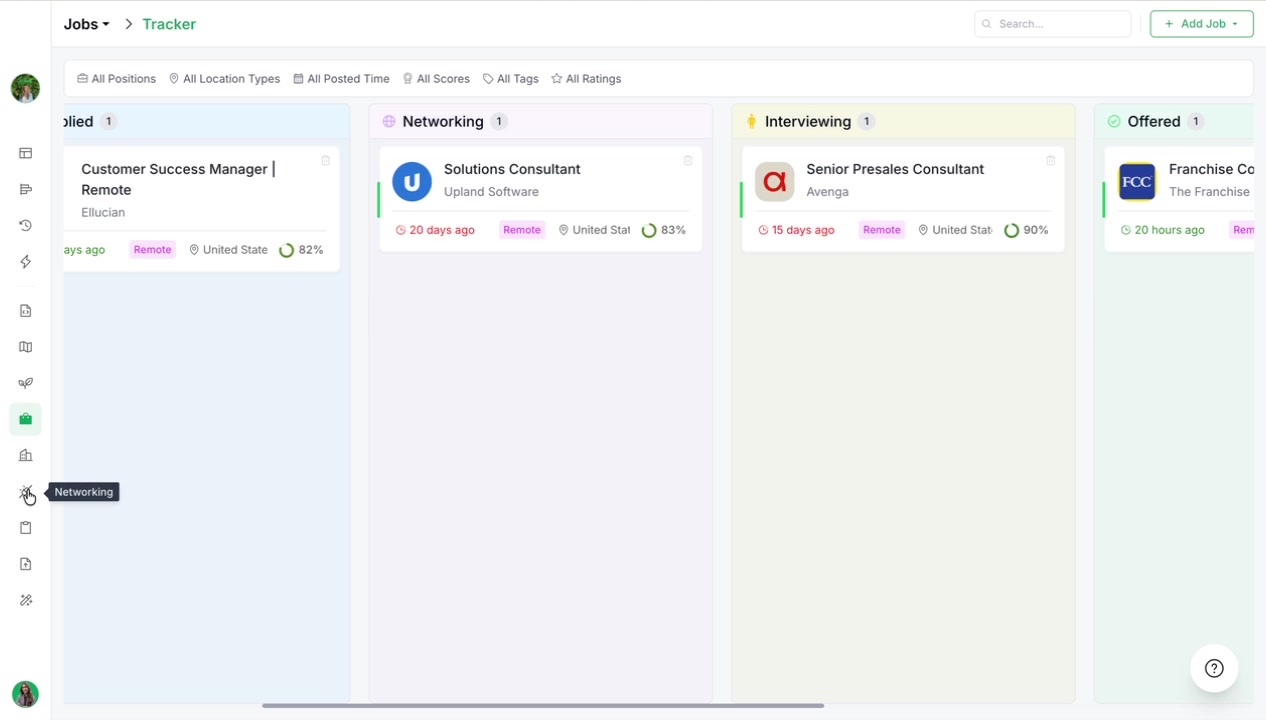
Navigate to Jobs in the main navigation and open the Job Tracker. You will see your jobs organized by status in columns such as Saved, Applied, Networking, Interviewing, and Offered.
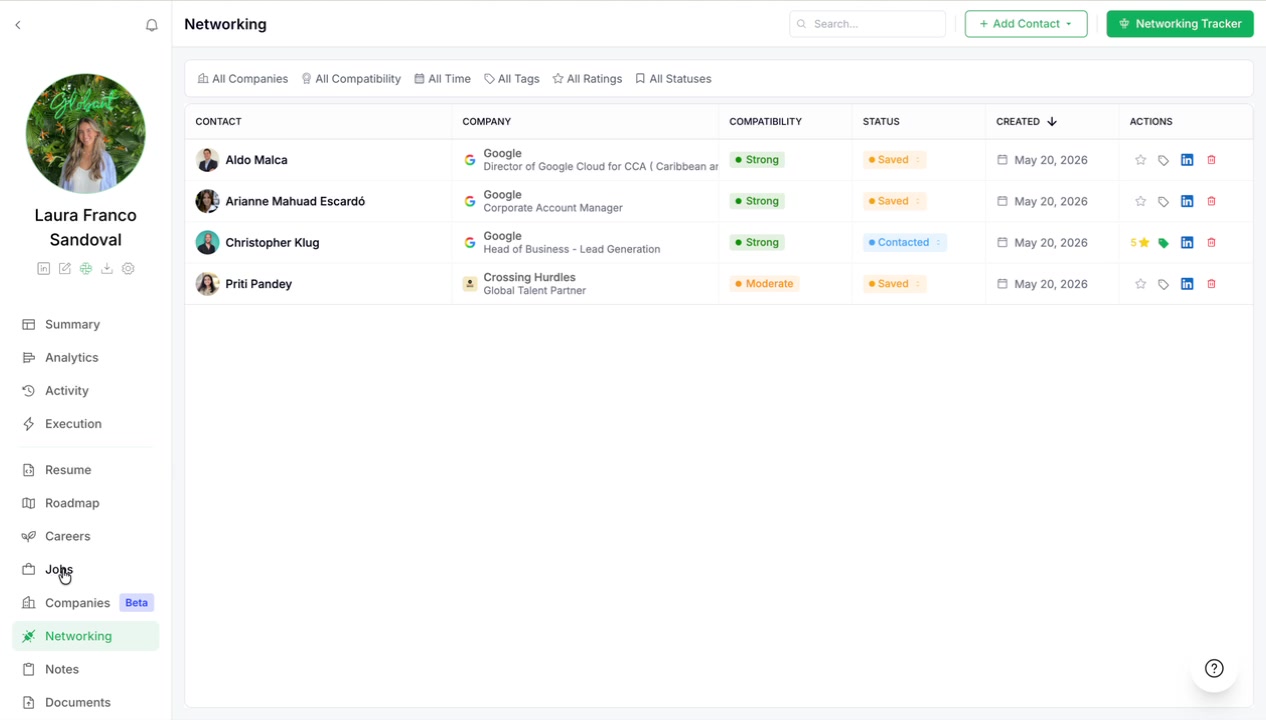
Step 2: Select a Job
Click on any job card to open the job detail sidebar. For example, you might select a Senior Presales Consultant role with a compatibility score shown in the sidebar.
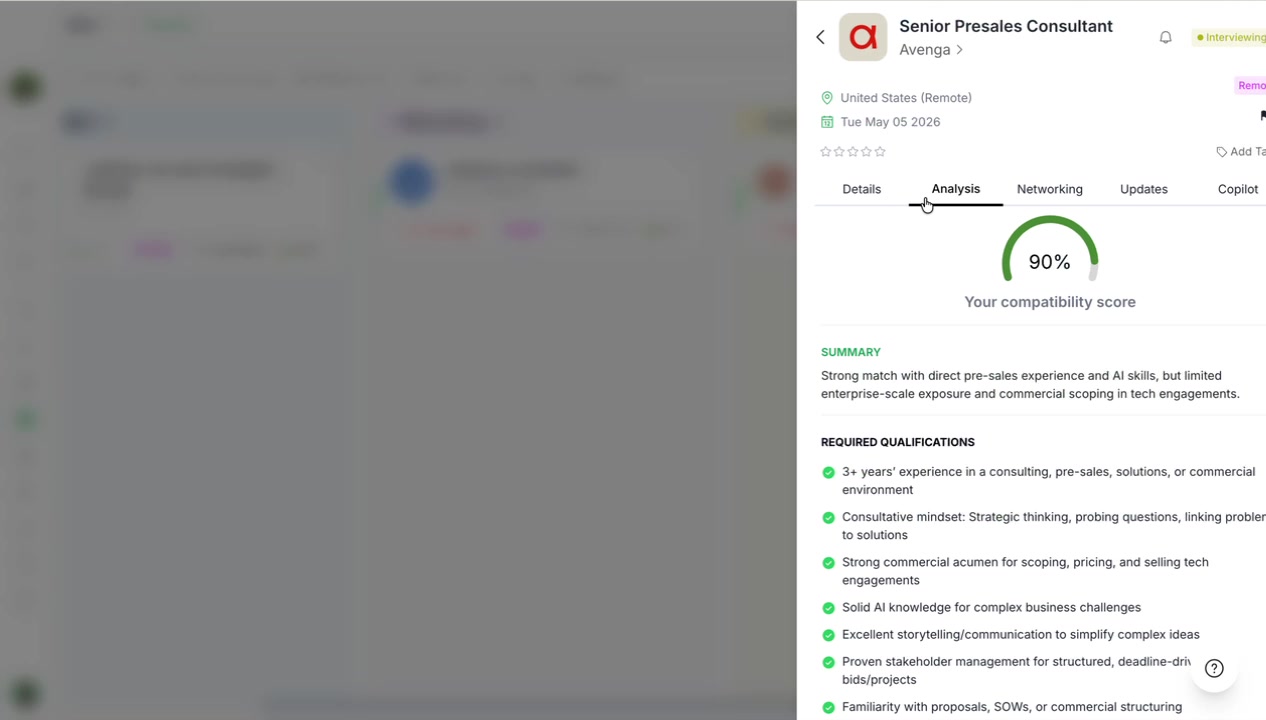
Step 3: Go to the Networking Tab
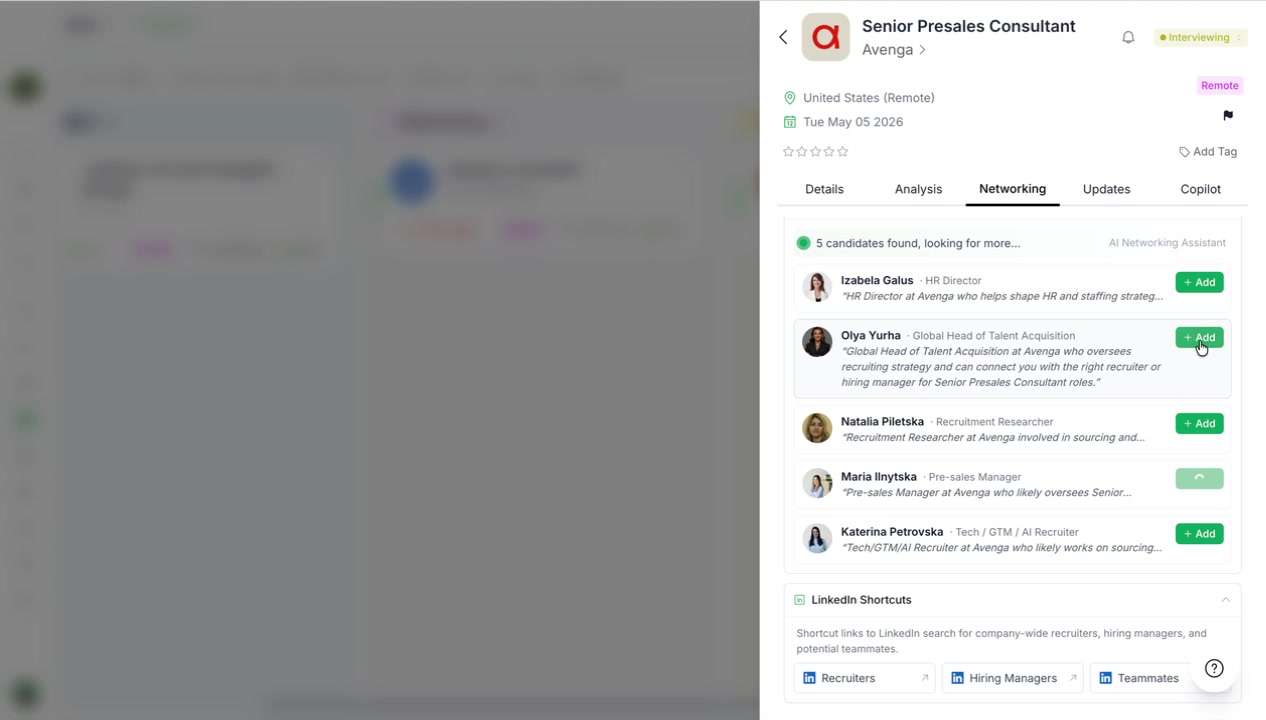
In the job detail sidebar, click the Networking tab. This shows AI-suggested contacts relevant to the role you selected. Each suggestion includes the person, their title, company information, and a compatibility indicator.
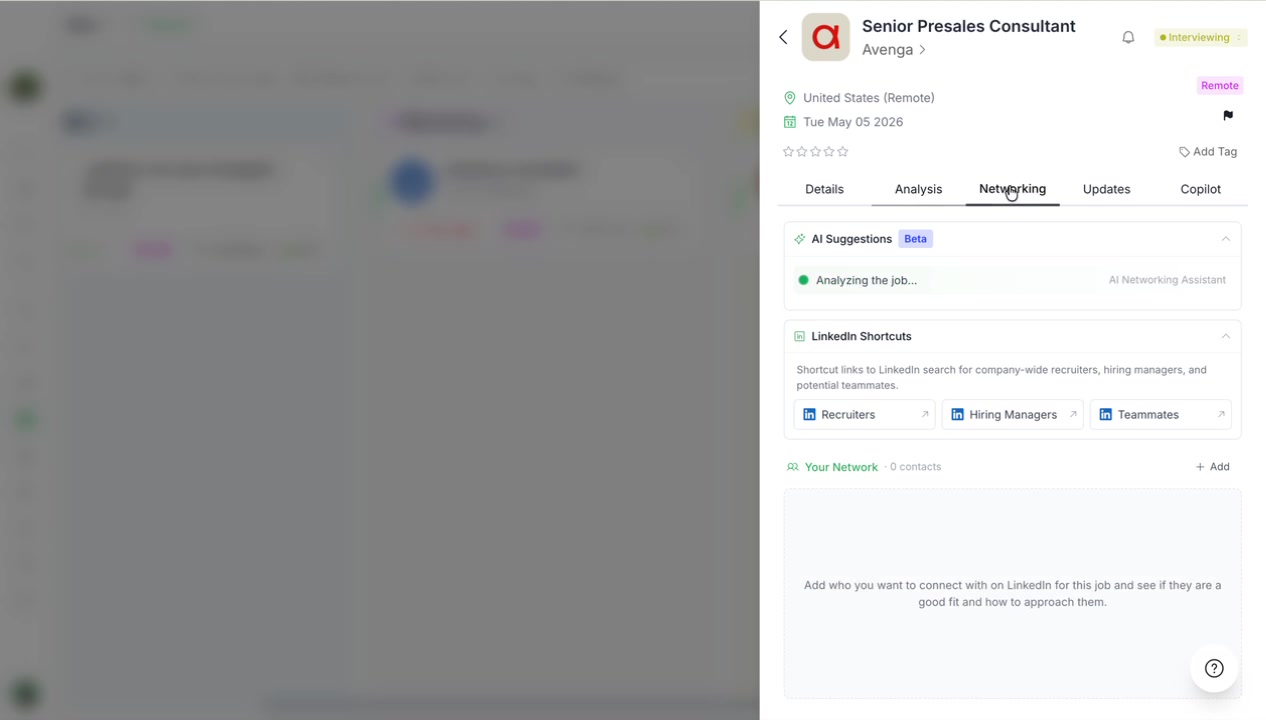
The suggestions are organized to show roles that could help with your application, such as:
HR Director
Global Head of Talent Acquisition
Recruitment Researcher
Pre-sales Manager
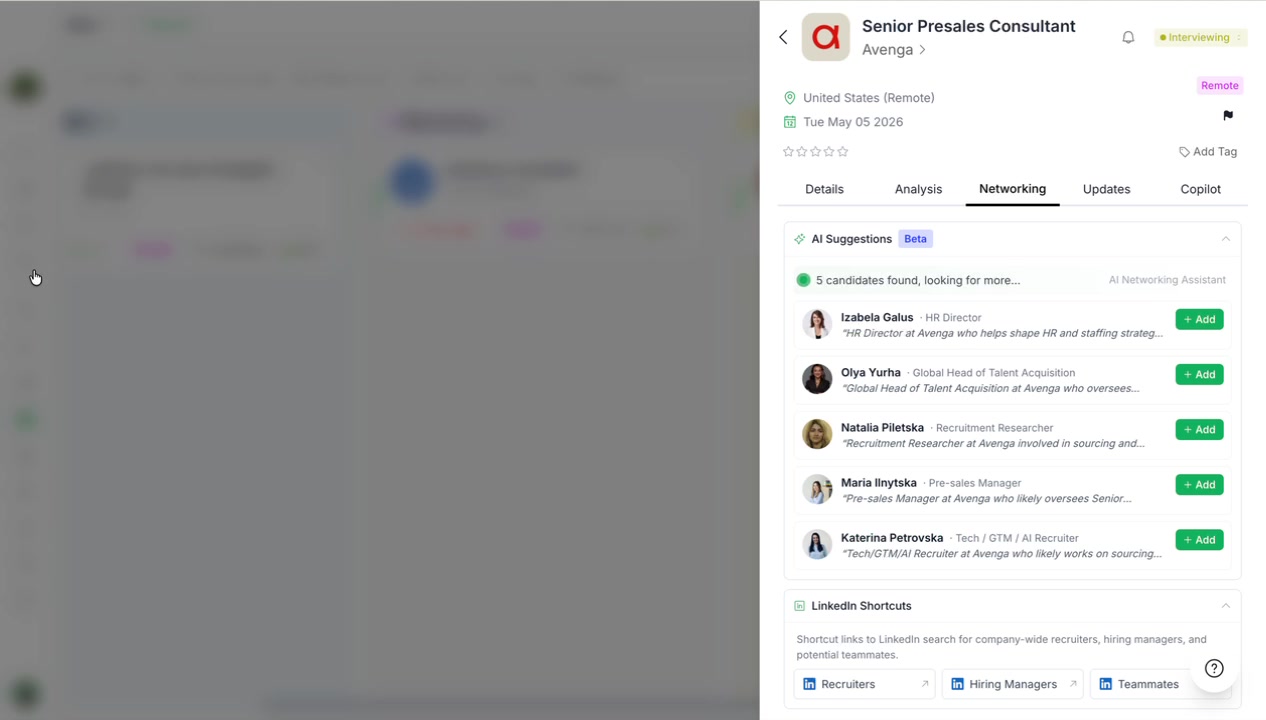
Step 4: Add Contacts to Your Network
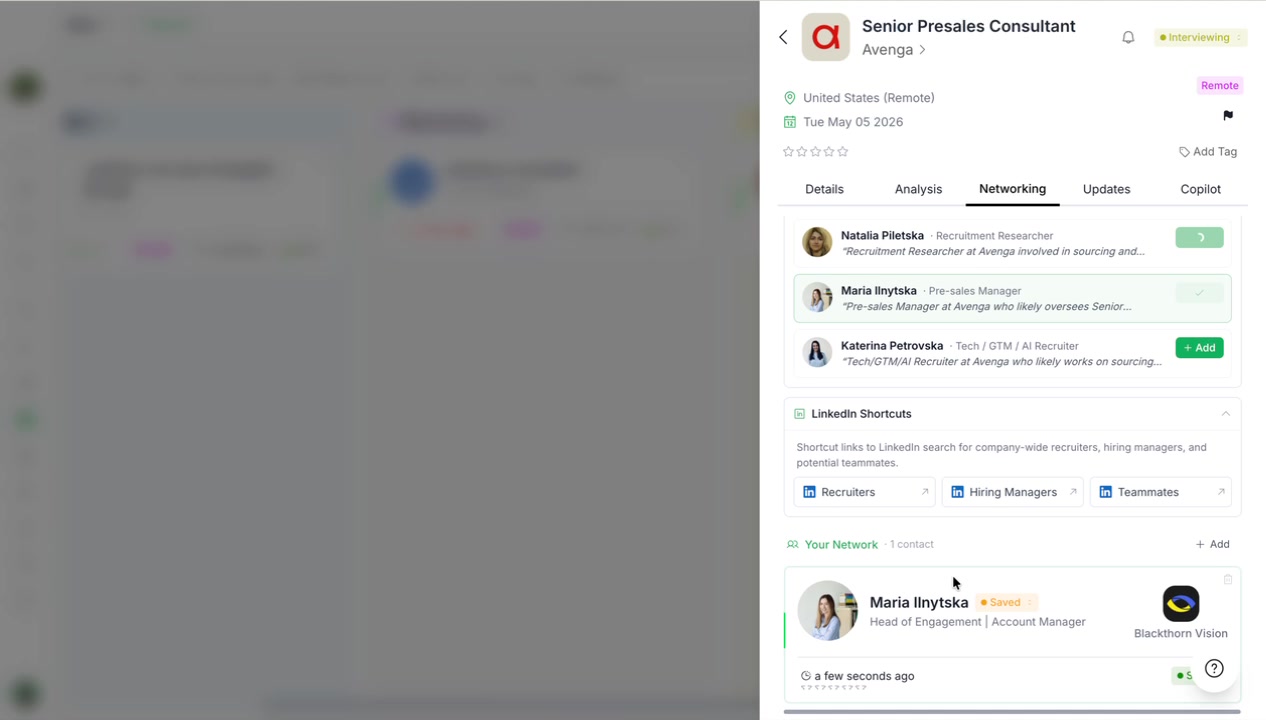
Click Add on any suggested contact to save them to your network. The contact is immediately added and ready for tracking.
Once added, the contact appears in Your Network section within the job view.
They arealso visible in the main Networking area of your workspace.
From a Company Profile
You can also discover networking contacts by company, independent of any specific job. This is useful when you want to build relationships at a target company across multiple roles.
Step 1: Open Companies
Navigate to Companies in the main navigation. You will see a list of companies you are tracking.
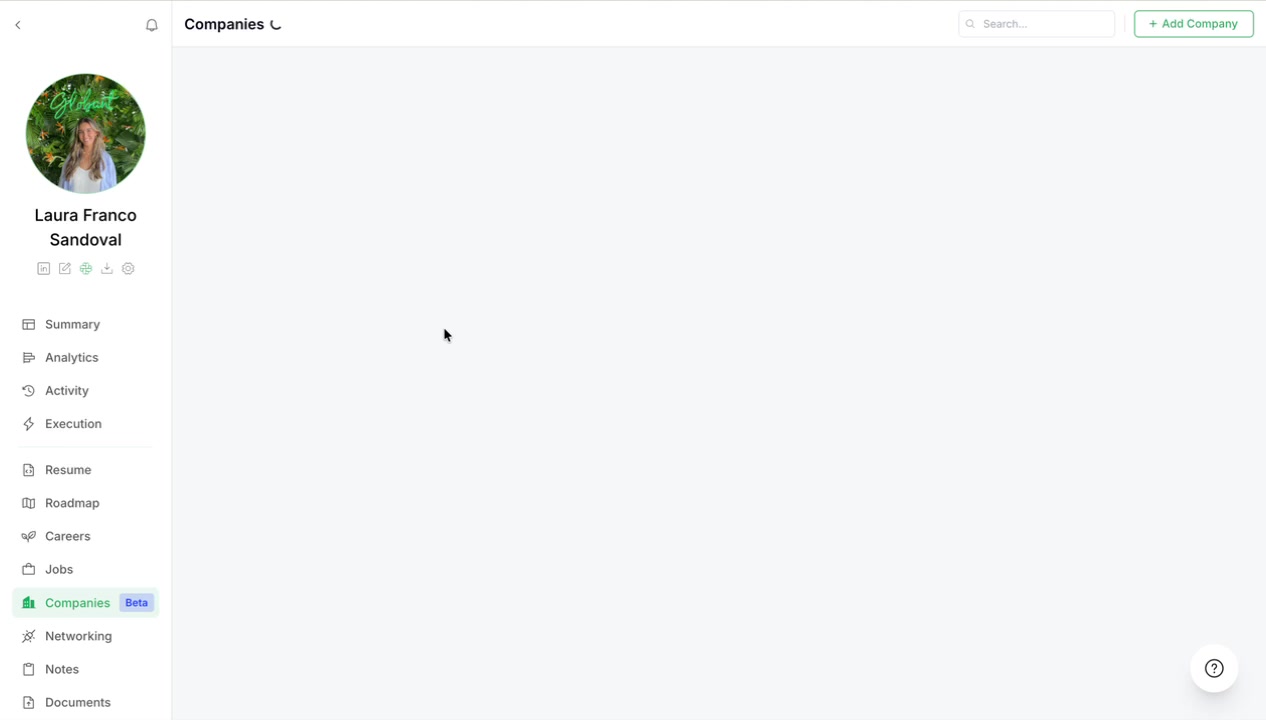
Step 2: Select a Company
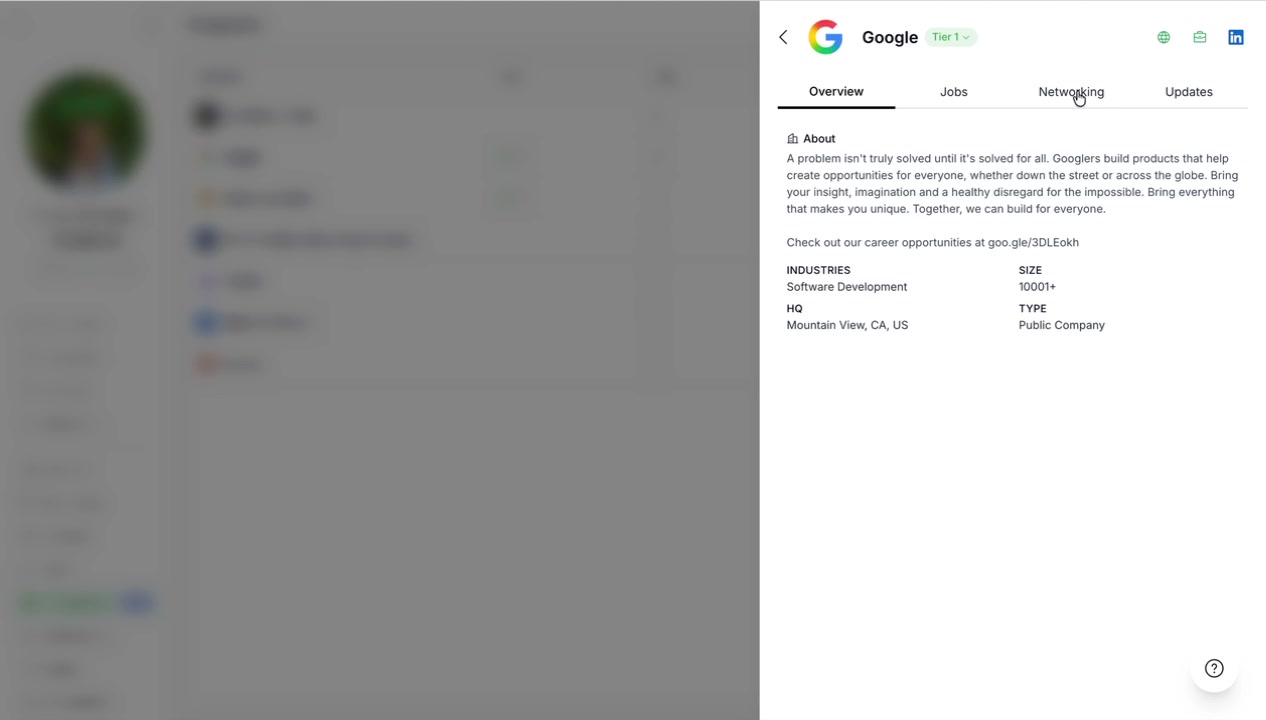
Click on a company to open its detail sidebar. For example, you might select Google to see company information and available tabs.

Step 3: Go to the Networking Tab
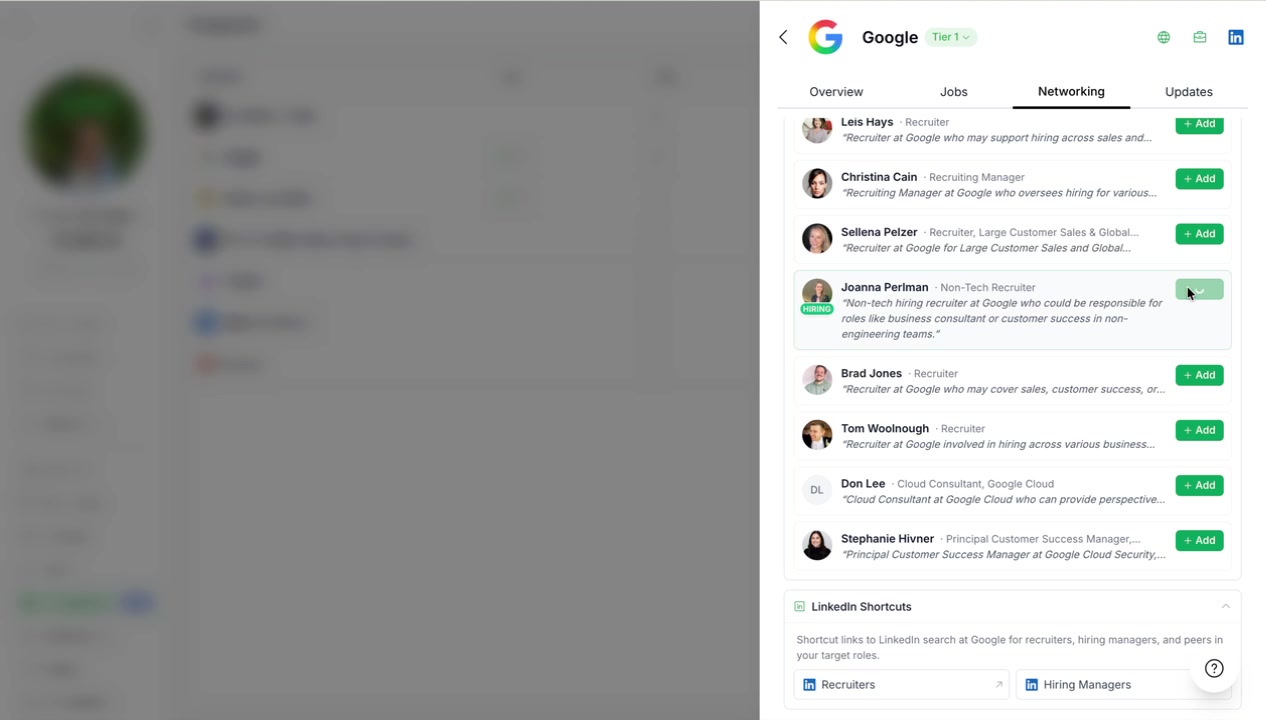
Click the Networking tab in the company detail sidebar. You will see AI-suggested contacts relevant to that company. As with job-based suggestions, these are curated to show people who may be valuable connections.
Step 4: Add Contacts to Your Network
Click Add on any contact to save them to your network.
The contact appears in the Your Network section within the company view.
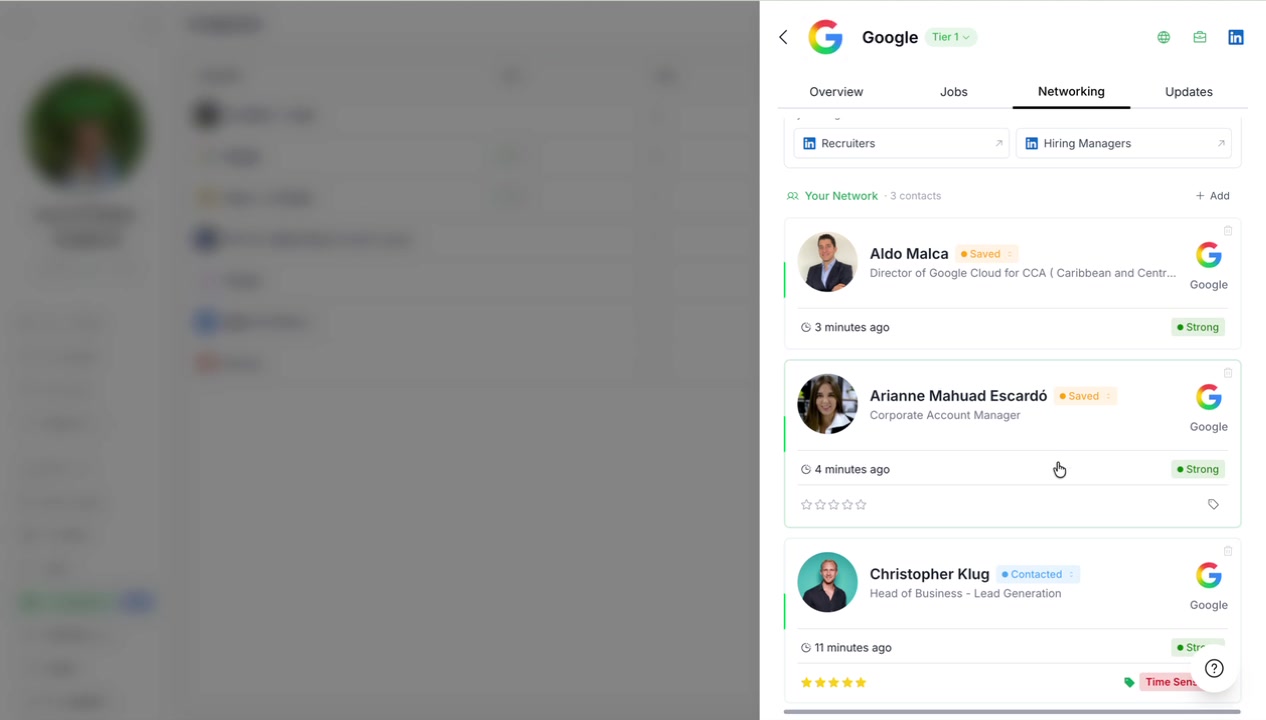
It also syncs to your main Networking area.
Summary
You can add networking contacts from three places in CoCareer:
From a job in the Job Tracker, navigate to the job detail sidebar and click the Networking tab
From a company in Companies, navigate to the company detail sidebar and click the Networking tab
From the main Networking area for direct contact entry and/or bulk import
All contacts sync to your main Networking area where you can use the Networking Tracker to manage your outreach pipeline. Move contacts through stages by dragging and dropping cards between columns.
Video Walkthrough
Watch the complete demonstration of networking from jobs and companies: