
Send Emails to Networking Contacts
The Email tab in each networking contact gives you verified contact information and AI-drafted outreach emails you can send directly through Gmail or Outlook. This guide shows you how to access verified emails, generate personalized email drafts, and send your outreach.
Access the Email Tab
From your Networking list, click any contact to open the contact detail panel. Select the Email tab to view contact information and email drafting options.
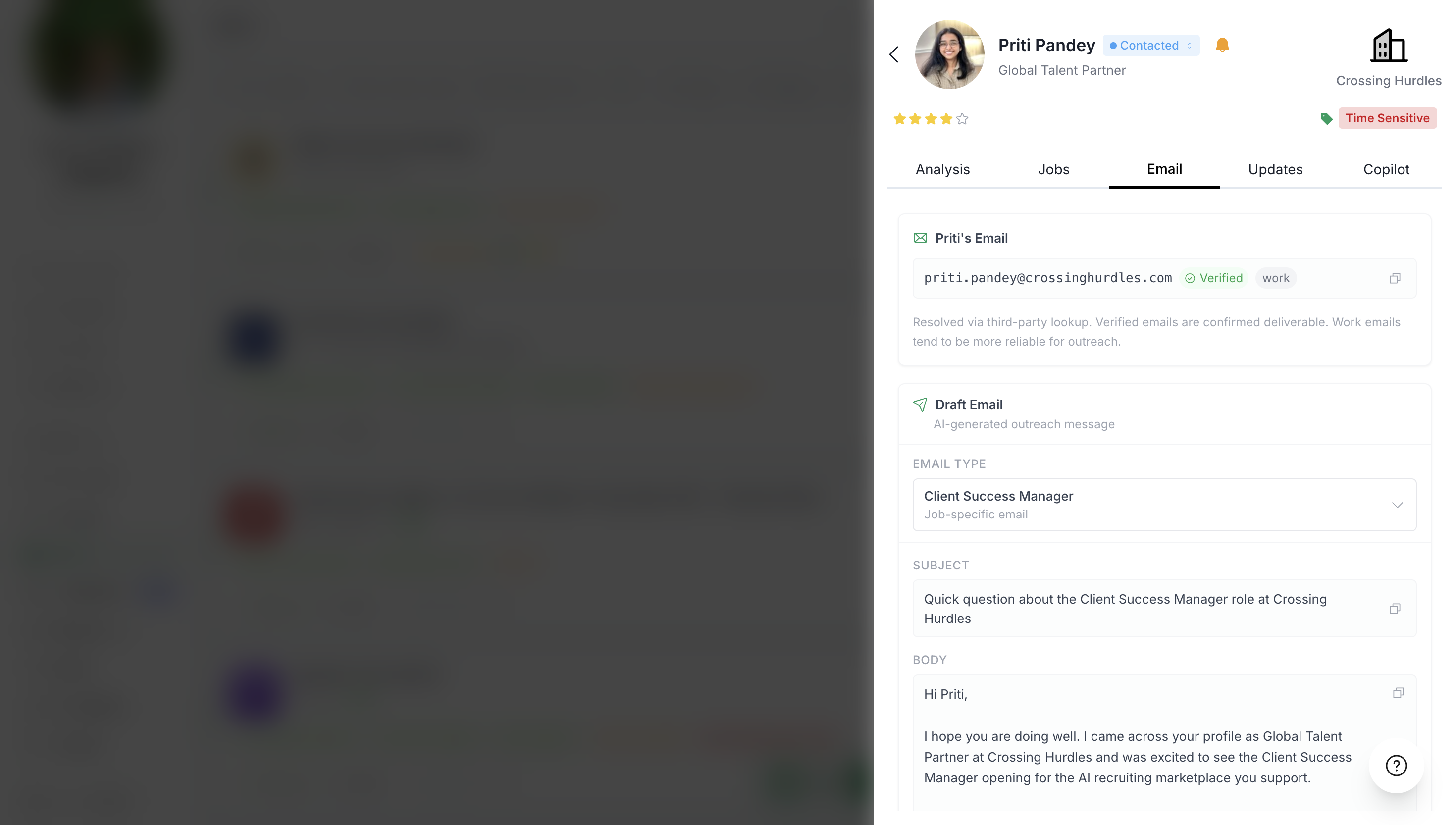
View the Verified Email
When available, CoCareer displays a verified email address for the contact. This saves you time searching for contact information across LinkedIn and other sources.
Verified emails are checked for deliverability, so you can confidently use them for outreach.
Generate an AI-Drafted Email
CoCareer can draft a personalized email based on the contact's profile and your relationship to them.
Choose an Email Type
Click the Email Type dropdown to select the context for your outreach:
General Networking – For broad networking outreach when you're not targeting a specific role
Job-specific options – Tailored to specific roles (e.g., Client Success Manager, Software Engineer) when you have a particular job in mind
Job-specific emails reference the relevant position and are more targeted than general networking messages.
Create the Draft
Click Create Email to generate your draft. CoCareer analyzes the contact's background, your commonalities, and the email type you selected to produce a personalized subject line and body.
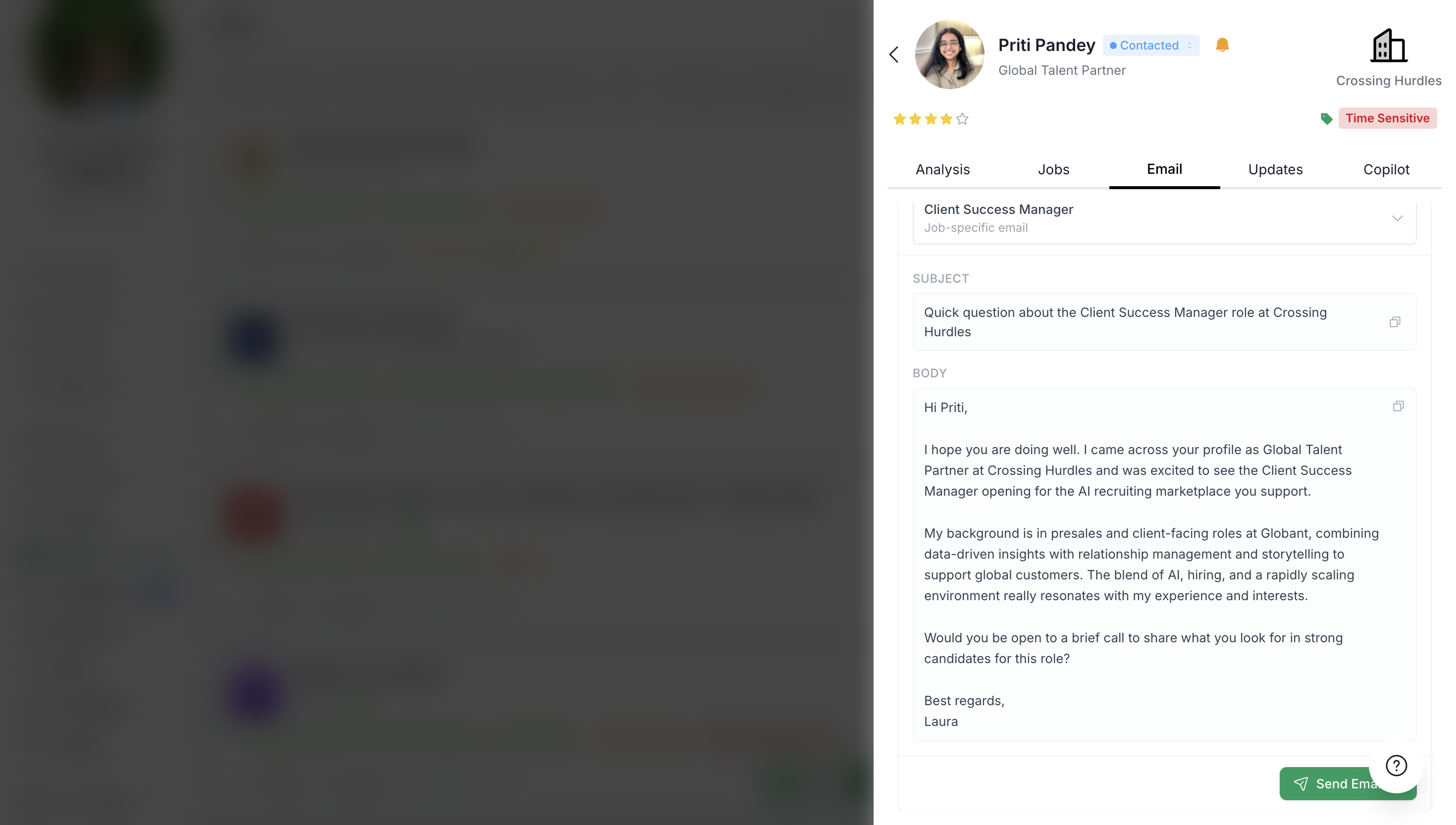
Review and Edit
Review the generated email carefully:
The subject line is crafted to get opened
The body references relevant commonalities and is tailored to the email type
You can edit both before sending from your email provider directly
Send Your Email
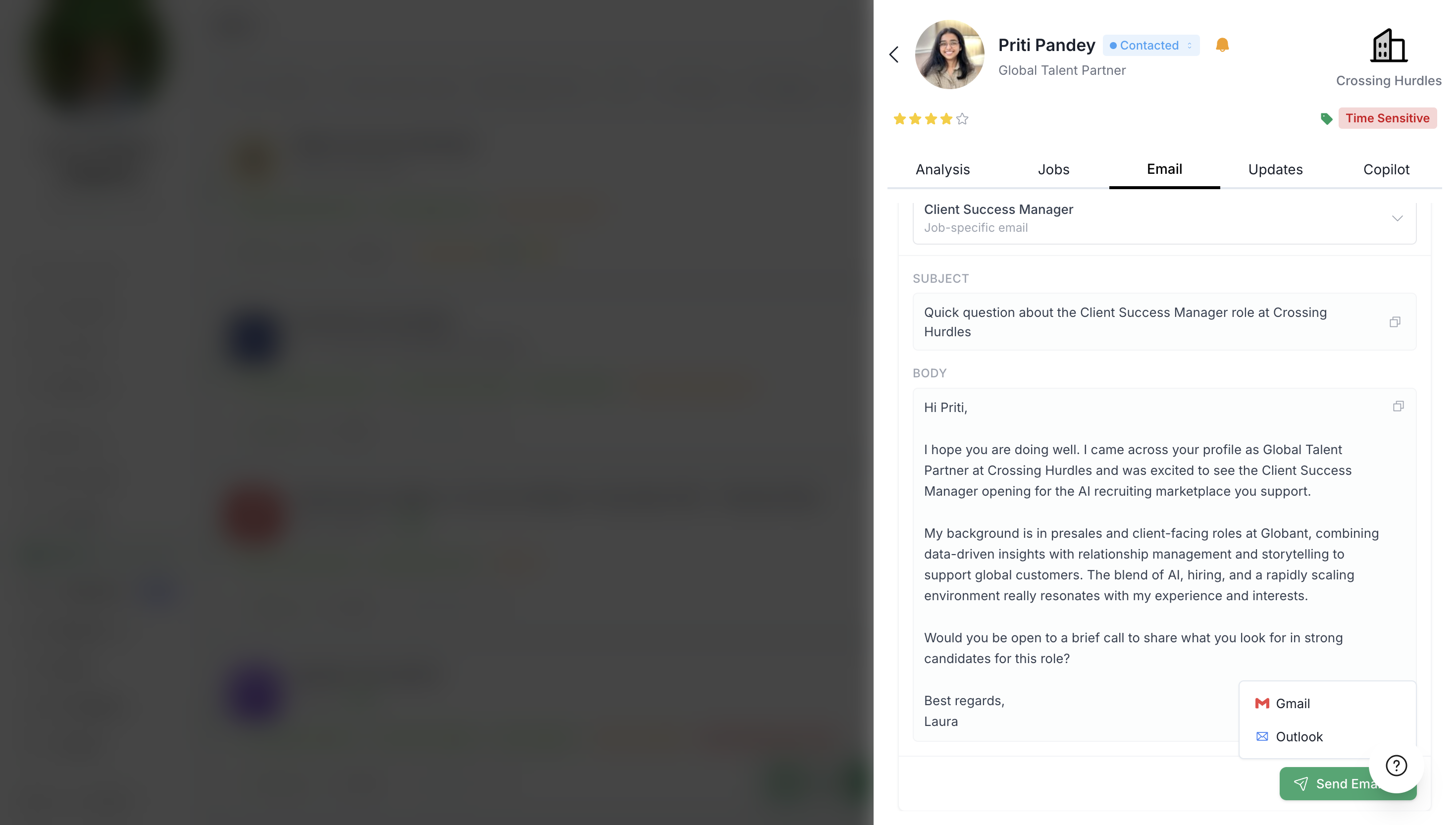
When you're happy with the draft, click Send Email to send through your preferred email client:
Gmail – Opens Gmail compose with the subject and body pre-filled
Outlook – Opens Outlook compose with the subject and body pre-filled
Review the final message in your email client and click send. This sends the email from your own email address.
You can also decide to copy and paste the email address, the subject and the email body instead of using our shortcut.
Video Walkthrough
Watch the complete demonstration of sending emails to networking contacts: